Prevent loading of stylesheets,images,subframes


Web applications accessed using the web browser connects to the server and downloads all the HTML components including images,cascading style sheets – css, frames and iframes as well via HTTP requests. All these content is downloaded from Server via internet via HTTP requests. This results in time for loading the webpages.
IS there any possibility in preventing loading of web application contents??
The answer is Yes, it is possible using Selenium WebDriver tool which helps in preventing loading of HTML components.
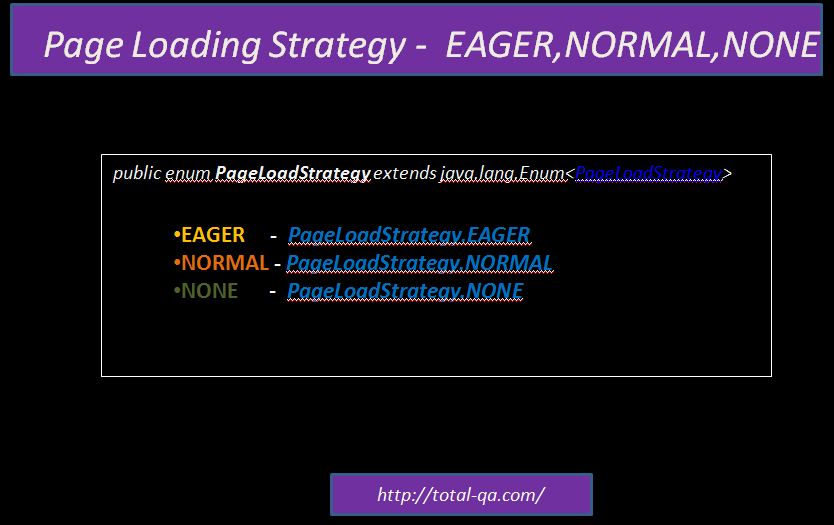
They are three ways of loading the Page

  • EAGER
  • NORMAL
  • NONE
Preventing Page Loading

Preventing Page Loading

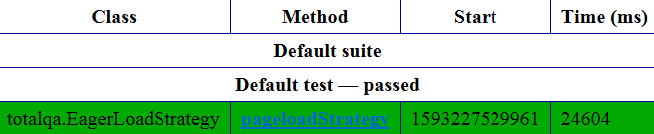
Page Loading Strategy: eager
Setting the Page Loading Strategy as eager, prevents loading of CSS,images and Subframes.

Refer to Time in milliseconds:

PageLoadingStrategy in Selenium WebDriver

PageLoadingStrategy in Selenium WebDriver


Page Loading Strategy: normal
Setting the Page Loading Strategy as normal loads the CSS,images and Subframes as well. It loads all the components in the webpage.

Refer to Time in milliseconds:
PageLoadingStrategy in Selenium WebDriver

PageLoadingStrategy in Selenium WebDriver


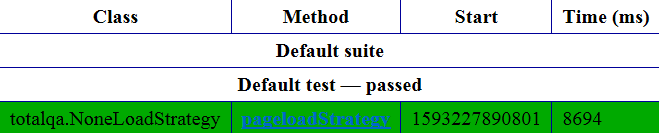
Page Loading Strategy: none
Setting the Page Loading Strategy as none waits until the initial page is loaded.

Refer to Time in milliseconds:
PageLoadingStrategy in Selenium WebDriver

PageLoadingStrategy in Selenium WebDriver

Conclusion:
Preventing the web page from loading the html components is achieved using the Selenium WebDriver API.
Validate tabular data against Excel Data

      No Comments on Validate tabular data against Excel Data


Map is a collection useful to store the things with a unique ID.Classes that implements Map are
HashTable,LinkedHashMap,HashMap,HashTable
.
The HashMap is unsorted and unordered Map and useful to store the null key as well.In this post we will focus on using HashMap for storing the values from the Excel and storing the values in another HashMap by reading the values using the automation tools like Selenium WebDriver. Comparing the two HashMap and display the results.

Real Time Example Scenario
Validate the stock prices displayed in the Rediff.com website
1. Read the data in the XLS file.
2. Store the data in HashMap1.
3. Read the data using Selenium Webdriver.
4. Store the data in HashMap2.
5. Compare the values stored in the two HashMaps.
Store the data in the XLS in rows and columns as mentioned below:

HDFC Bank
1,031.35

SBI
184.45

Create a Maven Project in Eclipse
Add the following dependencies in the pom.xml

Expected Result:
Comparison of HashMap is successful.

@DataProvider being a MySQL DataBase- JAVA,Selenium,Real time examples


In TestNG we use the @DAtaProvider for passing the data values to the testcases. In majority of these cases the Data source used as an two dimensional Array,XLS or XLSX.
In this post we will look into the example where the Data source is MYSQL. For using the MYSQL to read the contents of the DB we have to use the following dependency in the maven pom.xml.
MYSQL Connector Dependency

Preconditions:

  1. Install MYSQL in the laptop. Refer to the

    link

    for more details on installation,configuration and examples on MYSQL.

  2. Open Workbench and make sure the MYSQL server is started.

for more information on installation.

DataProvider Example using DataSource as MYSQL

Refer to the pom.xml details as mentioned below:

OUTPUT

PASSED: login(“james”, “1000”)
PASSED: login(“john”, “2000”)

@Test Attributes TimeOut,expectedExceptions,invocationCount Attributes in Testng


TestNG is a testing framework mainly used for unit testing of the Java projects. The Testng has pre-defined annotations and attributes associated with the annotations would help to verify the application accordingly as per the expected result. The following attributes are applied for @Test attribute

  1. timeOut
  2. expectedExceptions
  3. invocationCount

timeOut Attribute:

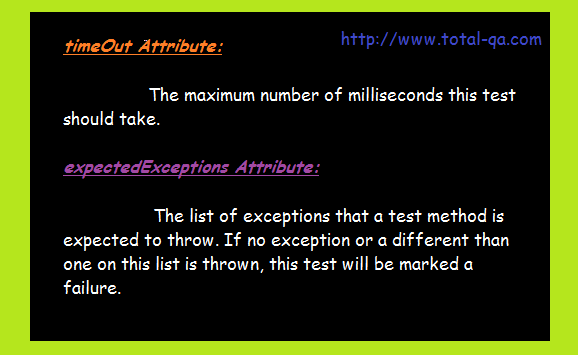
The maximum number of milliseconds this test should take. If the execution time of the test case takes more than the timeOut value provided, the test case will Fail.

timeOut Attribute Example


timeOut,expectedExceptions Attribute

timeOut,expectedExceptions Attribute


expectedExceptions Attribute:

The list of exceptions that a test method is expected to throw. If no exception or a different than one on this list is thrown, this test will be marked a failure.

expectedExceptions Attribute Example:


invocationCount Attribute:

The number of times this method should be invoked.

invocationCount Attribute Example

Copy,Xcopy,RoboCopy,RmDir Commands to copy and remove files and folders in Windows


In this tutorial we will discuss about the commands to copy and remove the files and Directories in Windows with different options and examples.

  1. COPY
  2. XCOPY
  3. ROBOCOPY
  4. RMDIR

COPY Command:

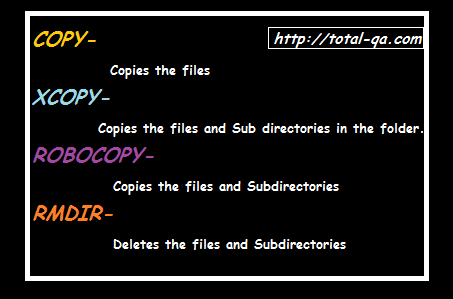
copy command in windows copies the files from one directory to another directory. It also helps to combine files where multiple files as a source and single file as a destination.
Syntax:
COPY source destination
COPY source1+source2 destination

Copy a file in the Current Folder:
copy abc.txt new_file.txt

Copy from a different folder to directory:
copy C:\Dir1\abc.txt C:\Dir2\new_file.txt

Copy Multiple Files as a Source and Single file as a destination:
copy file1.txt+file2.txt file3.txt

COPY,XCOPY,ROBOCOPY,RMDIR

COPY,XCOPY,ROBOCOPY,RMDIR

XCOPY Command:

Copies the files and directories into another directory.
Syntax:
XCOPY source destination [options].

They are so many options available. We will see few of them which would be helpful

/S Copy folders and subfolders
xcopy C:\Dir1\Dir2 c:\Dir3 /S

/P Prompt before creating each file.

/C Continue copying if error occurs.

Xcopy Limitation:Insufficient Memory Error

Xcopy fails with an “insufficient memory” error when the path plus filename is longer than 254 characters. The alternative to Xcopy is Robocopy.

ROBOCOPY Command:

Its a Robust File and Folder Copy.
Syntax:
ROBOCOPY source_folder destination_folder [options]
They are so many options available. We will see few of them which would be helpful.
/E: Copy Subfolders, including Empty Folders

Skipped Files:

During the copy of files, some of the files which are empty are Skipped. To overcome this issue use the following Option.
/MIN:n : MINimum file size – exclude files smaller than n bytes.

Example:
ROBOCOPY source_folder destination_folder /E /MIN:0

RMDIR Command

Deletes files and folders.
Syntax:
RD path [options]

/S : Delete all files and subfolders

/Q : Quiet – do not display Y/N confirmation

Example:
Deletes the Folder dir2 and subfolders with-in the dir2 with out prompting the confirmation.
rmdir /S /Q C:\dir1\dir2

Execute Selenium WebDriver Tests from Jenkins 2.0 Pipeline


Pipelines allows Jenkins to support continuous integration (CI) and Continous Delivery (CD). Pipeline are nothing but the Jenkins jobs the simple text scripts are based on Groovy Programming language. Pipeline terms such as “Step”, “Node” and “Stage” are subset of vocabulary using in Jenkins.

Step:
It defines the Single task which is part of the sequence tell Jenkins what to do.

Node:
A “node” means any computer that is part of your Jenkins installation.

Stage:
A “stage” is comprised of one or more build steps.

Pre-requisites:
Download Jenkins 2.0 from this link https://jenkins.io/download/ which is recommended.
Core Pipeline Plugin

Plugin Name – Pipeline:
In this tutorial we will learn about using Pipeline plugin and its usage.
It allows Jenkins to execute the Pipeline API and Basic Steps.
Download the Pipeline Plugin from this link https://wiki.jenkins.io/display/JENKINS/Pipeline+Plugin

SCM’s:
Git Plugin

Cloud Plugins{optional}:
Docker
ec2
Jenkins Environmental Variables:
echo “BUILD_NUMBER” :: $BUILD_NUMBER
echo “BUILD_ID” :: $BUILD_ID
echo “BUILD_DISPLAY_NAME” :: $BUILD_DISPLAY_NAME
echo “JOB_NAME” :: $JOB_NAME
echo “JOB_BASE_NAME” :: $JOB_BASE_NAME
echo “BUILD_TAG” :: $BUILD_TAG
echo “EXECUTOR_NUMBER” :: $EXECUTOR_NUMBER
echo “NODE_NAME” :: $NODE_NAME
echo “NODE_LABELS” :: $NODE_LABELS
echo “WORKSPACE” :: $WORKSPACE
echo “JENKINS_HOME” :: $JENKINS_HOME
echo “JENKINS_URL” :: $JENKINS_URL
echo “BUILD_URL” ::$BUILD_URL
echo “JOB_URL” :: $JOB_URL

Note:
Any of the Jenkins Environmental Variables are used in the Pipeline Script in the following way:
echo ${env.BUILD_NUMBER}

Creating a Simple Pipeline Script:

1. Open the Jenkins Home Page URL. Click on New Item in Jenkins home Page.

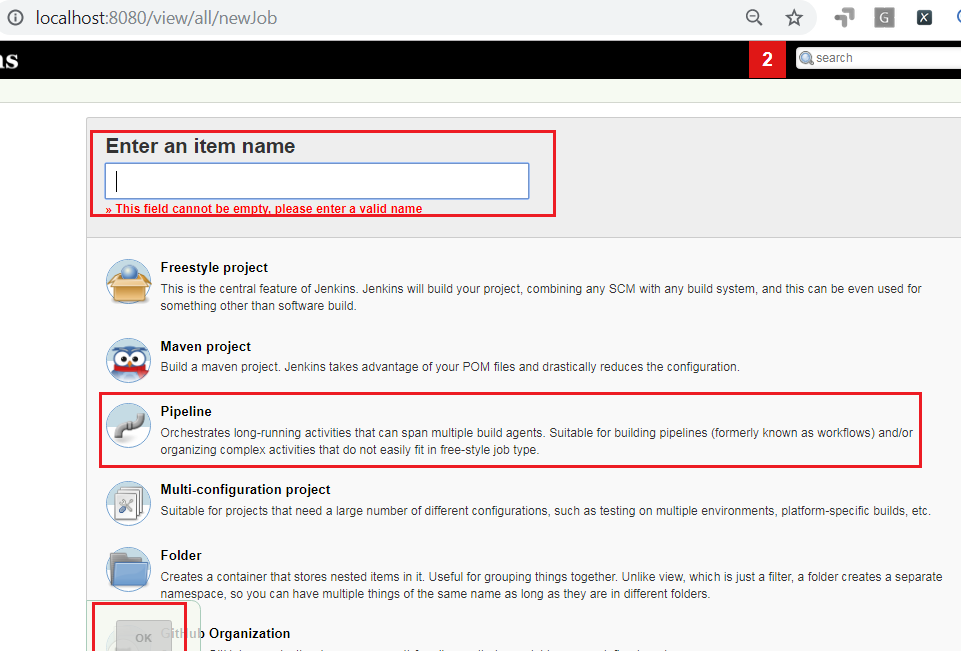
2. Provide the new item name. Select the Pipeline option. Click on OK button.

Jenkins Pipeline Script Example

Jenkins Pipeline Script Example

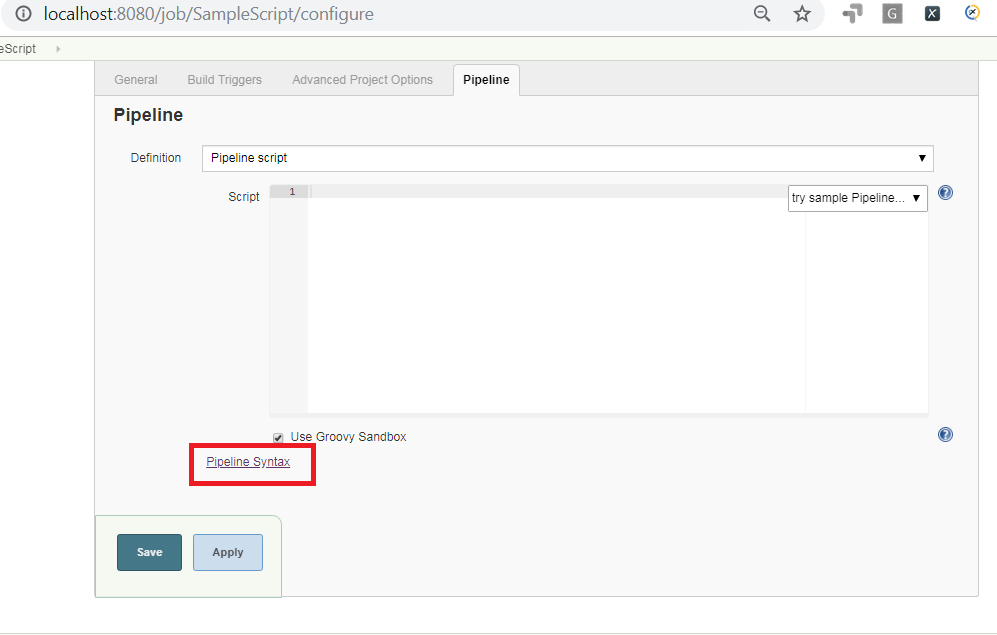
3. Open the Jenkins job created in Step2. Click on Configure->Pipeline Syntax link to generate the Script automatically.

Pipeline Syntax Example

Pipeline Syntax Example

3. Create a Jenkinsfile with the pipeline script mentioned below:

Github Repository-> Link

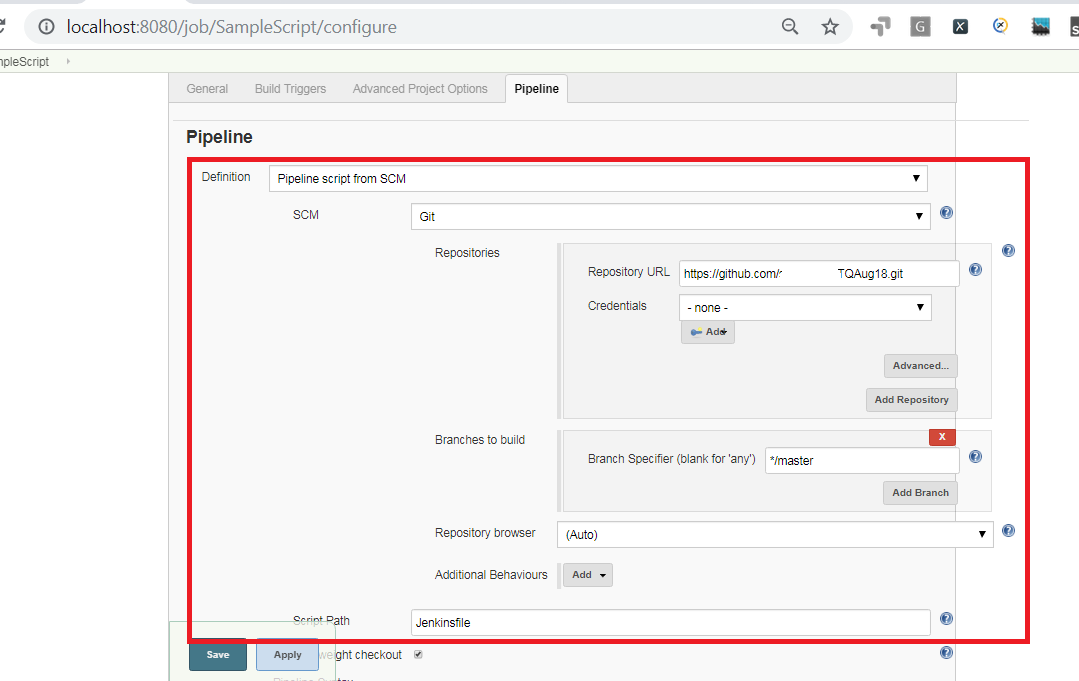
4. Configure the Jenkins job created in Step2. Refer to the Jenkinsfile from the Github Repository.

Jenkins Pipeline SCM Configuration

Jenkins Pipeline SCM Configuration

5. Click on Build Now to execute the Job Successfully.

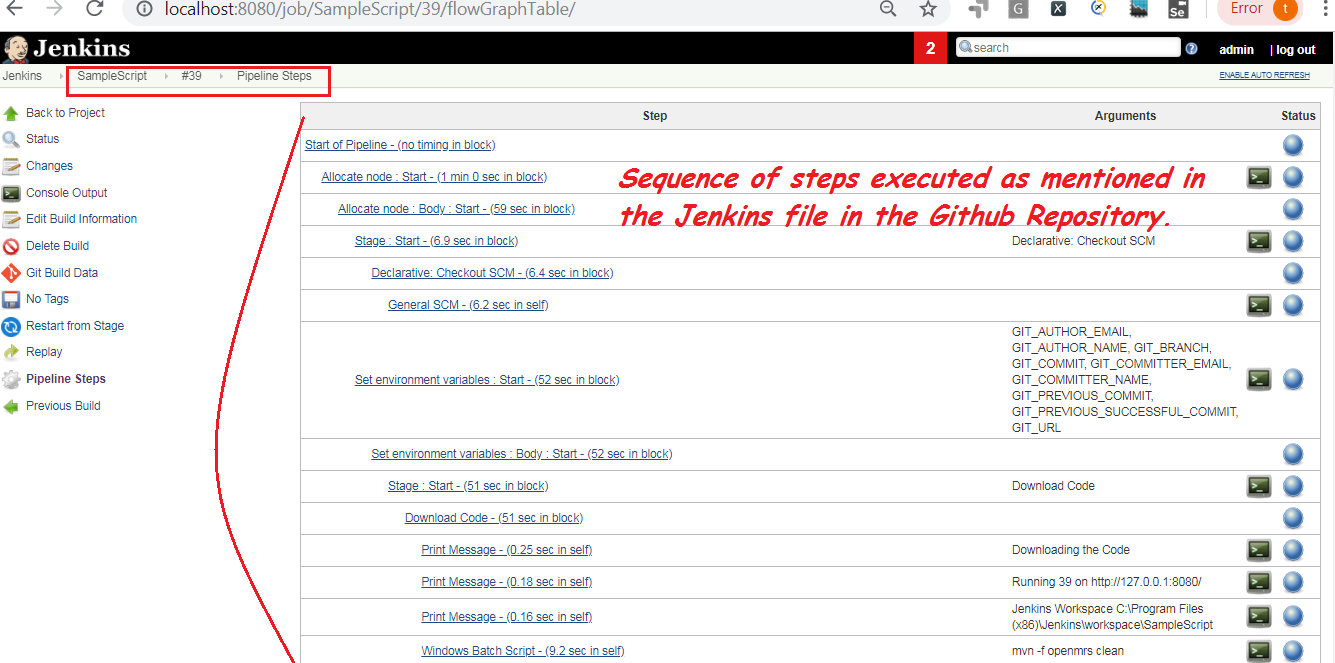
6. Open the JOB Console to view the Results.

JenkinsfileExecution

JenkinsfileExecution

Uploading the Sonarlint results to SonarQube[Cloud Server]


Before getting into this tutorial please read the information about the Sonarlint by clicking on this link.
Sonarlint helps the developer analyzes the code quality on the fly and displays the scan results. Now the Question is, would it be possible to push these results to SonarQube.

What is SonarQube??

SonarQube provides the capability of displaying the results in a Dashboard. And it also helps to configure the Quality Gate to improve the Code Quality. If we want to publish the results from Sonarlint to SonarQube the code does not require any compilation. Once the code scans are done we can push the results directly into SonarQube.

Bind the Sonarlint to SonarQube:

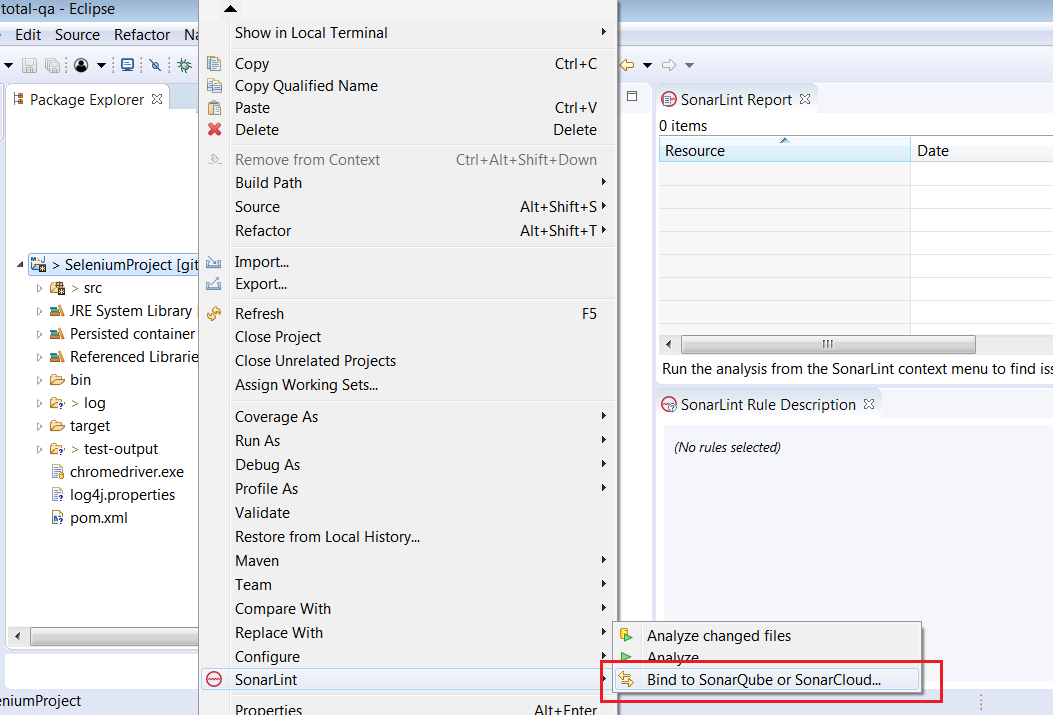
Right click on the project in Eclipse Select Sonarlint->Bind to SonarQube to SonarCloud option as mentioned below:

Binding Sonarlint to SonarQube or SonarCloud

Binding Sonarlint to SonarQube or SonarCloud

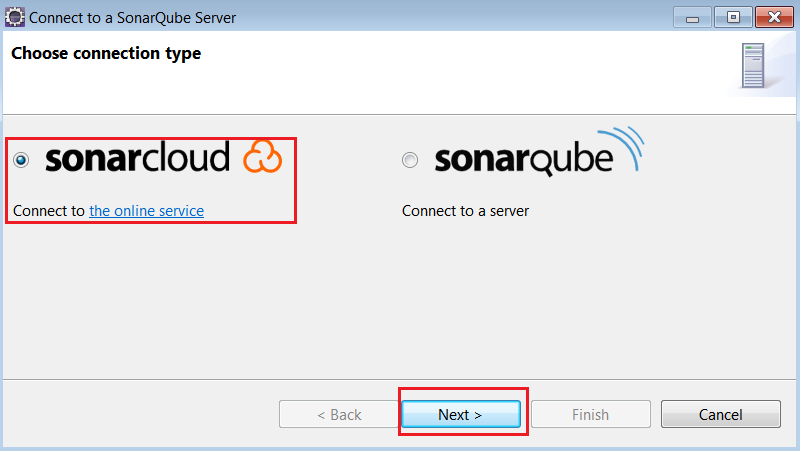
Select the connection type as SonarCloud and click on Next button.

SonarCloud Connection

SonarCloud Connection

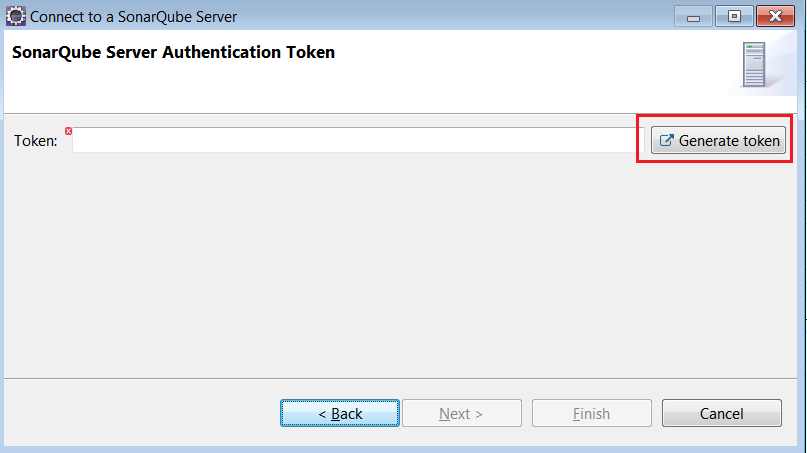
Provide the Token generated from SonarCloud Server in the mentioned dialog box.

GenerateToken

GenerateToken

Access the SonarCloud server URL https://sonarcloud.io/projects as mentioned below.
Click on Analyze new project button and

SonarCloudServer-Analyze New Projects

SonarCloudServer-Analyze New Projects

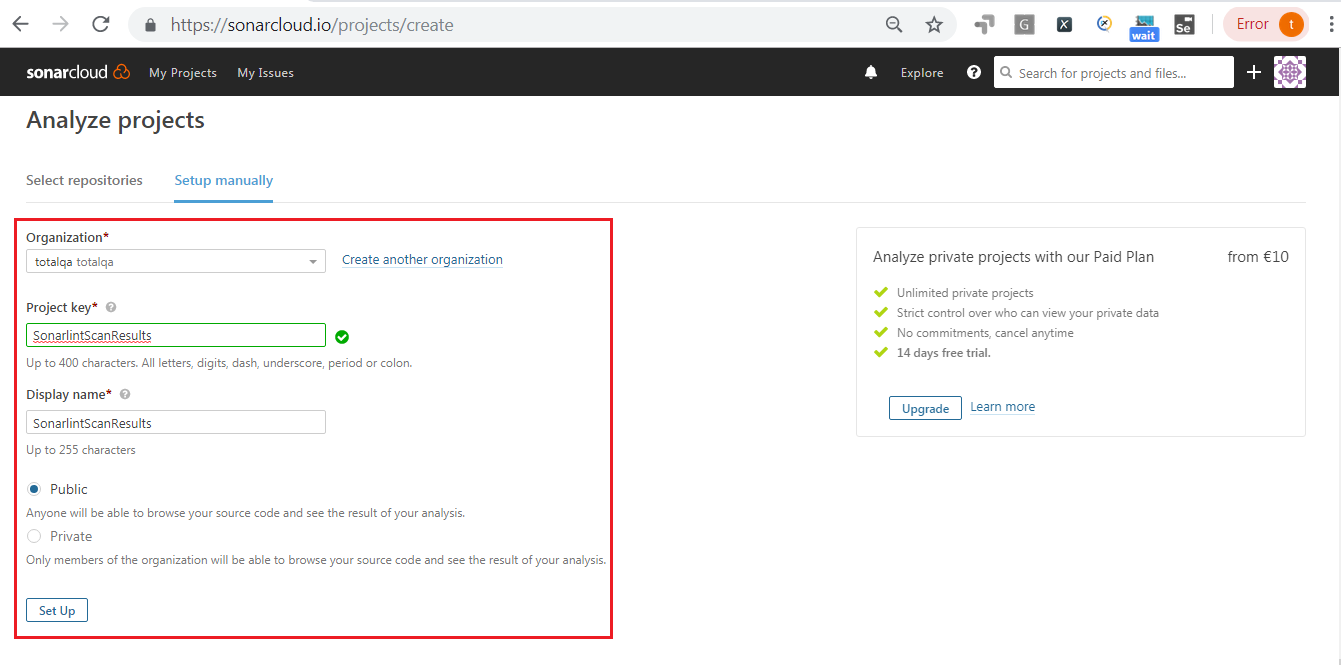
Provide all the required information and click onSet Up button.

AnalyzeProjects -SonarCloudServer

AnalyzeProjects -SonarCloudServer

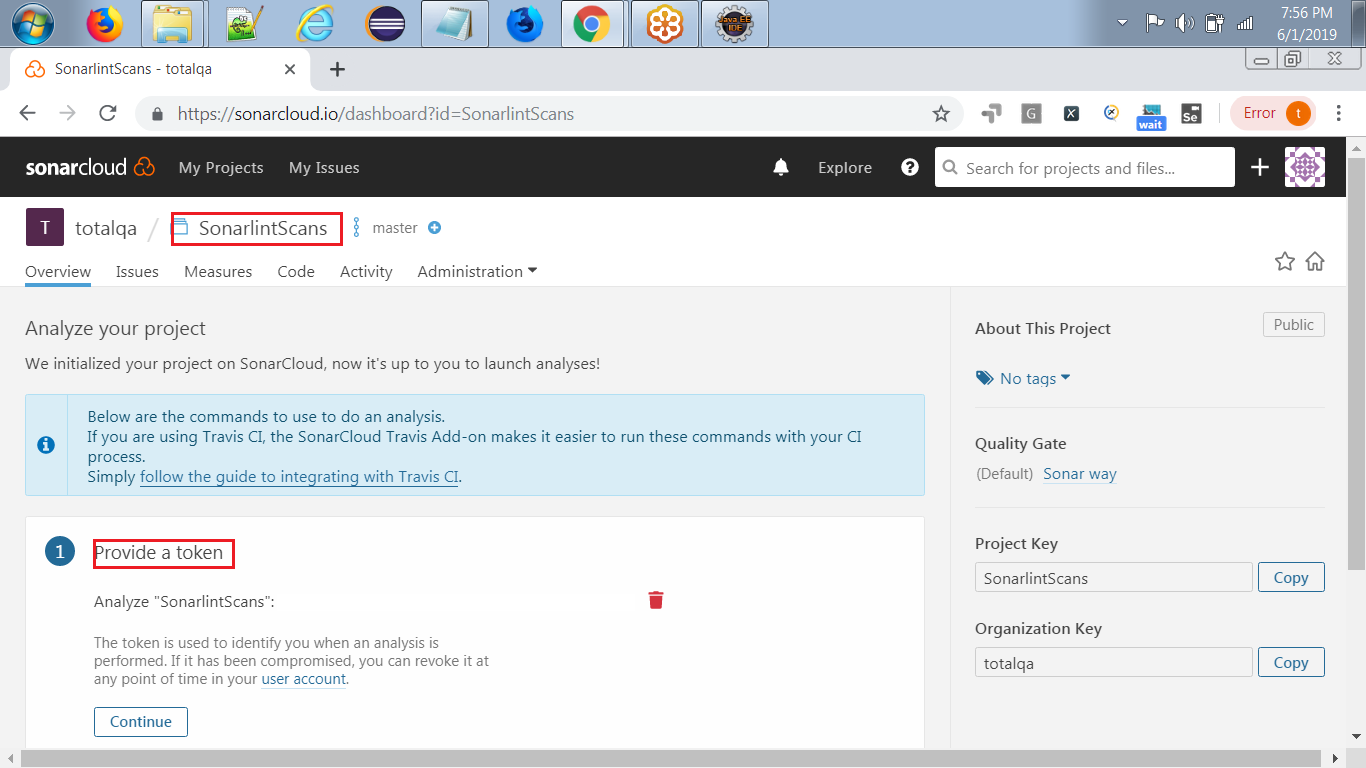
Click on the Generate button for generating new token.

GenerateToken

GenerateToken

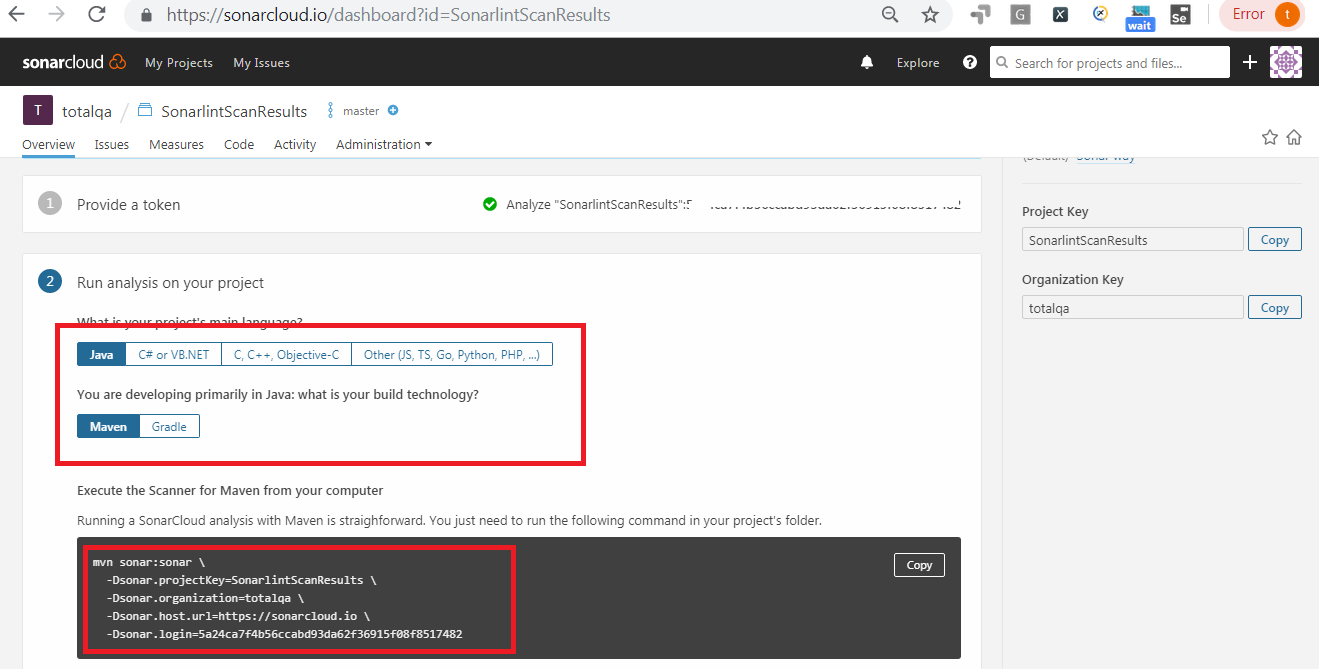
Run the analysis on your project.

Sonar Cloud - Run Analysis

Sonar Cloud – Run Analysis

Execute the Command from the Command line to push results of Sonarlint to the SonarQube Cloud.

mvn sonar:sonar \
-Dsonar.projectKey=SonarlintScanResults \
-Dsonar.organization=totalqa \
-Dsonar.host.url=https://sonarcloud.io \
-Dsonar.login=5a24ca7f4b56ccabd93da62f36915f08f8517482

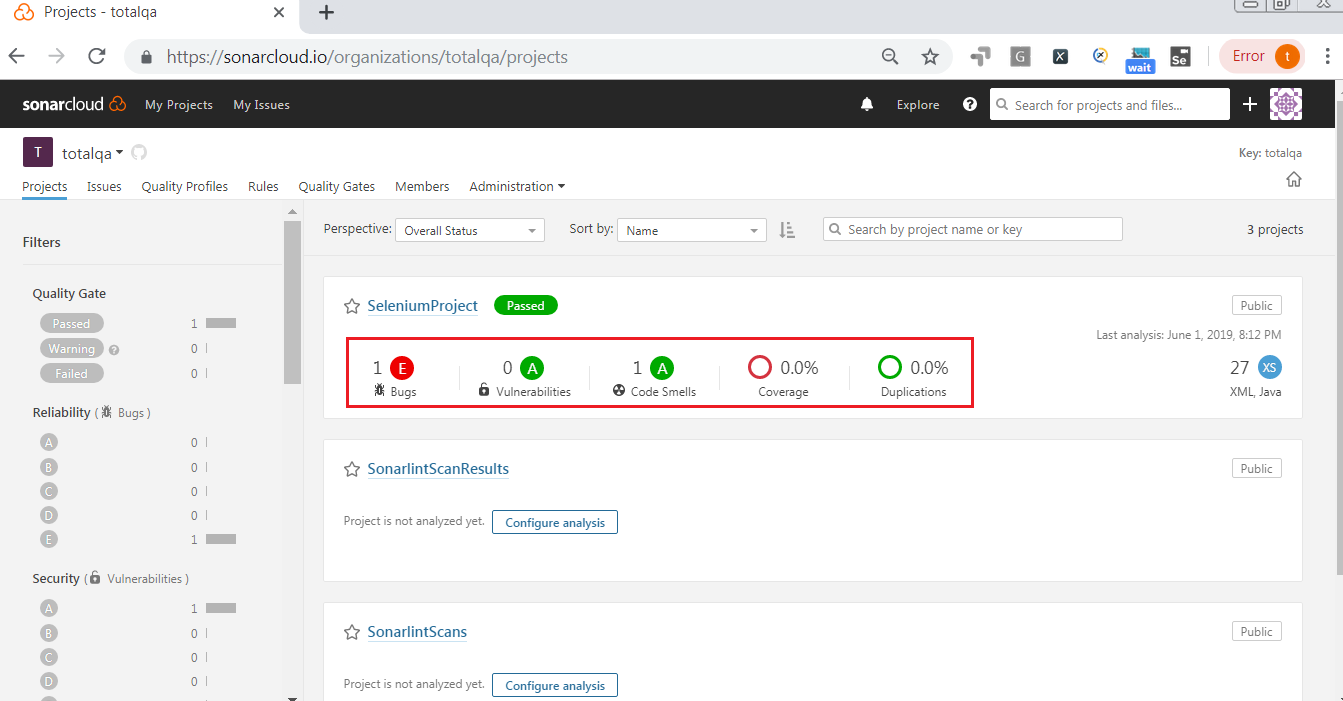
Sonarlint-Scan Results

Sonarlint-Scan Results

Conclusion

Results generated from Sonarlint are pushed into SonarQube Server Successfully.

Sonarlint-Instant Feedback Selenium,JAVA,Eclipse


Sonarlint helps the developers to identify the issues on the fly when you write the code immediately. It helps to detect the common mistakes and vulnerabilities based on the thousands of rules in various languages such as Java,Javascript,PHP and PHP . It also helps to scan the source code in different IDE’s such as Eclipse IDE,Intellij IDEA,Visual Studio and VS Code. Please find the list of Sonarlint rules from the link mentioned below:

https://rules.sonarsource.com


Vulnerability Examples:

Its a weakness in the code, which can be exploited by an actor to perform unauthorized actions within a computer system.
“public static” fields should be constant:
Noncompliant Code Example:

Compliant Code Example:


Bug Example:

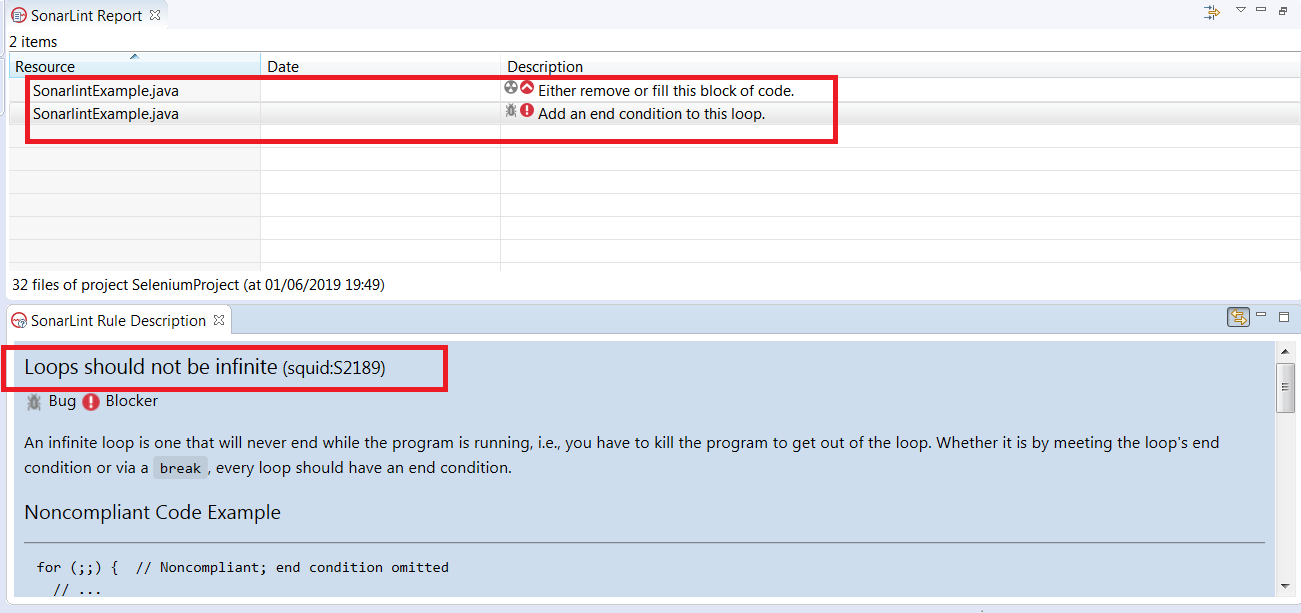
Loops should not be infinite:
Noncompliant Code Example:


Code Smells:

Nothing but the violation of the Fundamental Design Principals.
Tests Should include Assertions:
Noncompliant Code Example:

default Clauses should be last in the Switch Case


Using Sonarlint in Eclipse:


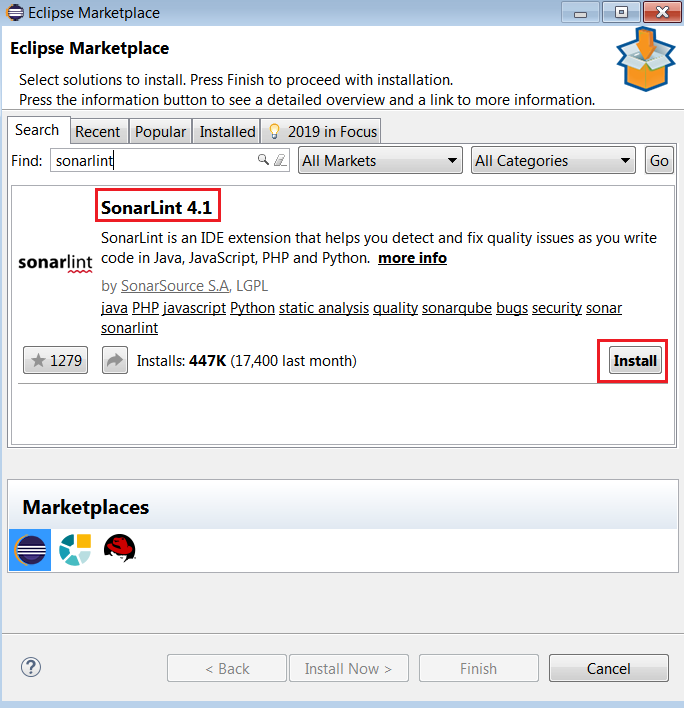
Download the Sonarlint Plugin from the Eclipse Market Place. During the Development of the Code, the Sonarlint highlights the issues in the editor. It also gives the rule description on the the fly.Once the plugin is installed successfully. Open the Eclipse and write a sample program to verify the rules.

Sonarlint-Eclipse Marketplace

Sonarlint-Eclipse Marketplace


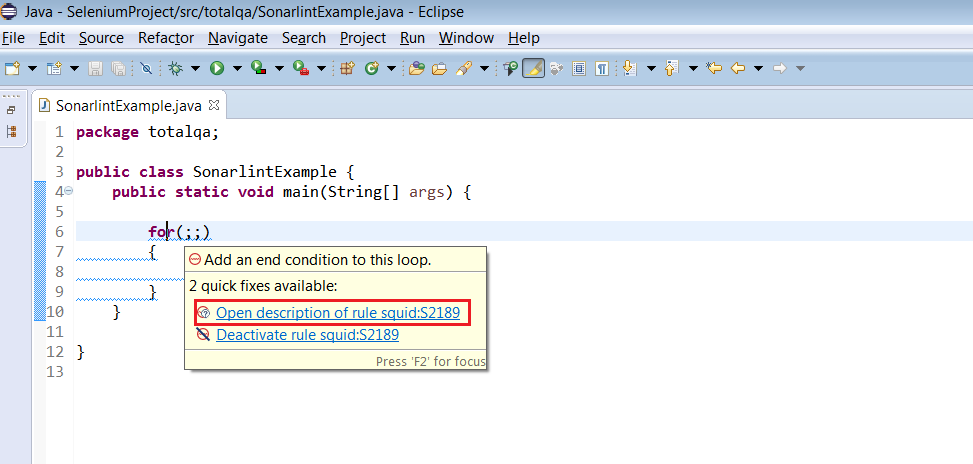
Analyze the Java Source Code using Sonarlint:

Sonarlint-Instant Code Scan

Sonarlint-Instant Code Scan


Click on the rule to view the Rule Description
Sonarlint:RuleDescription

Sonarlint:RuleDescription


Enable the rules in Sonarlint:
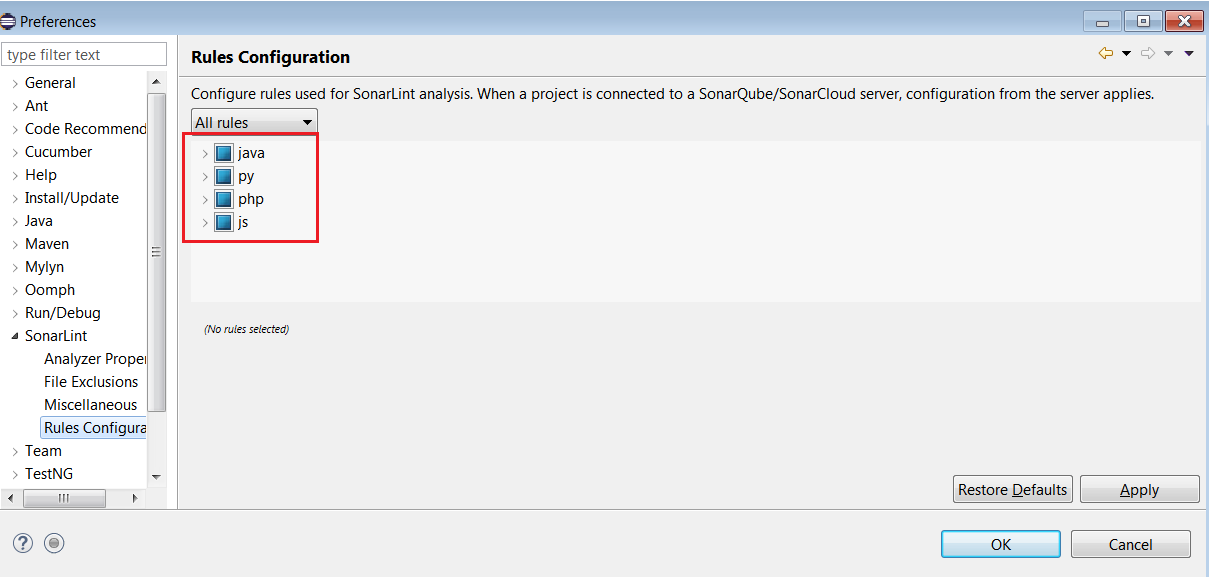
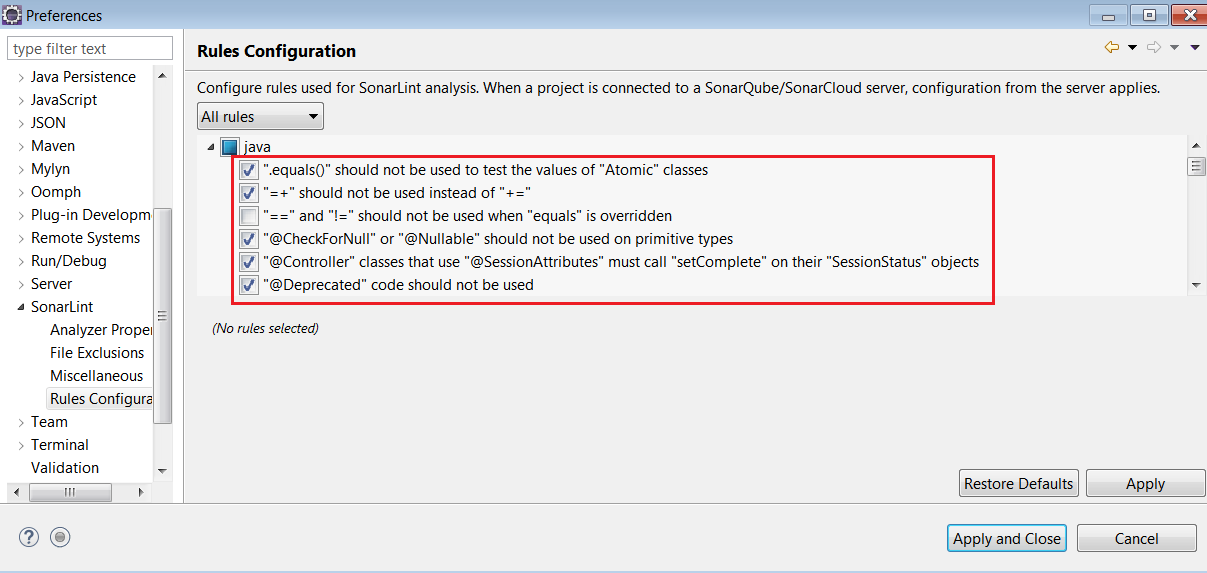
Navigate to the Window->Preferences->Sonarlint->Rules Configuration to select the rule configuration for different languages.
Sonarlint-Rules

Sonarlint-Rules


SonarlintRules_Enable_Disable

SonarlintRules_Enable_Disable


Conclusion:


Sonarlint plugin in Eclipse enables the Developers to identify the issues early in the Coding phase to fix the issues during the time of development and fix them on the fly with Compliant Solution.

Soft Asserts and Hard Asserts in TestNG


TestNG is mainly used by the JAVA Developers to perform Unit Testing of the Code. This Framework is used mainly in Selenium as well to verify the outcome of the automation test Scenario. To verify the outcome the assert statements are available in the org.testng.Assert Class used such as

  • Assert.assertEquals
  • Assert.assertTrue
  • Assert.assertFalse
  • Assert.assertNotNull

.
They are different types of Assert types such as

  • Hard Assert
  • Soft Assert

Hard Assert:

In Hard Assert if the assertion is failing the execution stops.
Assert.assertTrue statement fails the test and stops the execution and makes the test case as failing.
Assert.assertFalse statement continues the test, if the element is not present in the Web Application.
Assert.assertFalse statement stops the execution of the test, if the element is present in the Web Application.

Soft Assert:

In Soft Assert if the assertion is failed the execution doesn’t stops. The execution continues to the next step. The org.testng.asserts.SoftAssert object collects all the errors. If you need to throw an exception then you need to use the method assertAll() as the last statement in the @Test. And the execution continues to the next @Test.
assertAll fails the test case if any of the assertions are failed.

Summary

It’s important to decide what kind of Assertion is required.
If you want your assert method to fail and stops the execution use the Hard Assert.
If you want your assert method to fail and continues with the execution of the second assert and collect all the results at the end of the test use Soft Assert.

Enabling Writing Tests with in JIRA using Zephyr Plugin


Follow this Atlassian Software-JIRA Registration Link to register for a free account for using JIRA. Click on the Link received in your email inbox to verify your email Address.This product is available in the Cloud, free for 7 days .
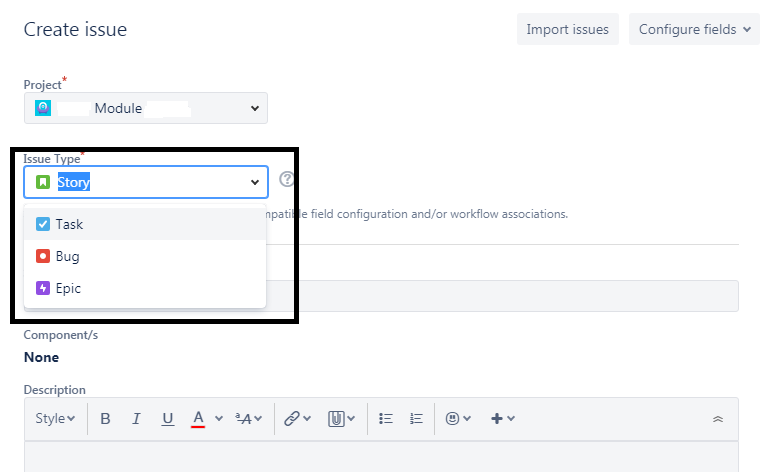
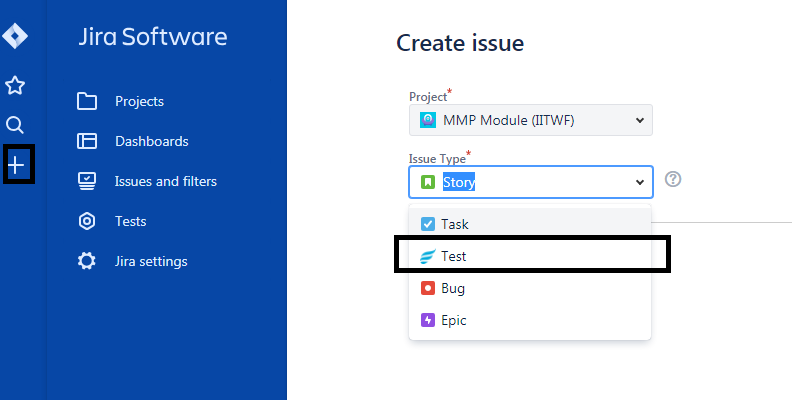
Login to JIRA by clicking on the Link received in the email.Click on Create Issue to view the Issue Types available. Currently issue types visible in JIRA by default are as follows: Story,EPIC,Task,Bug

JIRA Issue Types-Story,EPIC,Task,Bug

JIRA Issue Types-Story,Epic,Task,Bug


To view the Test as Issue type in JIRA a plugin named Zephyr has to be installed.
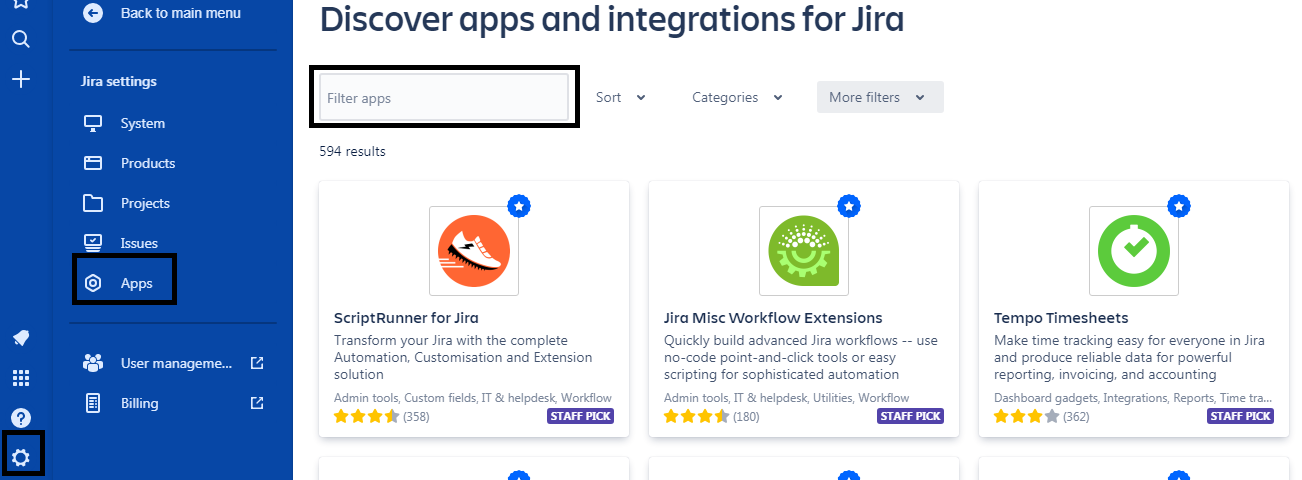
Follow the Steps to enable the Zephyr plugin in JIRA. JIRA Settings->Apps->Find new Apps
Filter Apps in JIRA

Filter Apps in JIRA


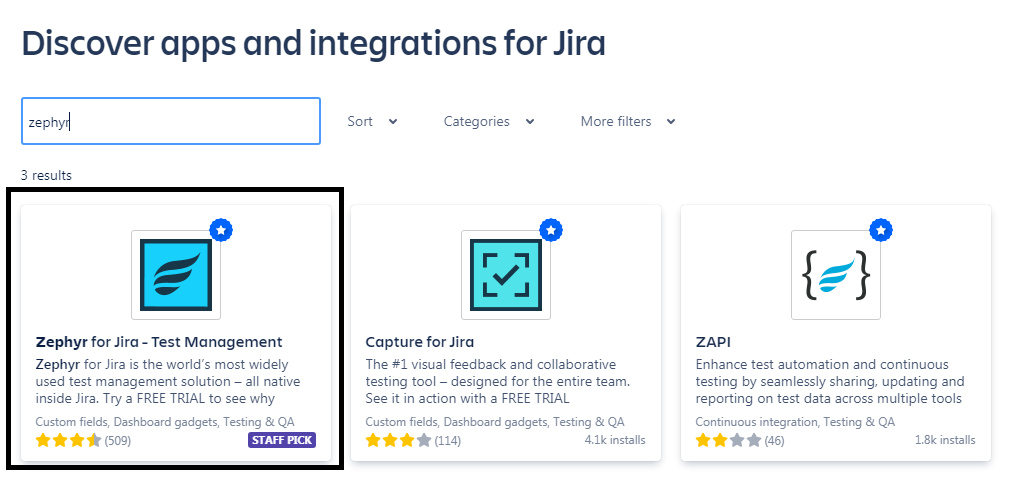
Provide the name to filter the apps named by Zephyr.
ZephyrPlugin

ZephyrPlugin


Once the Zephyr plugin is successfully installed the issue Type Test is not visible in the Issue List.
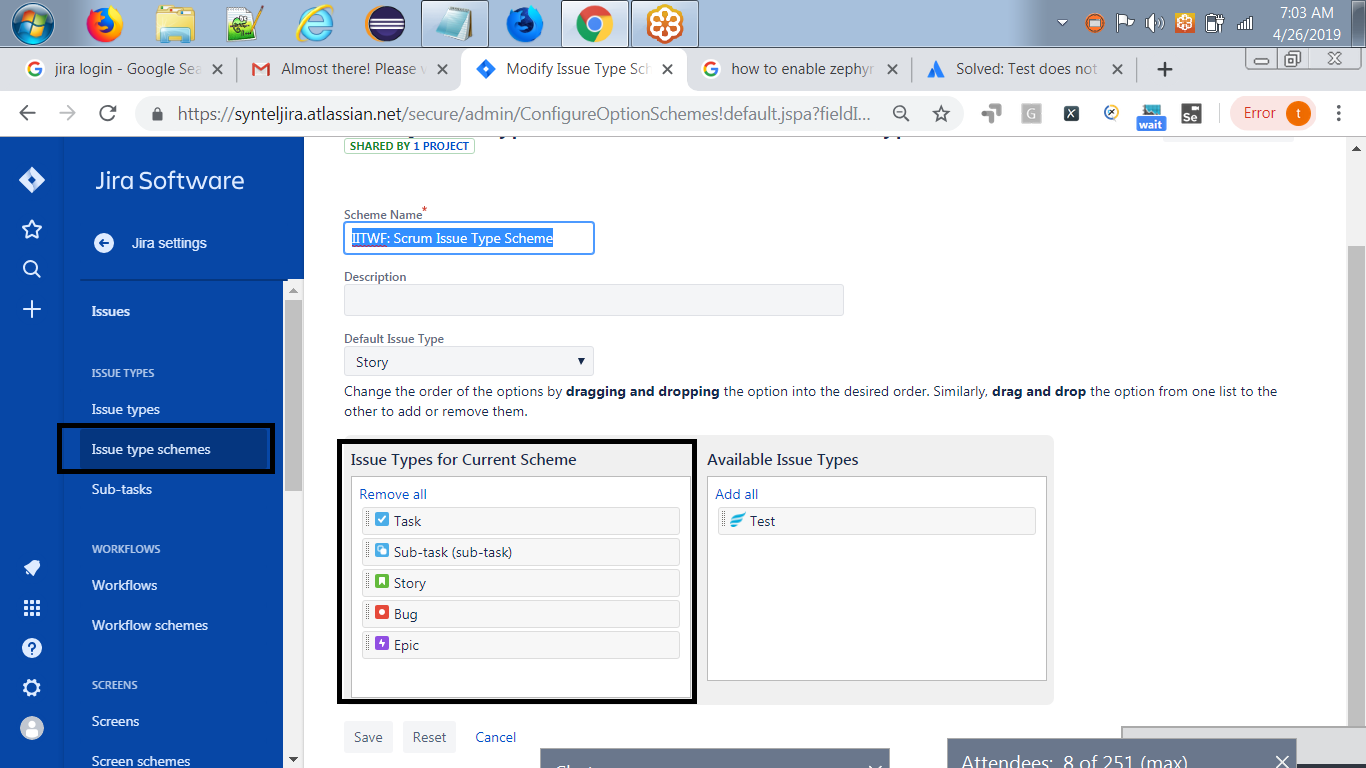
Enabling Test to write Tests with in JIRA using Zephyr Plugin JIRA Settings->Issues->Issue type Schemas->Edit.
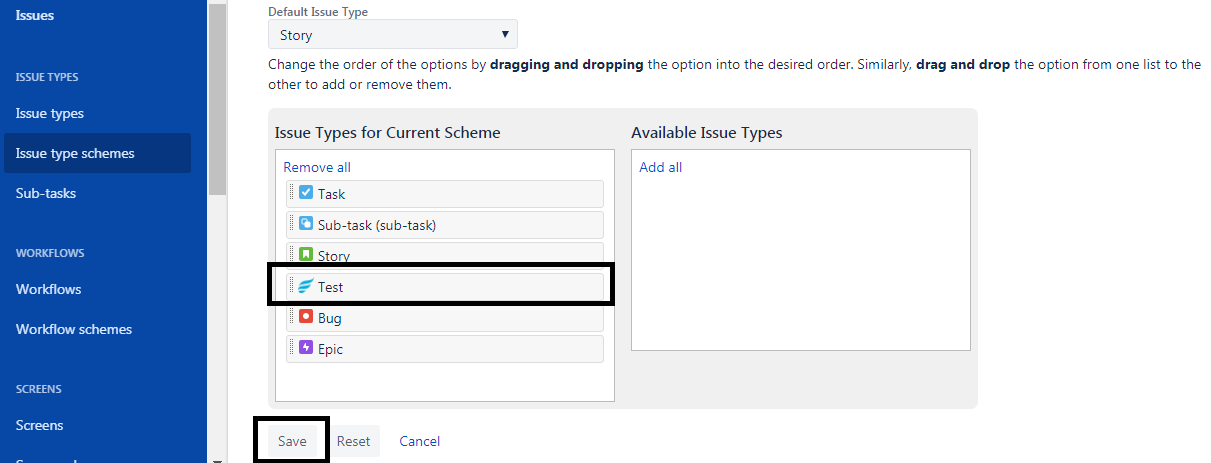
Drag and Drop the Issue Type Test from Available Issue Types to the section
Issue Types for Current Schema.
Test Issue Type in JIRA

Test Issue Type in JIRA


Click on Save button to save the Issue type Schema.
Zephyr Test Issue

Zephyr Test Issue


Verify the issue Test is visible in JIRA as mentioned below:
Issue Type Test

Issue Type Test