Selenium WebDriver Tester Resume

      1 Comment on Selenium WebDriver Tester Resume

Selenium WebDriver Tester Resume

Like us on Facebook to get frequent updates & Ebooks

Total-QA Facebook Page

Resume Highlights:
Having 7+ years of experience in Manual and Automation Testing.
Experience in Selenium WebDriver using Core Java.
Experience in designing the Java Frameworks like TestNG.
Experience in designing the automation frameworks like Data-driven and Modular
Driven
using Page Object Model.
Hands-on-Experience in performing cross browser testing using TestNG and Grid.
Good Knowledge in HTML and XML.
Experience in Test Planning and Designing Test cases.
Experience in Build Automation Tools like Maven and Continuous Integration Tools like Jenkins.
Experience in Storing the Code in Github.


Skill Set
Automation Tools: Selenium Grid,Selenium Webdriver
Performance Tools: JMETER
Rest Services: Rest Assured API,PostMan
Databases: MySQL
Defect Tracking Tools: Bugzilla,Jira
Programming Languages: Core Java
Scripting Language: Java Script,Shell
CI tools: Jenkins
Source Code Repository Tools: Github
Reporting Tools: Allure
Project 1#
Name:
Client Name:
Description:
Tools Used:
Responsibilities:
Performed regression and sanity testing for the project.
Raised the bugs in Bugzilla/Jira.
Provide the logs and screenshots while raising the bugs which gives
more information to developer to fix the defect on-time.
Design the Framework using …
Automate the test cases using Selenium WebDriver with Java Framework TestNG.
Report the Allure results to the stake holders.
Invovled in the module of the project.
Worked effeciently to make sure the project is released on time with high quality.
Project 2#
Name:
Client Name:
Description:
Tools Used:
Project 3#
Name:
Client Name:
Description:
Tools Used:
Project 4#
Name:
Client Name:
Description:
Tools Used:
Refer to the below Links for Practise
Selenium Wiki
Complete List of Selenium Basics
50 Real Time Interview Questions
Real Time Scenario’s
Java Platform Standard Edition 8 Documentation
Complete List of Java Basics
Java Quiz
Java OOPS Quiz
Selenium Advanced Quiz
Selenium Quiz

Firefox Plugins

      1 Comment on Firefox Plugins

Mozilla Firefox Plugins Firebug Firepath Selenium WebDriver

Installation of Firebug

Firebug is a Firefox add-on that we will use to inspect the HTML elements of the web application under test. It will provide us the name of the element that our Selenese command would act upon.

Pre-requisite:

  1. Install 54.0/55.0 version of Firefox from this url https://ftp.mozilla.org/pub/firefox/releases/.
    Verify the version of Firefox. The firefox version should be 54.0/55.0. Latest Version of Firefox doesnt work for Firepath and Firebug.
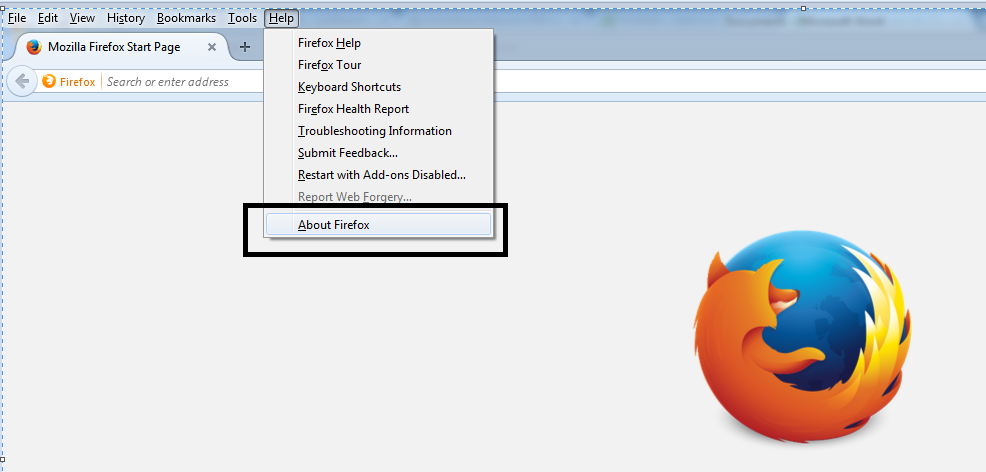
  2. Checking the version of Firefox.

Installation of Firebug Plug-in

Step 1

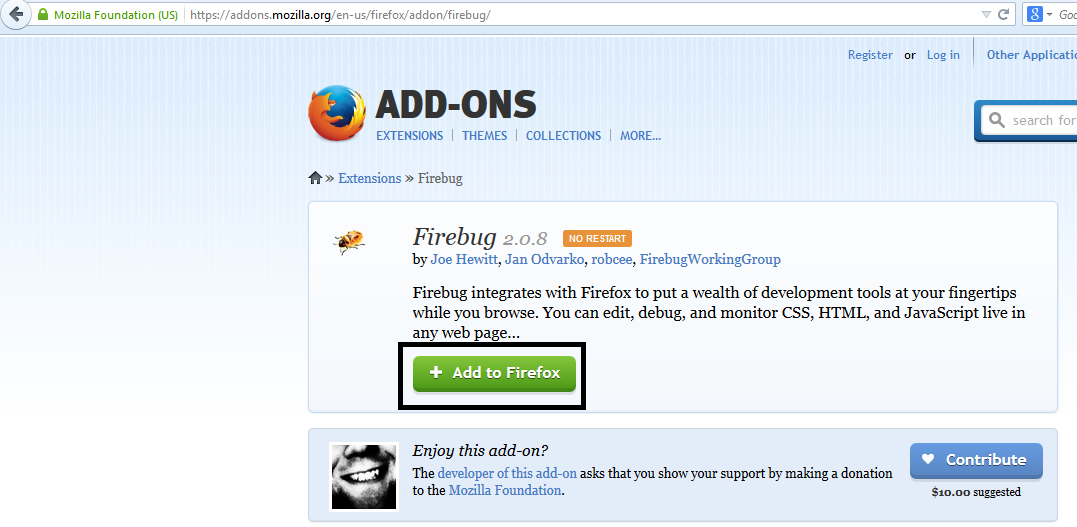
Use Firefox to navigate to Firebug’s download page https://addons.mozilla.org/en-US/firefox/addon/firebug/ . Click the “Add to Firefox” button.

Step 2
Wait for Firefox to complete downloading this add-on. On the dialog box that comes after, click “Install Now.”


Step 3
Wait for installation to complete. A notification will pop-up saying, “Firebug has been installed successfully.” You can immediately close this pop-up.

Note: In case you do not see above pop-up , no worries! This pop-up appears for a few seconds and disappears.

You do not need to restart Firefox after installing Firebug.

Step 4

Launch Firebug by doing either of these two methods:

  • Press F12
  • Click on the Firebug button on the upper right corner of the Firefox window.

Step 5

Firebug should launch at the bottom of Firefox as shown below

Mozilla Firefox Plugins Firebug Firepath Selenium WebDriver


Installation of FirePath Plug-in

Step 1

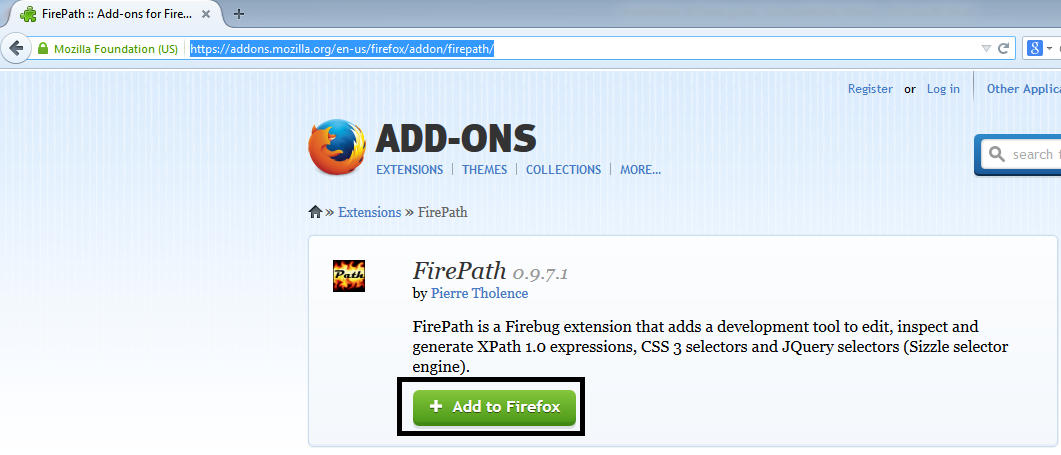
Use Firefox to navigate to Firepath’s download page https://addons.mozilla.org/en-us/firefox/addon/firepath/

Click the “Add to Firefox” button.

Mozilla Firefox Plugins Firebug Firepath Selenium WebDriver

Step 2

Wait for Firefox to complete downloading this add-on. On the dialog box that comes after, click “Install Now.”

Mozilla Firefox Plugins Firebug Firepath Selenium WebDriver

Step 3

Wait for installation to complete. A notification will pop-up saying, “FirePath will be installed after you restart Firefox”. Click on Restart Now button.

Mozilla Firefox Plugins Firebug Firepath Selenium WebDriver

Step 4

Launch Firebug by doing either of these two methods:

  • Press F12
  • Click on the Firebug button on the upper right corner of the Firefox window.

Step 5

Firebug should launch at the bottom of Firefox as shown below. Click on FirePath tab to verify the installation successful.

Mozilla Firefox Plugins Firebug Firepath Selenium WebDriver

Real Time Scenarios-Selenium WebDriver

      3 Comments on Real Time Scenarios-Selenium WebDriver

1. How to apply break from an nested for loop in java?
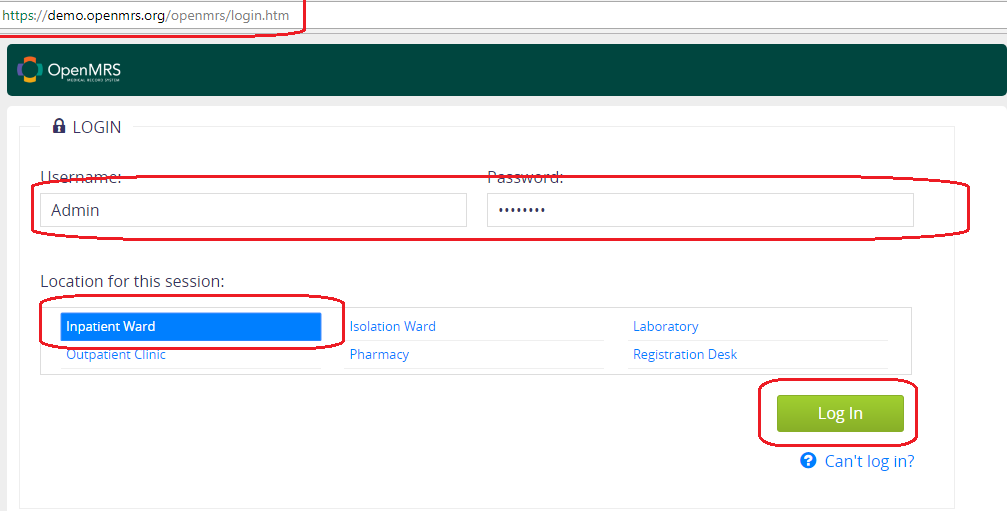
Lets try this on a Real Time Website -> https://demo.openmrs.org/openmrs/login.htm

  • Access the url and enter Admin/Admin123 as credentials
  • Select the ‘Inpatient Ward’.
  • click on Login.
  • Navigate to Appointment Scheduling->Manage Service Types.
  • Write Selenium WebDriver Script to verify the Service Type ‘Urology’ available in the html table.


HomePage

Selenium WebDriver Logic Implemented Using Nested for loop and break Statement


Output

=====================================================================================
2. How to Delete a Service Type from the List?
Lets try this on a Real Time Website -> https://demo.openmrs.org/openmrs/login.htm

  • Access the url and enter Admin/Admin123 as credentials
  • Select the ‘Inpatient Ward’.
  • click on Login.
  • Navigate to Appointment Scheduling->Manage Service Types.
  • Click on Delete icon to perform deletion of Service Type.
  • Finding an xpath for Yes button results in multiple matching nodes.
  • Even though we applying indexing to identify the ‘Yes’ Button its not working.


Delete Service Type
Selenium WebDriver Logic Implemented Using isEnabled and is Displayed

Output

Java Online OOPS Quiz-Test your knowledge

      5 Comments on Java Online OOPS Quiz-Test your knowledge

Reference URL’s
Java Platform Standard Edition 8 Documentation
Complete List of Java Basics

Please enter your email:

1. An Object behavior is exposed through fields.


2. final methods cannot be overriden.


3. How to fetch the current time in Milliseconds?


4. The term API stands for __?


5. Real Objects contain State and Behavior.


6. final variables are constants.


7. A collection of methods with no implementation is an__?


8. An Object state is stored in methods.


9. What is the superclass for all the Exceptions and Errors in Java?


10. Hiding internal data from the outside world, and accessing it only through publicly exposed methods is known as ___?


11. final classes cannot be extended.


12. The Common behavior of SuperClass is inherited to SubClass using the keyword__??


13. What is the default value of boolean?


14. Can we override static methods in JAVA?


15. Can we Create Abstract Class with out any abstract methods?


Selenium WebDriver- Debugging Code (Breakpoints) – Java Debugging with Eclipse

Selenium WebDriver- Debugging Code (Breakpoints) – Java Debugging with Eclipse

Most of us interested to know, how the code is getting executed. Some times, even if we write the code with out having any syntax errors also during execution we face issues which requires debugging of the code.
As Web-driver script executes fast, if we want to execute the Web-driver code line-by-line and verify the Output can be achieved using the Debug Mode in Eclipse.
Lets start. I have written a very simple example in Selenium Webdriver to retrieve the text in Facebook as highlighted in the below image.


FACEBOOK HOMEPAGE

There are no syntax errors in the code. Please try to execute the code as shown below:
Output:
Actual is not equal to Expected TC – Fail
In the above scenario the TC should pass. But we are getting response as TC-Fail.
So, how do we identify the issue. What is the reason for failure.
We have to use Debug mode to identify the root-cause for this issue.
Debug – Step1- Insert BreakPoint
Right-click at the line number 10 and select the first option – ‘Toggle Breakpoint’. It means we are inserting the Breakpoint, so we can verify the values in the variable at run time.
In our case we can verify the value stored in the ‘actual’.
ECLIPSE IDE
Step2-Run Facebook.java in Debug mode
DEBUGGING
Step3- Debug Perspective opens as shown below
Select the checkbox-‘Remember by decision’ and click on ‘Yes’ button.
DEBUG PERSPECTIVE
The Debug perspective opens, it has three tabs Variables,Breakpoints,Expressions.
DEBUG PERSPECTIVE
Out of three tabs- Expressions tab is required to view the values at run-time.In Debug perspective if you are unable to identify this tab. You to follow the steps as show below:
DEBUG PERSPECTIVE
Navigate to Expression tab and click on ‘Add new expression’ enter ‘actual’ as shown below:
DEBUG PERSPECTIVE
Click on Step-Over to move to next step. Verify the ‘actual’ value in the Expression tab.Also add few more expressions as shown below:
Actual String length-> actual.length()
Expected String length()->expected.length()

Click on Step-Over to move to next step. Verify all the values as shown below:
DEBUG PERSPECITVE
Conclusion
The length of expected String is 23.
The length of actual String is 22.

So there is an issue in expected string. In the program we provided the String expected =” See photos and updates”;
There is an unnecessary space added in the string. It should be changed to String expected =”See photos and updates”;
by removing the unwanted spaces.
Once identify the issue click on terminate button as shown below.
TERMINATE DEBUG MODE
Change the Perspective from Debug Mode to Java Mode.
DEBUG PERSPECTIVE
Remove all the breakpoints.
DEBUG PERSPECTIVE

Handling Security Authentication Pop-up Using Autoit-Selenium WebDriver!!!

Handling Security Authentication Pop-up Using Autoit-Selenium WebDriver

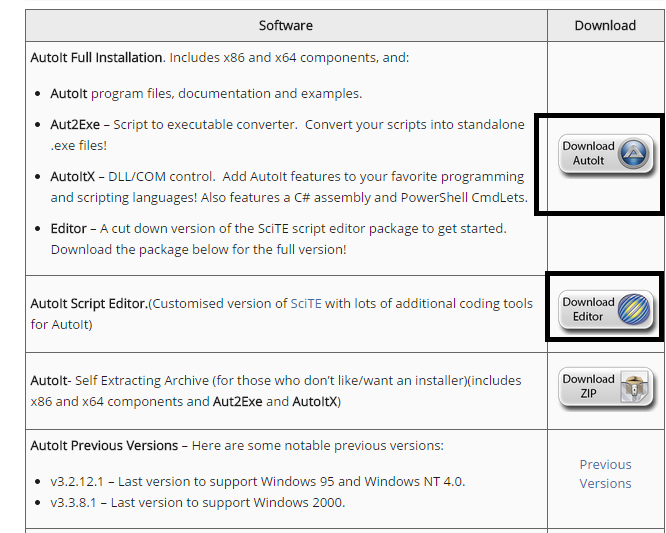
Pre-Requisites: Download the AutoIT Full Installation and AutoIT Script Editor from the url 

AutoIT Website  http://www.autoitscript.com/site/autoit/downloads/

Download both the AutoIt Window Identification and Editor

In above page once you click on Upload button you will get file uploader we will handle the same using AutoIt  

Handling HTTPS pop-up using Autoit
Url to access-> http://www.engprod-charter.net/

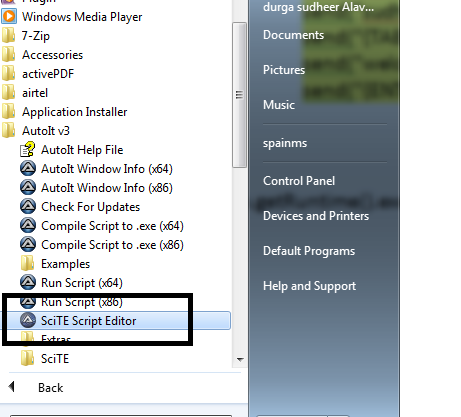
Step 1- Open Autoit Editor and write the following script

Step2-Write the below program and Save the program.

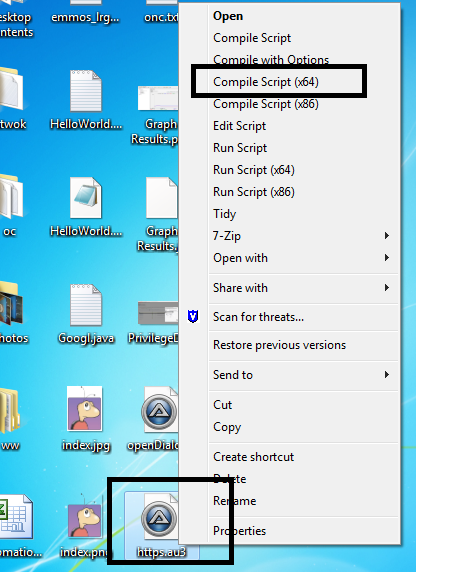
Step3- Compile the Script which generates the .exe file.

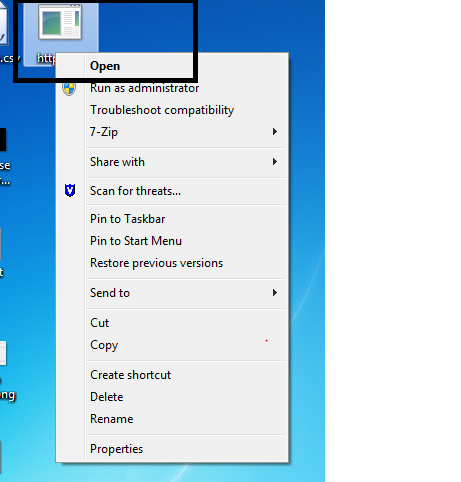
Step4-Execute the Script

Step5- Implement this selenium.

Runtime.getRuntime().exec(“Absolute path to the https autoit script “);

Downloading a file:


MYSQL DataBase testing using Selenium WebDriver-Step by Step Guide:

MYSQL DataBase testing using Selenium WebDriver-Step by Step Guide:

Refer to the below Links for Practise
Selenium Wiki
Complete List of Selenium Basics
50 Real Time Interview Questions
Real Time Scenario’s
Java Platform Standard Edition 8 Documentation
Complete List of Java Basics
Java Quiz
Java OOPS Quiz
Selenium Advanced Quiz
Selenium Quiz

  1. Introduction
    SQL Part of “MYSQL” stands for Structured Query Language. MYSQL is a relational database from oracle where data is stored in tables.
    MYSQL is open source and it is very fast, reliable and easy to use. MYSQL works in a client/server architecture.
  2. Download
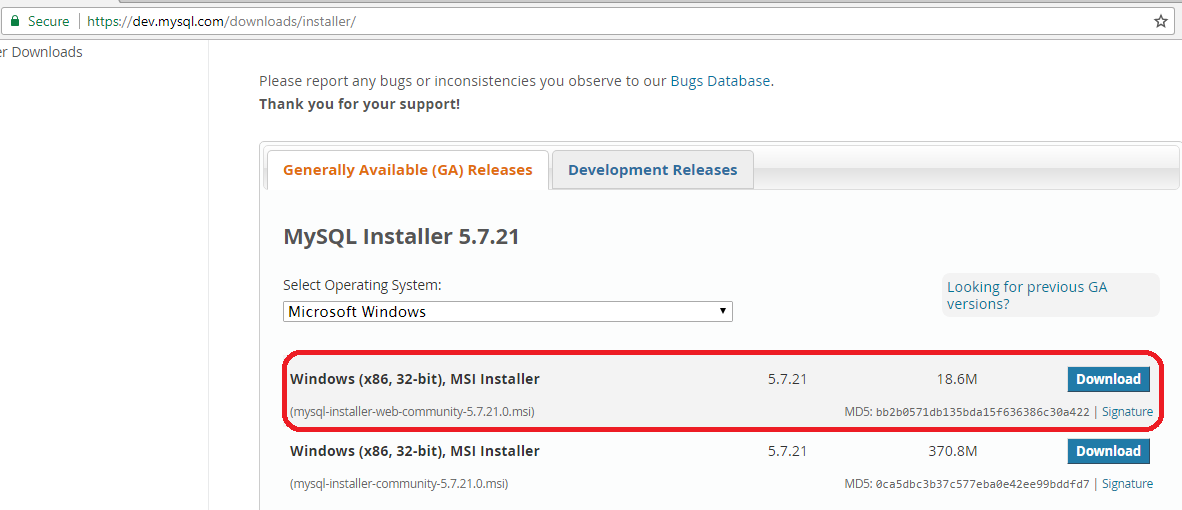
    To Download the MYSQL please access the following URL->https://dev.mysql.com/downloads/installer/.
    Select the Windows (x86, 32-bit) MSI Installer to download the software.


  3. Double click on the software to open the installer.
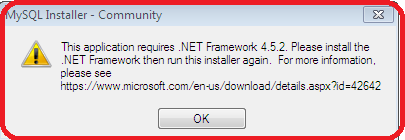
    Note:: If you are getting any error as shown below while launching MYSQL Software please download the .NET Framework from this link->https://www.microsoft.com/en-us/download/confirmation.aspx?id=42642
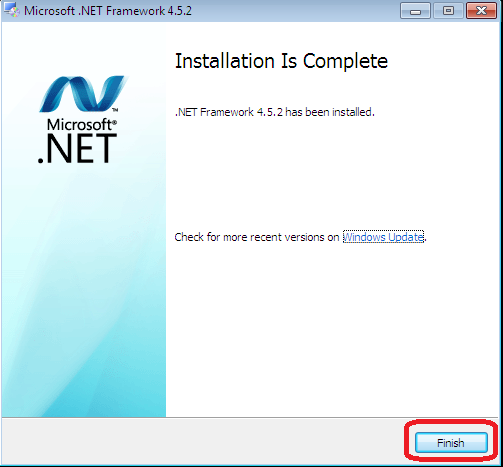
  4. Click on Finish and Restart the System to reflect the changes.
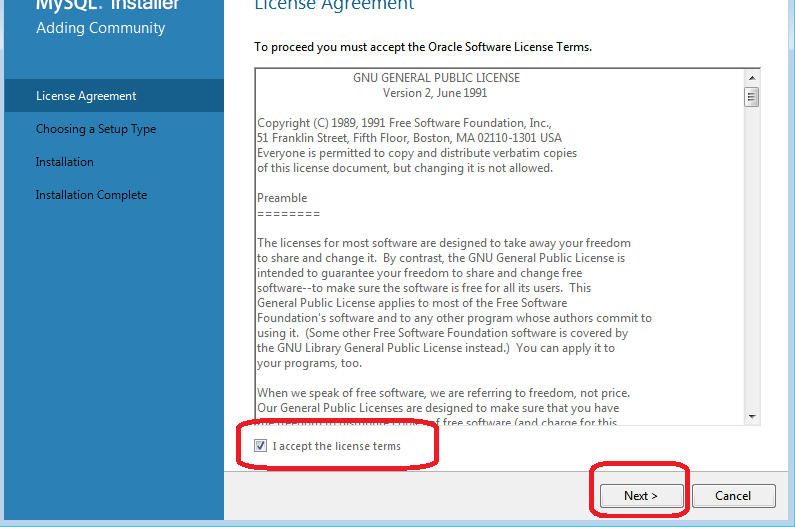
  5. Accept the License agreement and Click on Next.
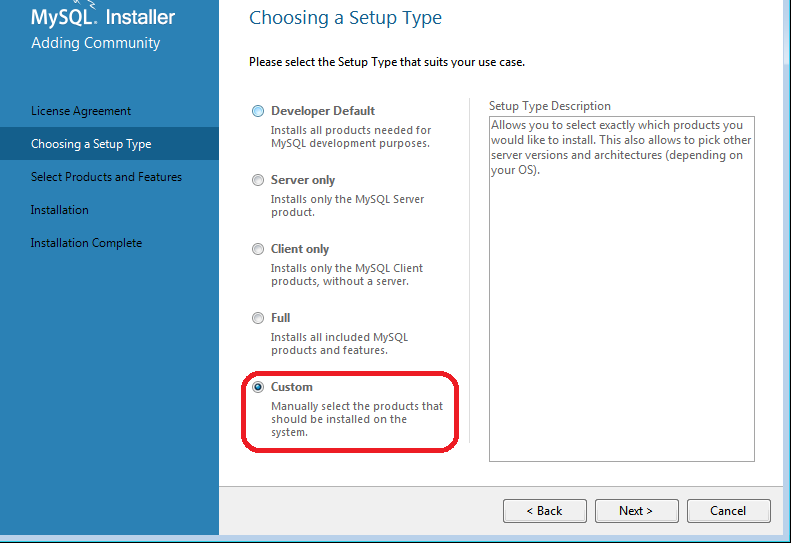
  6. Select the Setup Type as Custom and click on Next.
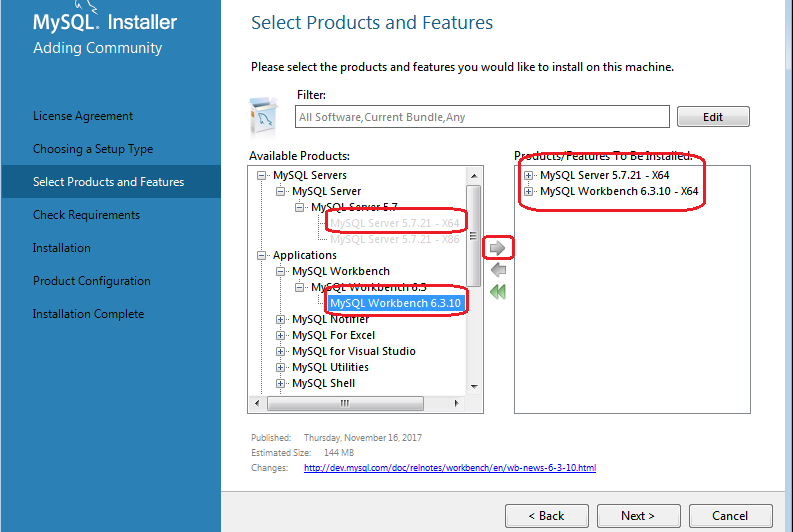
  7. Select the products MYSQL Server and SQL Workbench and click on Next to download.
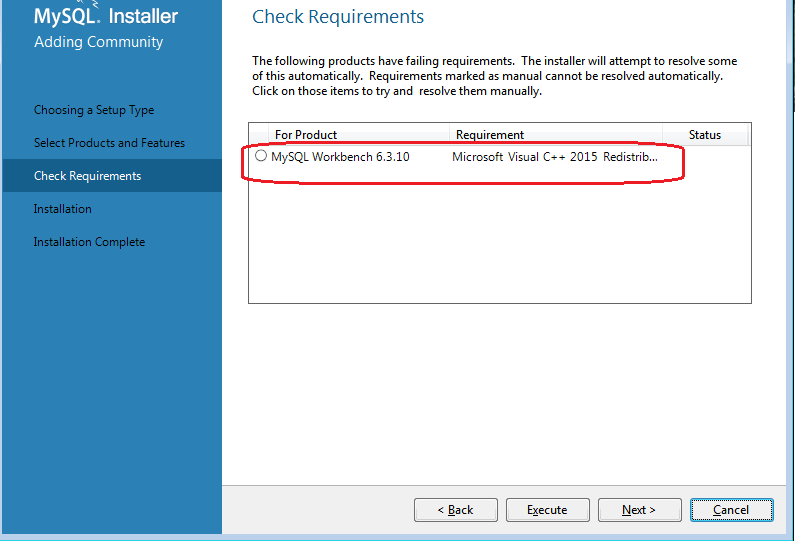
  8. Check Requirements dialog shows the failing requirements.
  9. Note:: Download the Microsoft Visual C++ from this link ->https://www.microsoft.com/en-in/download/details.aspx?id=40784.
    Once the Microsoft Visual C++ setup is successful reopen the installer from the beginning to continue the process of installtation.

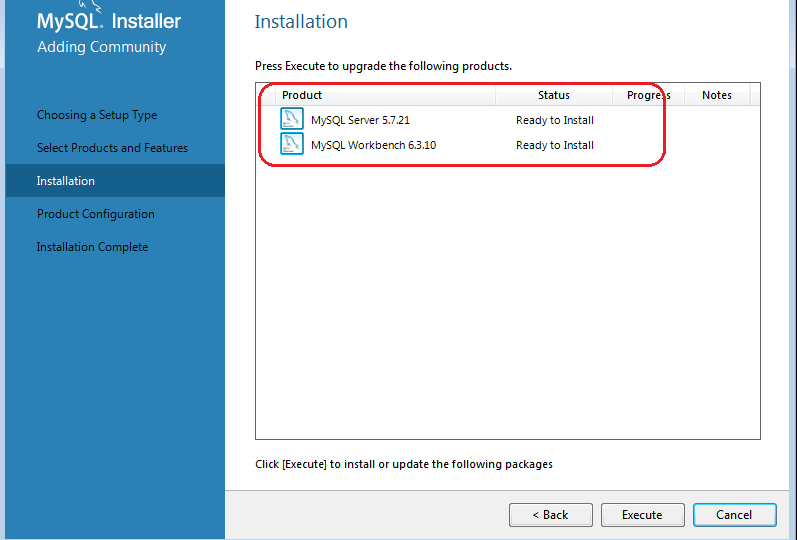
  10. MY SQL Server and Workbench is ready to be installed. Click on Execute to continue.
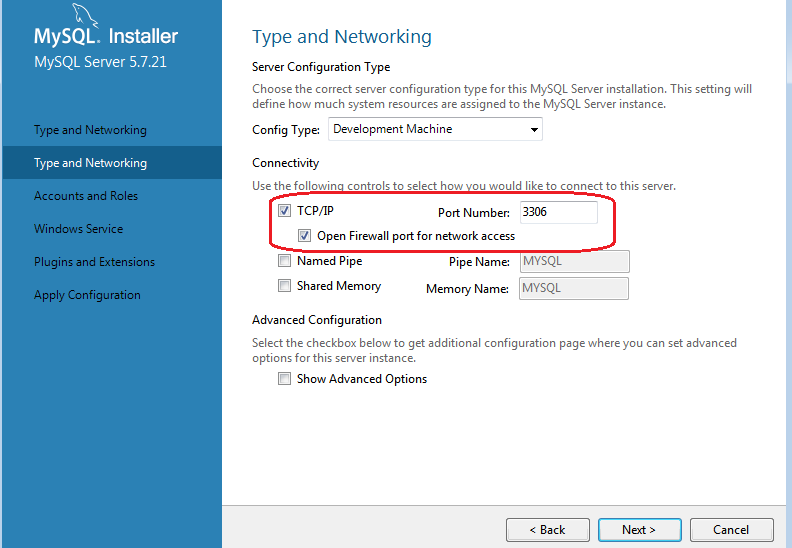
  11. Continue with default values and click on Next.
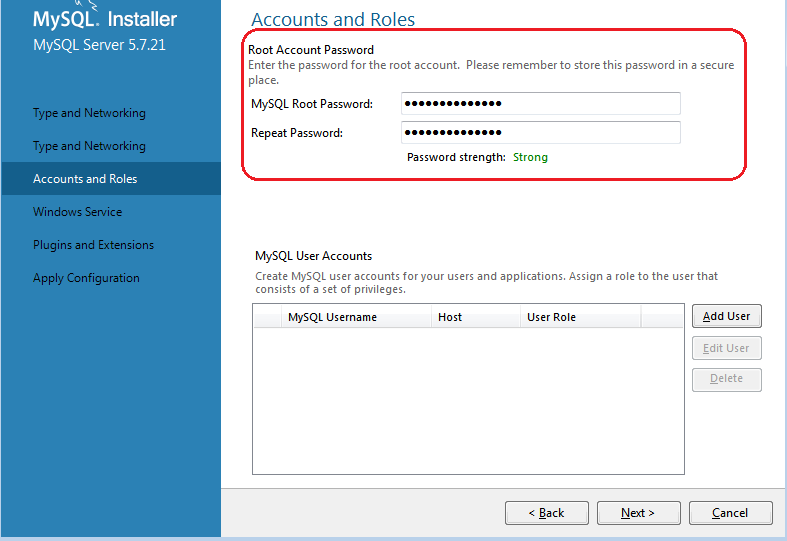
  12. Provide the username and password.
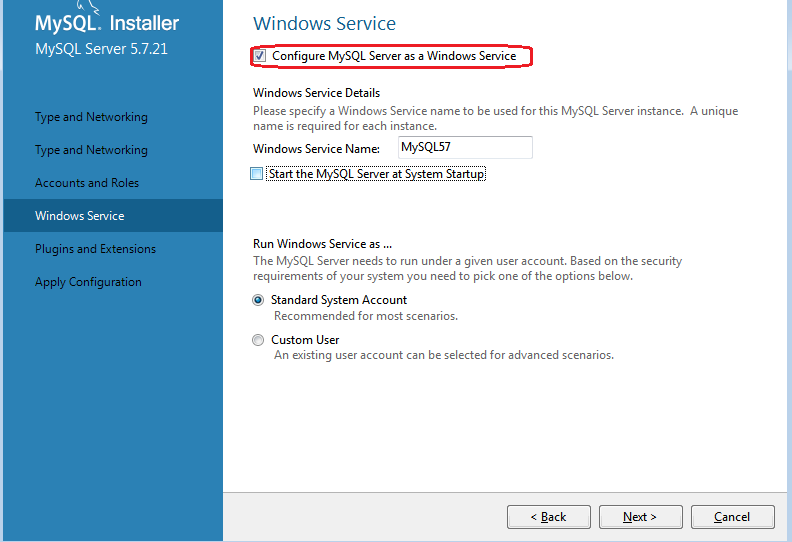
  13. Deselect the option to start the MYSQL Server during System Startup.
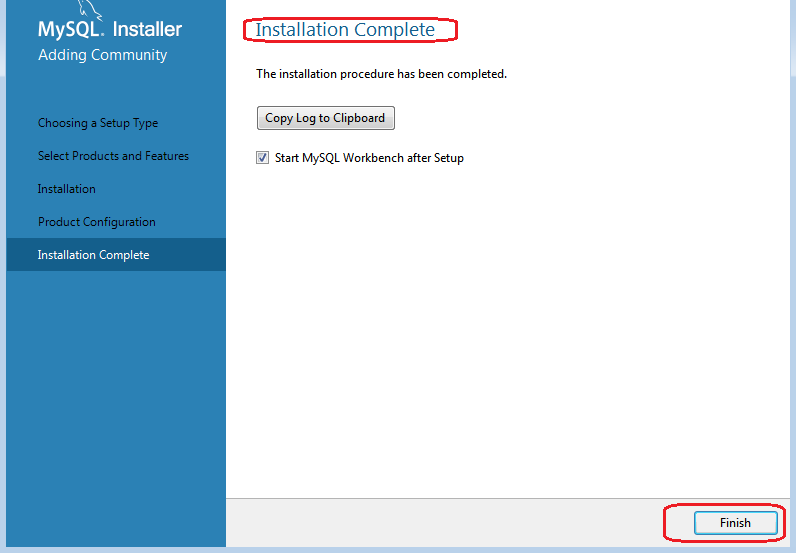
  14. Click on Finish to complete installation.
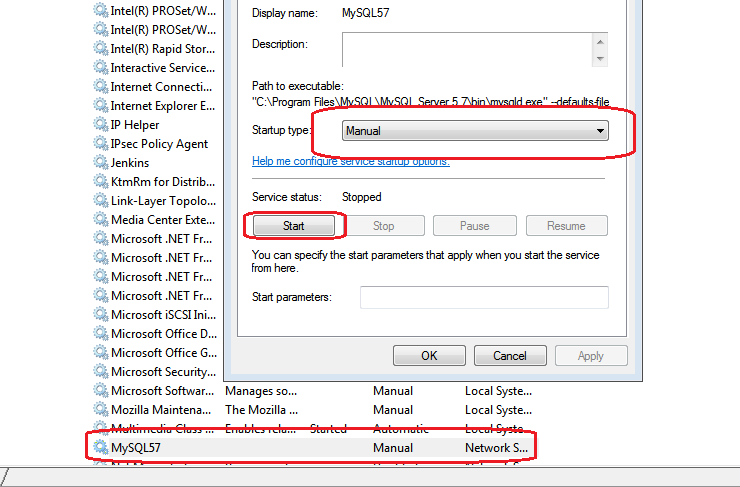
  15. Start the MYSQL Server from the System by accessing ‘services.msc’ from the Start Menu. Select the MYSQL service and click on Start button to start the server.
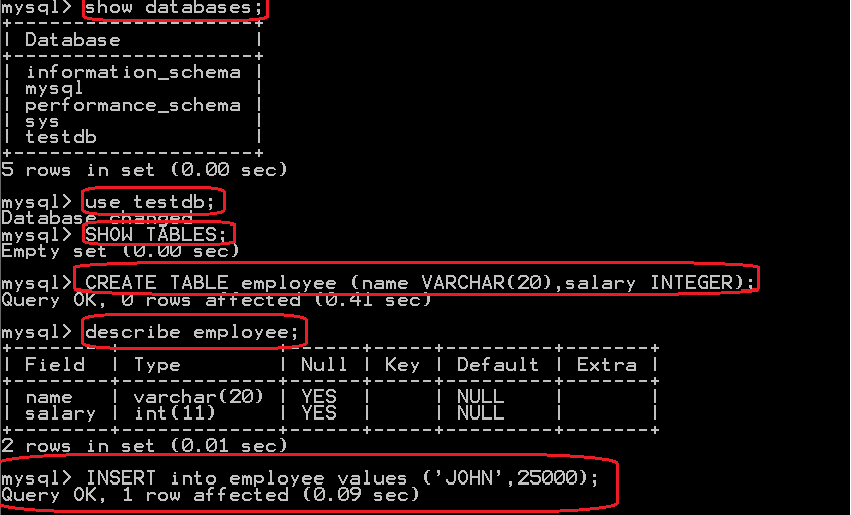
  16. Open MYSQL Command line Client from Start Menu. Execute the following Commands:
    • Create Database testDB
    • show databases
    • use testdb
    • show tables
    • create table employee (name VARCHAR(20),salary INTEGER);
    • INSERT into employee values (‘JOHN’,25000);

  17. Create a Maven Project add the mysql-connector.jar as an dependency for the project.
  18. This jar file contains “com.mysql.jdbc.Driver” class it must be present in Build path of the project
    in order to successful connection to mysql database.Copy the Maven Dependencies information from the
    Repository URL mentioned below: https://mvnrepository.com/artifact/mysql/mysql-connector-java/5.1.21
    Dependency Infromation:

  19. Execute the following code to retrieve the data from Database ‘testDB’.
  20. Please find the console ouput::