static-keyword-in-java

      No Comments on static-keyword-in-java
Refer to the below Links for Practise
Collections in Java
Complete List of Selenium Basics
50 Real Time Interview Questions
Real Time Scenario’s
Java Platform Standard Edition 8 Documentation
Complete List of Java Basics
Java Quiz
Java OOPS Quiz
Selenium Advanced Quiz
Selenium Quiz
Selenium WebDriver Resume

Static Keyword:

1. The static keyword is applicable for the Class Members.
2. The static Class Members are accessed using Class Name.
3. Non static members are accessed using through reference variable or object.
4. The static members are loaded once into the memory for program execution.
5. The static members are shared across the objects.
6. Non-static & Static Class Members are inherited to the subclass

Static Program:
Output:

2
B
1
A
ABC
ABC
DEF
Java Collections-List,Set,Map,Queue,Iterator,Generics

An overview of java-Collections-List,Set,Map,Queue Interface are explained in this post. For complete understanding please refer to Sun Certified Programmer for Java 6 Study Guide available in the scribd.com.
Please click on this Ebook Link->Kathy-sierra-PDFBooks

Refer to the below Links for Practise
Selenium Wiki
Complete List of Selenium Basics
50 Real Time Interview Questions
Real Time Scenario’s
Java Platform Standard Edition 8 Documentation
Complete List of Java Basics
Java Quiz
Java OOPS Quiz
Selenium Advanced Quiz
Selenium Quiz
Selenium WebDriver Resume

In Collection Framework they are mainly 4 interfaces which mentioned as follows:

List,Set,Map,Queue

List:
List Example: List Console Output:

Set Interface:

Set Example:

Set Console Output:

Queue Interface:

Queue Example:

Queue Console Output:

Map Interface:

Map Example:

Iterator Interface:

Iterator Example:

Generics

Generics Example:

Headless Browser-Selenium,HTMLUnitDriver

      1 Comment on Headless Browser-Selenium,HTMLUnitDriver

Headless Browser-Selenium,HTMLUnitDriver

Refer to the below Links for Practise
Selenium Wiki
Complete List of Selenium Basics
50 Real Time Interview Questions
Real Time Scenario’s
Java Platform Standard Edition 8 Documentation
Complete List of Java Basics
Java Quiz
Java OOPS Quiz
Selenium Advanced Quiz
Selenium Quiz
Selenium WebDriver Resume

HtmlUnit

is a “GUI-Less browser for Java programs”. It has fairly good JavaScript support (which is constantly improving) and is able to work even with quite complex AJAX libraries, simulating Chrome, Firefox or Internet Explorer depending on the configuration used.
It is typically used for testing purposes or to retrieve information from web sites. HtmlUnit is not a generic unit testing framework. It is specifically a way to simulate a browser for testing purposes and is intended to be used within another testing framework such as JUnit or TestNG.

Refer to the document “Getting Started with HtmlUnit” for an introduction.

Selenium WebDriver Example:

1. Add the “htmlunit-driver-xxx-jar” from maven repository using the Download Link.
http://central.maven.org/maven2/net/sourceforge/htmlunit/htmlunit/2.13/htmlunit-2.13.jar
2. Add the downloaded jar to the build path of the project.
3. Execute the below program:

Console Ouput:

Title:Job Search India | Indeed
Title:Selenium Jobs in Bengaluru, Karnataka – June 2018 | Indeed.co.in

Exceptions-Selenium Exceptions,Java Exceptions,Exception Handling

Hands-on with different exceptions in Selenium and Java. Please go through the different scenario’s of Exceptions with Programs,Exceptions and Solution.

Refer to the below Links for Practise
Selenium Wiki
Complete List of Selenium Basics
50 Real Time Interview Questions
Real Time Scenario’s
Java Platform Standard Edition 8 Documentation
Complete List of Java Basics
Java Quiz
Java OOPS Quiz
Selenium Advanced Quiz
Selenium Quiz
Selenium WebDriver Resume

Run-Time Exception: org.openqa.selenium.InvalidSelectorException

Console Output:

Solution:


Run-Time Exception: org.openqa.selenium.StaleElementReferenceException Indicates that a reference to an element is now “stale” — the element no longer appears on the DOM of the page.


Console Output:

Solution:


Run-Time Exception: org.openqa.selenium.NoSuchElementException

Console Output:

Solution:


Run-Time Exception:org.openqa.selenium.ElementNotInteractableException

Console Output:

Solution:


Run-Time Exception:org.openqa.selenium.SessionNotCreatedException

Console Output:

Solution:


Run-Time Exception:org.openqa.selenium.NoSuchSessionException
Session ID is null. Using WebDriver after calling quit()

Console Output:

Solution:


Run-Time Exception:org.openqa.selenium.TimeoutException
Thrown when a command does not complete in enough time.

Console Output:

Solution:


Run-Time Exception: org.openqa.selenium.NoSuchWindowException


Run-Time Exception: org.openqa.selenium.NoSuchFrameException

Cucumber BDD with Selenium WebDriver and Testng Framework

Cucumber BDD with Selenium WebDriver and Testng Framework


Cucumber is a Behavior Driven Development (BDD) testing framework that helps the non technical members of the team can easily understand the scenario’s automating by testers. In Cucumber, the feature files plays very important role that contains plain English text written using gherkin language which is easy to understand. Refer to the Cucumber Basics

Cucumber-BDD using Page Object Model and Testng Framework:

1. Create a Maven Project with name as ‘cucumbermvn’. Refer to the steps->

https://total-qa.com/advanced-selenium/maven/

2. Add the following dependencies and plugins required for Cucumber,Selenium,Testng.
Refer to the dependencies for Cucumber – Java project


https://cucumber.io/docs/reference/jvm#java

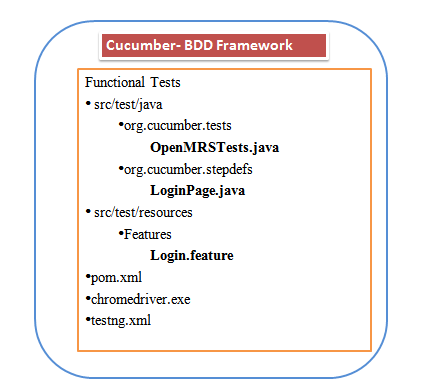
3. Create a following Directory Structure for the project as mentioned below:

Cucumber - BDD,StepDefs,Selenium,Testng,Page Object Model,Maven

Cucumber – BDD,StepDefs,Selenium,Testng,Page Object Model,Maven

4. Refer to the Functional Tests OpenMRSTests.java as mentioned below:

5. Refer to the Step Definitions file LoginPage.java as mentioned below:

6. Feature file Login.feature contains the steps to be performed as part of the scenario:

7. Refer to the testng.xml file.

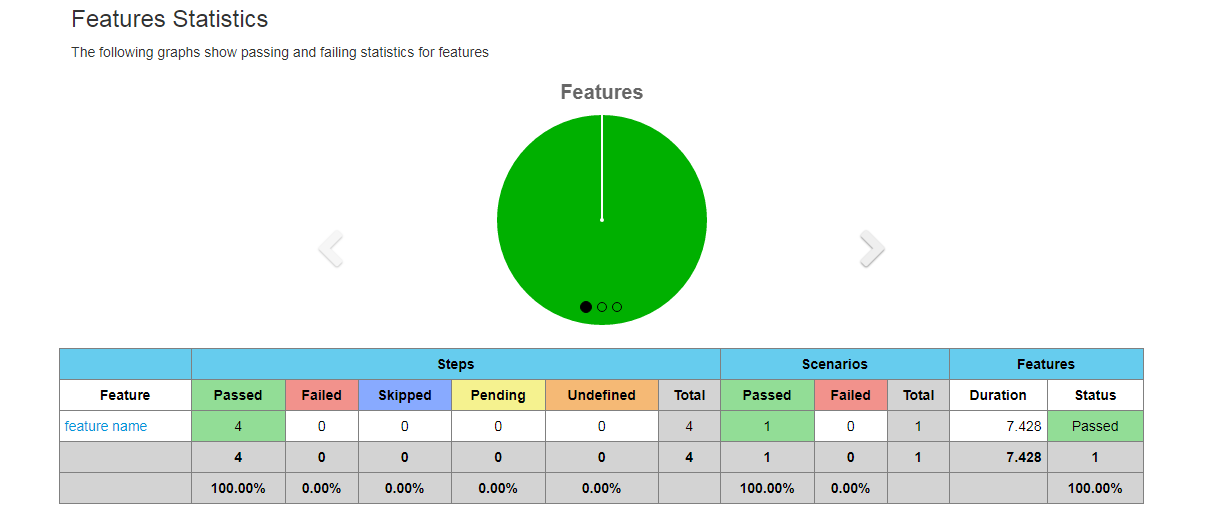
8. Execute the following maven command with Goals as verify to generate the Cucumber Reports.

mvn verify


Cucumber Reports,CucumberTestReport.json

Cucumber Reports,CucumberTestReport.json

Maven Build Profiles Example

      No Comments on Maven Build Profiles Example

Maven Build Profiles Example

Refer to the below Links for Practise
Selenium Wiki
Complete List of Selenium Basics
50 Real Time Interview Questions
Real Time Scenario’s
Java Platform Standard Edition 8 Documentation
Complete List of Java Basics
Java Quiz
Java OOPS Quiz
Selenium Advanced Quiz
Selenium Quiz


Access the URL to learn Maven Basics: https://total-qa.com/advanced-selenium/maven/
Maven is a Build Automation Tool helps in packaging different build types as Jar,War,EAR.
EAR -> Enterprise Archive
JAR -> JAVA Archive
WAR-> Web Archive
Refer to the link for more details: https://stackoverflow.com/questions/1594667/war-vs-ear-file

Sometimes, its require to run the Selenium WebDriver Automation tests against the Multiple Environments as DEV and QA. Maven has a provision of profiles which helps to run the test with multiple environments.

Configure the pom.xml with different profiles as mentioned below:


Running the Maven Project using Profile Names:
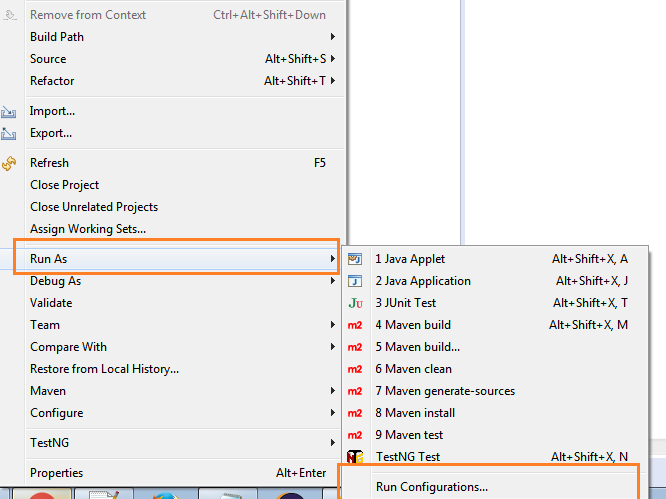
Right-click on the project select Run as->Run Configurations

Maven Run Configuration

Maven Run Configuration

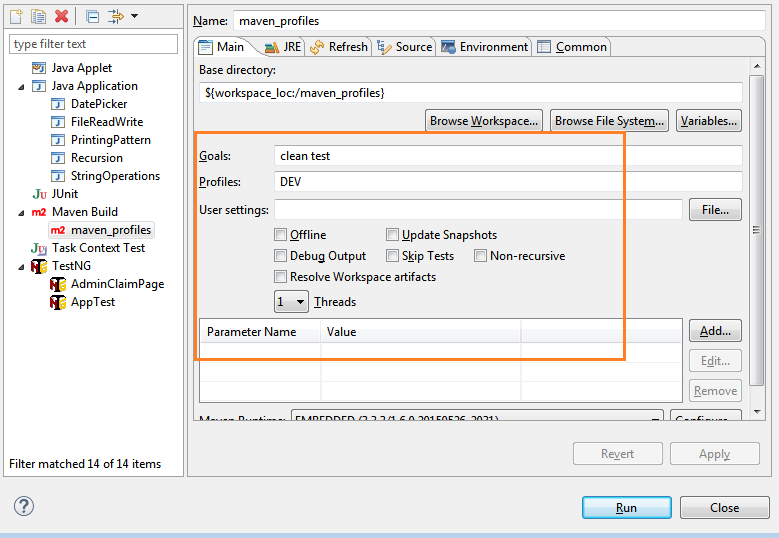
Provide the maven goals and profile Names:

maven goals profile

maven goals profile

Executing the Maven Project with maven goals and profile Names from command line:

  1. Download the Apache Maven Software from the link https://maven.apache.org/download.cgi accordingly as per the Operating System.
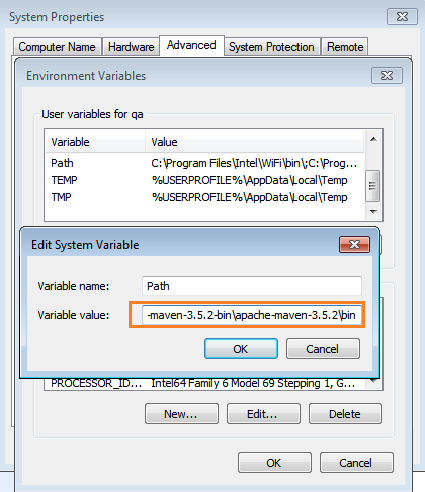
  2. Unzip the file and set the Class-path for the Apache Maven.
  3. classpath

    classpath

  4. Run the Maven Project from the command line with goals and profile name

Refer to the below Links for Practise
Selenium Wiki
Complete List of Selenium Basics
50 Real Time Interview Questions
Real Time Scenario’s
Java Platform Standard Edition 8 Documentation
Complete List of Java Basics
Java Quiz
Java OOPS Quiz
Selenium Advanced Quiz
Selenium Quiz

extent reports in selenium webdriver

      3 Comments on extent reports in selenium webdriver

Selenium WebDriver Reporting – Extent Reports

Refer to the below Links for Practise
Selenium Wiki
Complete List of Selenium Basics
50 Real Time Interview Questions
Real Time Scenario’s
Java Platform Standard Edition 8 Documentation
Complete List of Java Basics
Java Quiz
Java OOPS Quiz
Selenium Advanced Quiz
Selenium Quiz


As we all familiar with different types of reporting Tools like XSLT Reporting,Allure Reporting mentioned below:
XSLT Report: https://total-qa.com/generate-xslt-report-ant-build/
Allure Report: https://total-qa.com/advanced-selenium/allure-reporting/

We will explore a new open source reporting tool Extent Reports in selenium webdriver.
Extent Reports is a logger-style API written for Java and .NET environments which allows creating HTML reports from tests.

    Steps to Configure Extent Reports:

  • Access the link extent reports for maven dependency information
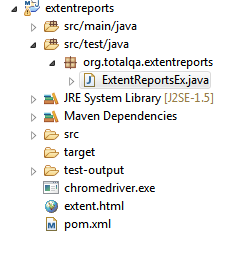
  • Create a maven project add the extent reports dependency.
  • extentReports

    extentReports

  • Create a Sample Program to generate extent reports.
  • Execute the program verify the extent.html file generated in the project.
  • extentreports1

    extentreports1

selenium webdriver headless chrome

      1 Comment on selenium webdriver headless chrome

Why Headless Chrome?


A headless browser is a great tool for automated testing and server environments where you don’t need a visible UI shell. This can be achieved by using Selenium Java Class org.openqa.selenium.chrome.ChromeOptions.

Refer to the Google Chrome Capabilities Link

Pre-requisites:


Exception 1: unknown error: Chrome failed to start: was killed
Resolution:

Remove the following options from the code while running in windows.
options.addArguments(“–print-to-pdf”);
options.addArguments(“–screenshot”);

Exception 2: “unknown error: call function result missing ‘value'”
Resolution:
Download the latest version of chromedriver.exe solves this Issue.
Link for downloading the latest version: https://chromedriver.storage.googleapis.com/index.html?path=2.36/

Refer to the below Links for Practise

Selenium Wiki
Selenium Quiz
Selenium Advanced Quiz
Java Quiz
Java OOPS Quiz
Selenium WebDriver Tester Resume

Agile tools for Software teams – Jira,Rally,Zephyr

Agile tools for Software teams – Jira,Rally,Zephyr

Refer to the below Links for Practise
Selenium Wiki
Complete List of Selenium Basics
50 Real Time Interview Questions
Real Time Scenario’s
Java Platform Standard Edition 8 Documentation
Complete List of Java Basics
Java Quiz
Java OOPS Quiz
Selenium Advanced Quiz
Selenium Quiz

Why Agile Methodology different from Other Methodologies??
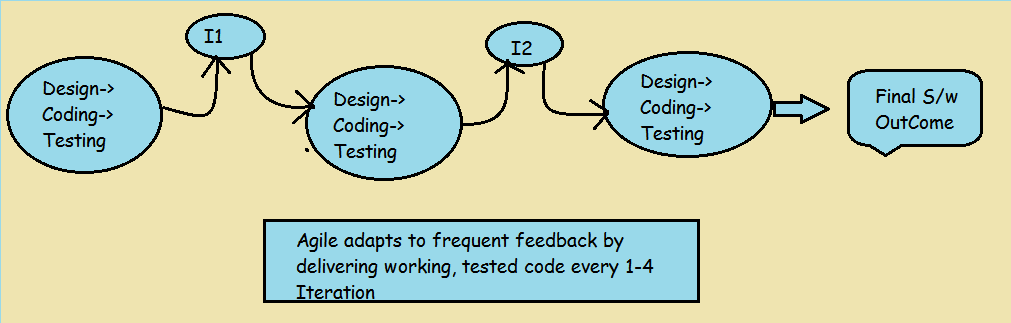
Agile projects build software incrementally using short iterations of 1-4 weeks, to keep development aligned with changing business needs as compare to traditional Software Development Life Cycle mentioned below:

Agile tools for Software teams - Jira

I1,I2,I3 are iterations mentioned below. This Iteration based “approach called as scrum. An Iteration also called as Sprint. The duration of the Iteration is 2-weeks.


Agile tools for Software teams - Jira
Different Roles in Agile Methodology:

    Scrum Master:

  • Facilitate Team Meetings and decision-making sessions.
  • Remove blocks and work with Organization to track progress.

Product Owner:

  • Defines the requirements.
  • Determine the release date.
  • Define the acceptance criteria.
  • Accept the Stories and the team definition of done.

What is a User Story?
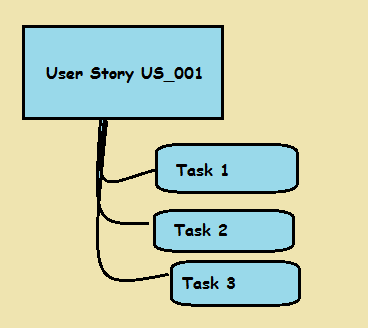
A user story is a requirement that defines what functionality a user needs.

What is a task?
A task is how the functionality is implemented. Stories are implemented by tasks.
Agile tools for Software teams - Jira

Agile FAQ’s
What is the right team size?

  1. The team size is between five to nine people.
  2. For 5 developers one tester is dedicated
  3. for 9 developers two testers are dedicated.

They are lot of project management tools like Rally, Jira and Zephyr . For understanding the concepts in a better way we follow the steps on Jira Software.

Introduction:
Jira Software is an agile project management tool that supports any agile methodology . From agile boards to reports, you can plan, track, and manage all your agile software development projects from a single tool. Pick a framework to see how Jira Software can help your team release higher quality software, faster.

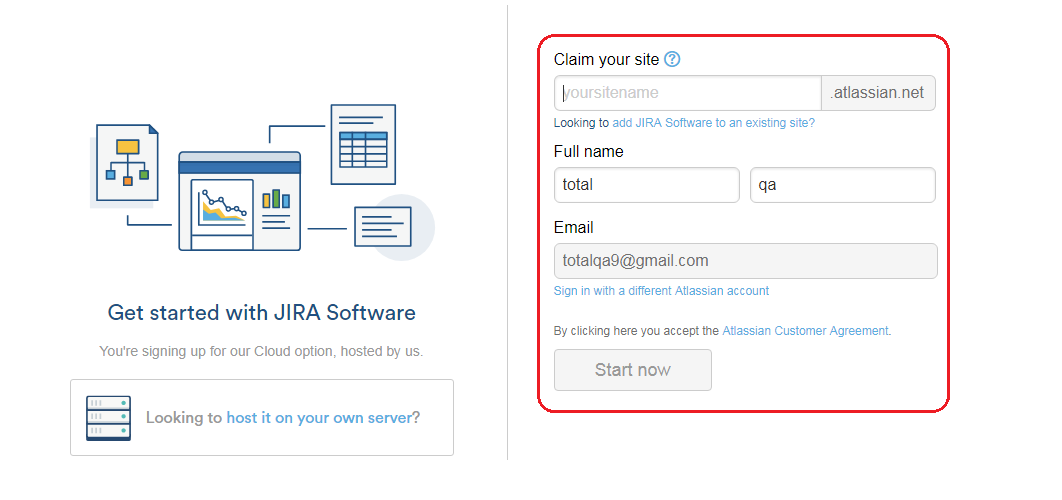
  1. Try the downloading the Jira Software using the link -> https://www.atlassian.com/software/jira/try
  2. Agile tools for Software teams - Jira

  3. Provide any suitable name for the site to access it further. Click on Start now.
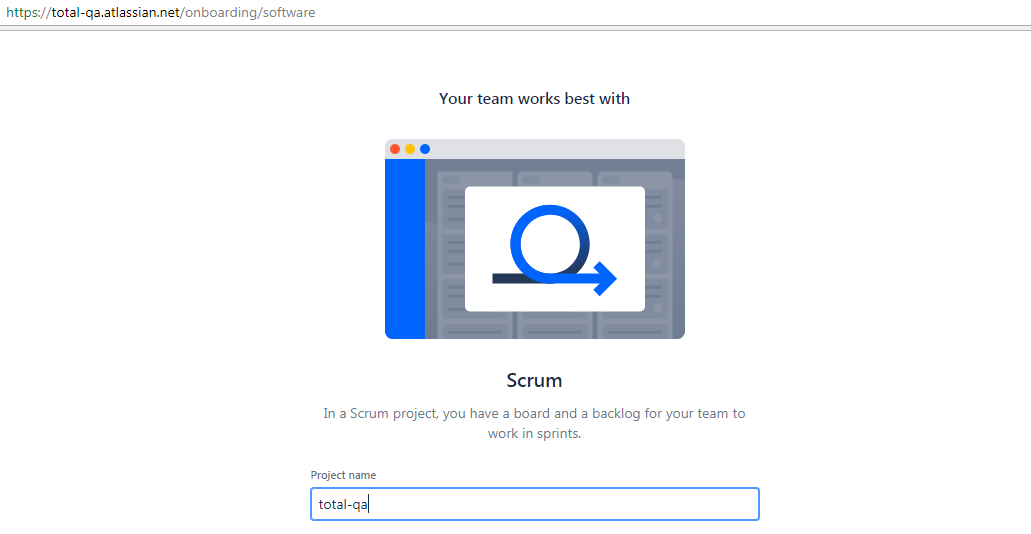
  4. Agile tools for Software teams - Jira

  5. Verify the email address and assess the Site Link received in your email.
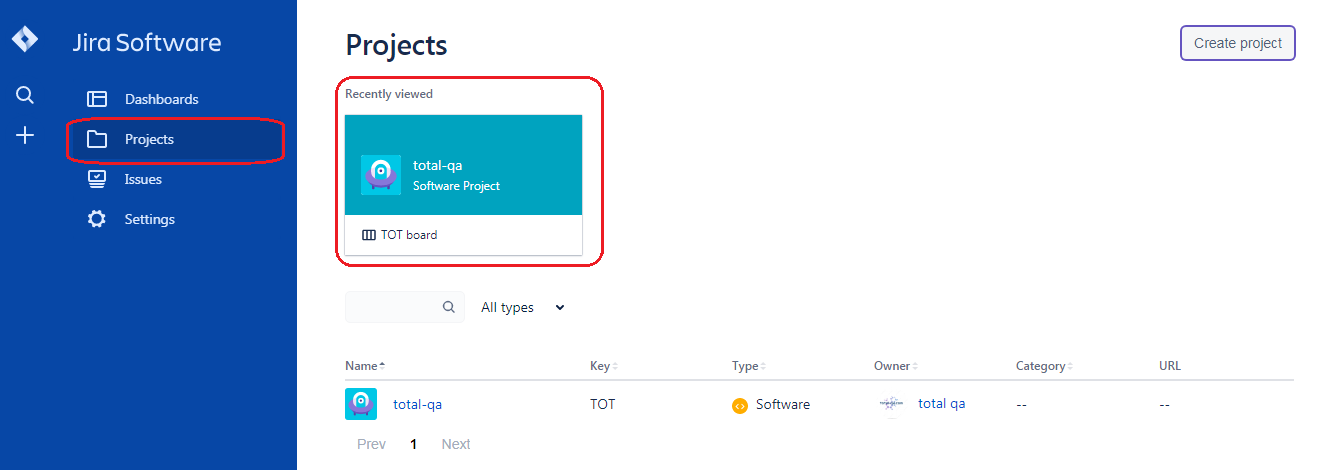
  6. Create a Project name as ‘total-qa’.
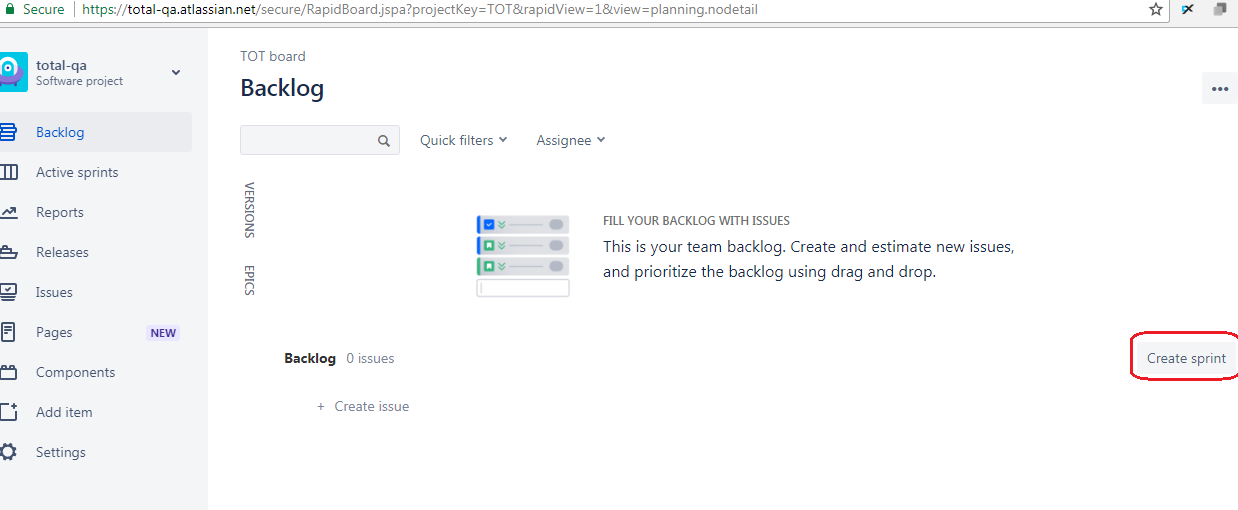
  7. Create a sprint as ‘Sprint 1’.
  8. Agile tools for Software teams - Jira

    Agile tools for Software teams - Jira

    Agile tools for Software teams - Jira

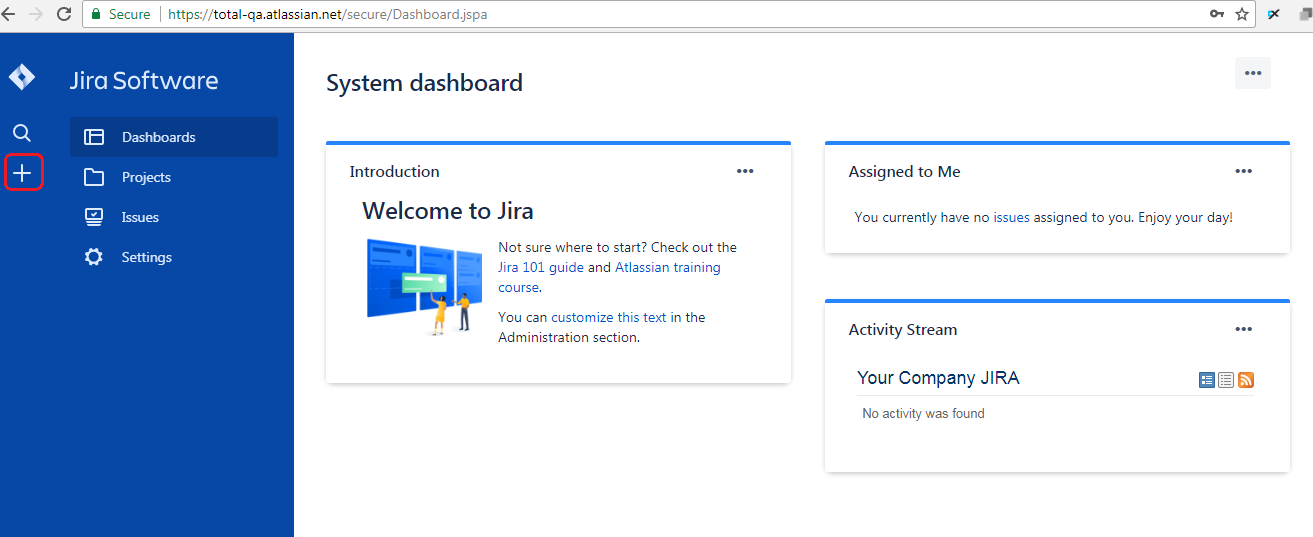
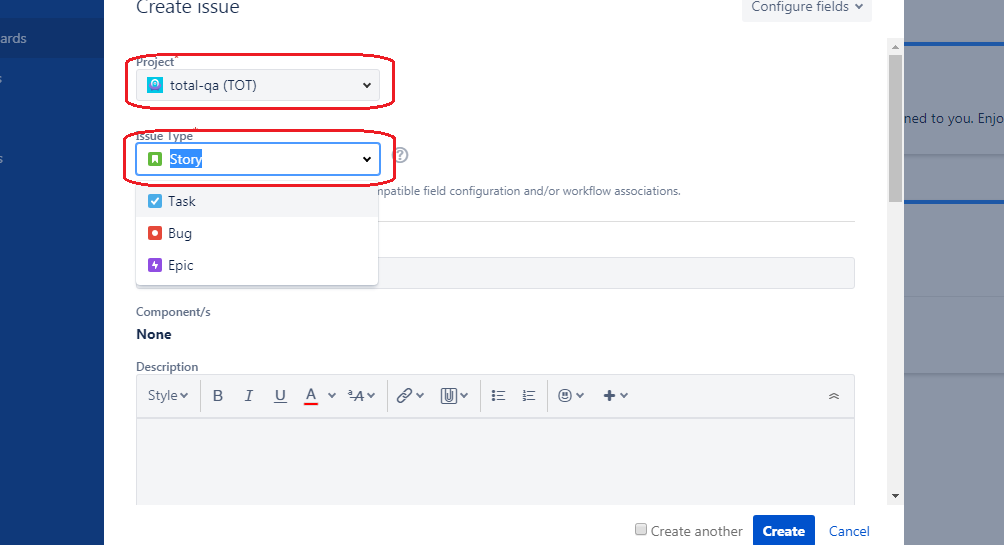
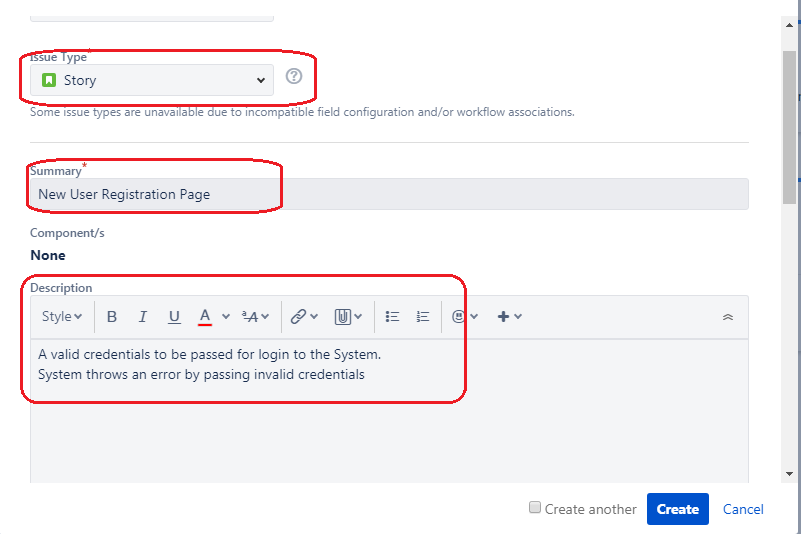
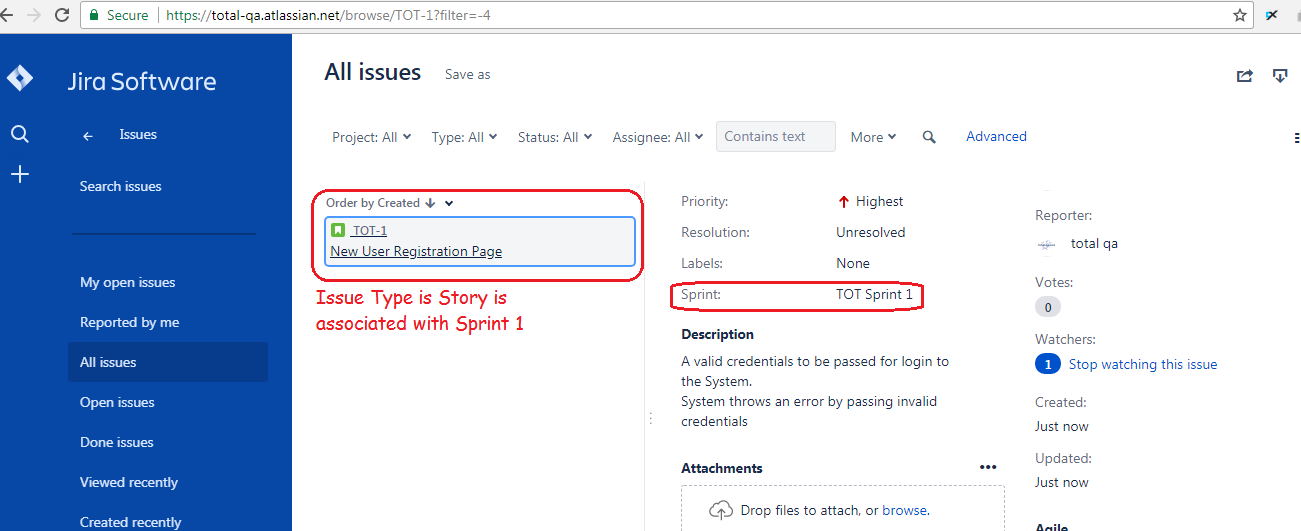
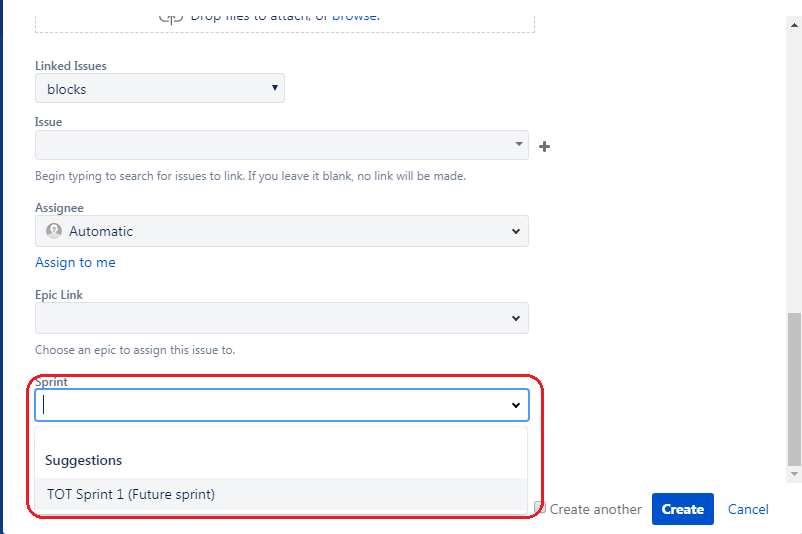
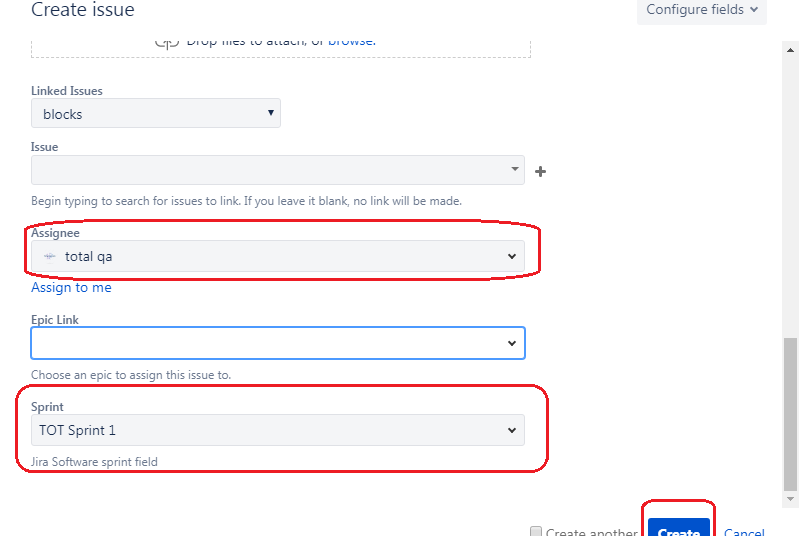
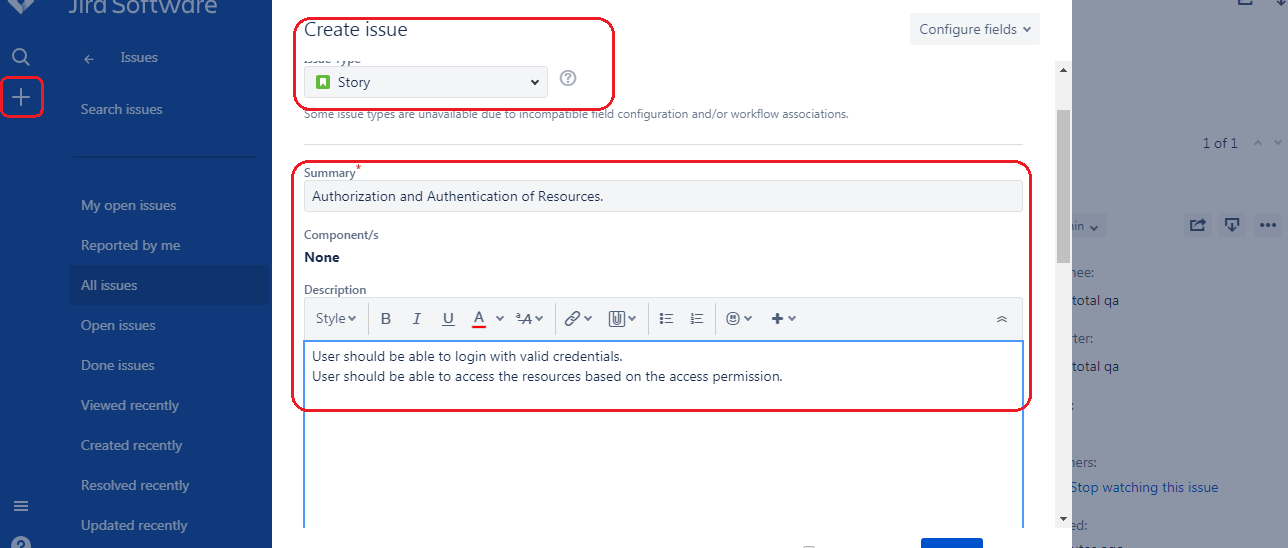
  9. Select an Issue Type as ‘Story’ and select the sprint created ‘Sprint1’
  10. Agile tools for Software teams - Jira

    Agile tools for Software teams - Jira

    Agile tools for Software teams - Jira

    Agile tools for Software teams - Jira

    Agile tools for Software teams - Jira

    Agile tools for Software teams - Jira

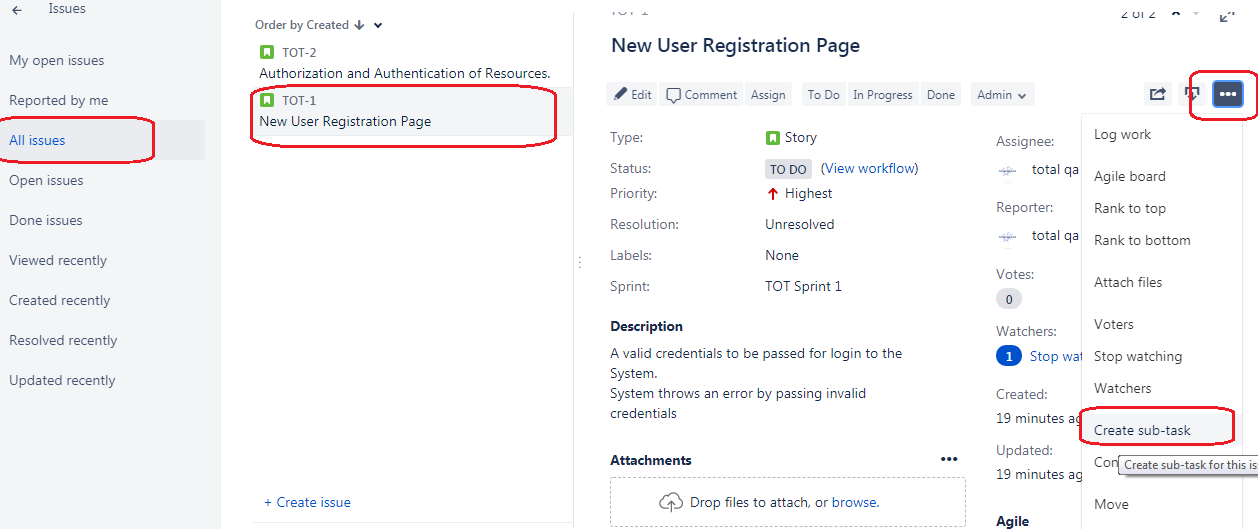
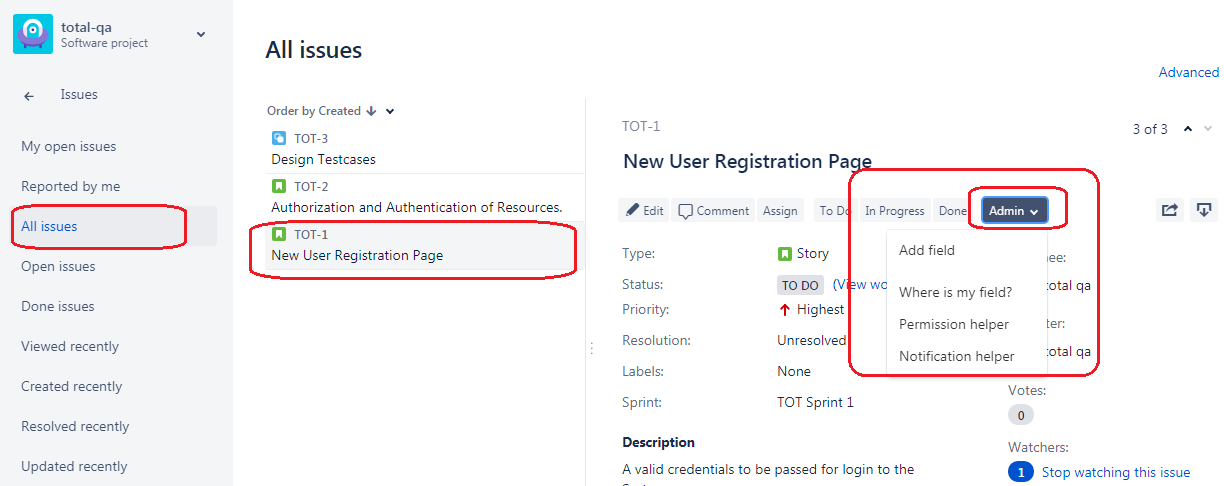
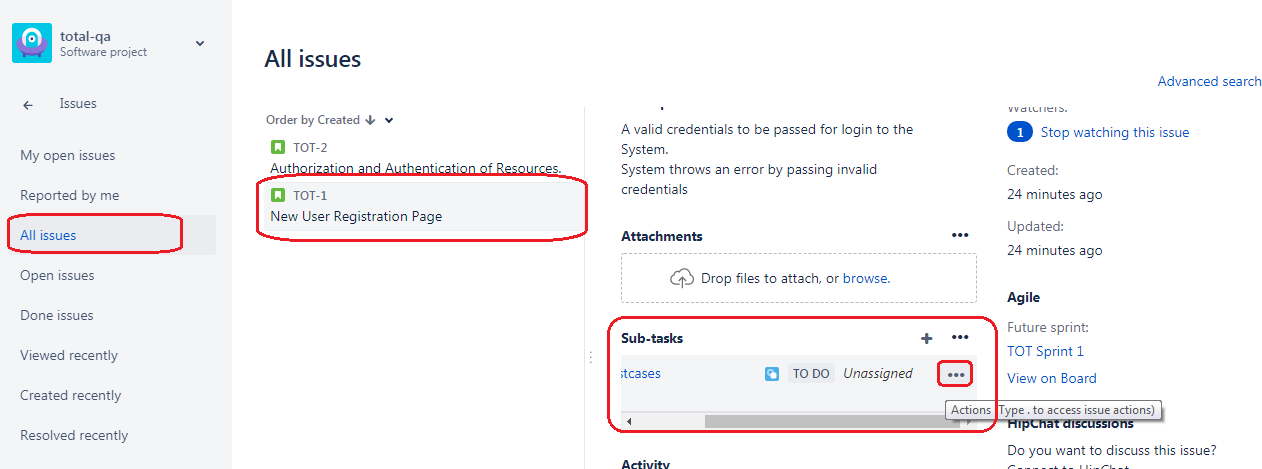
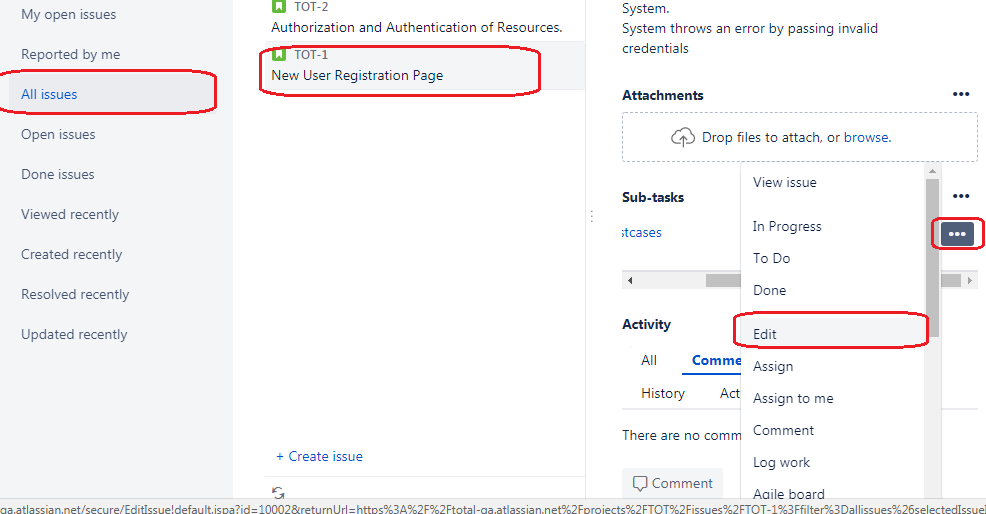
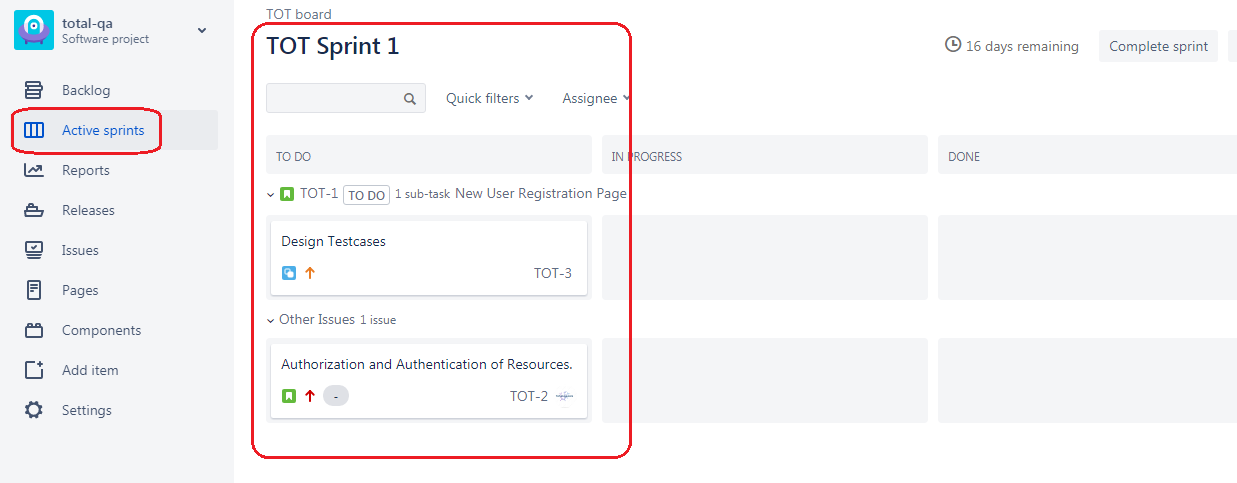
  11. For a story create a subtask.
  12. Agile tools for Software teams - Jira

    Agile tools for Software teams - Jira

    Agile tools for Software teams - Jira

    Agile tools for Software teams - Jira

    Agile tools for Software teams - Jira

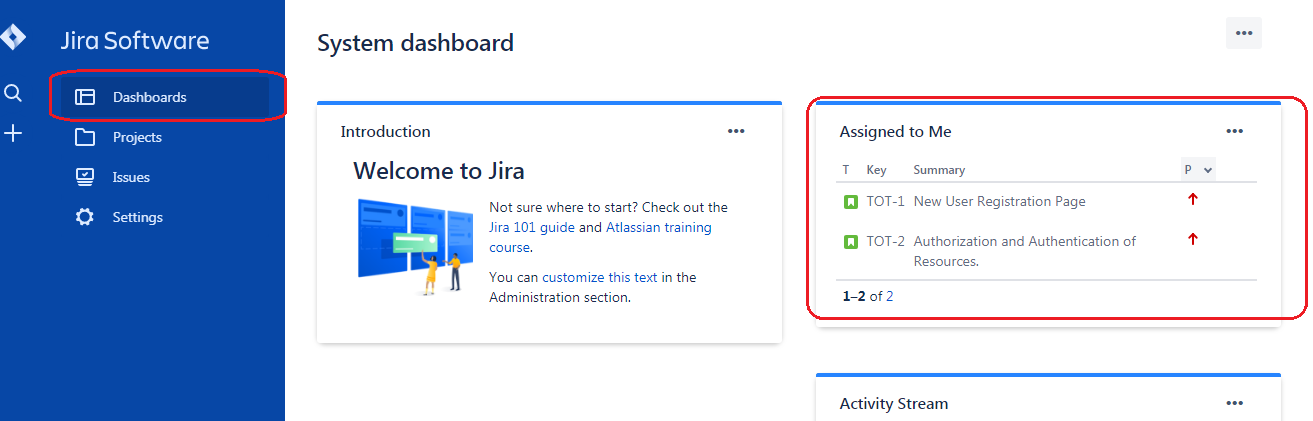
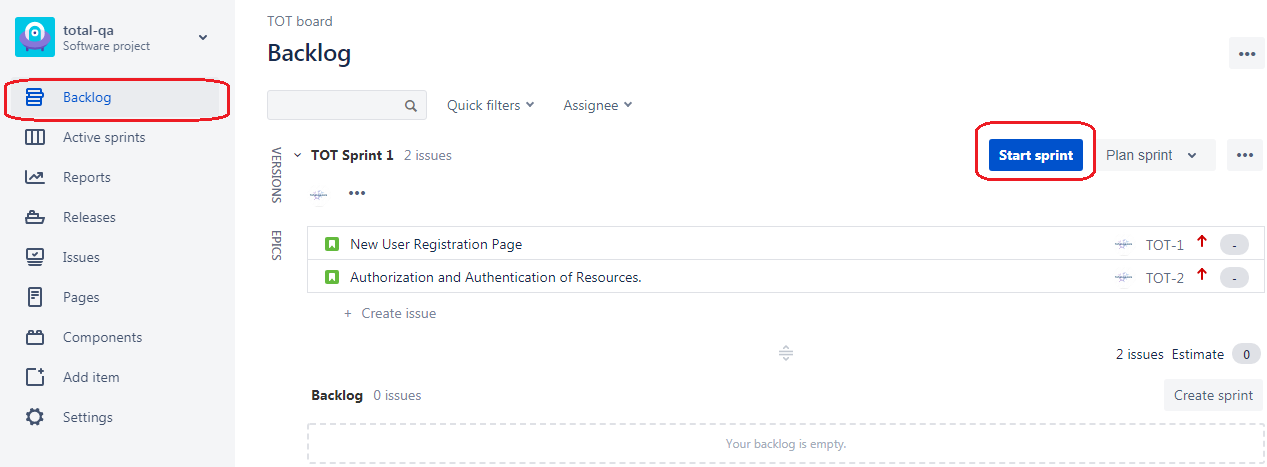
  13. Access Dashboard click on Project and start the Sprint.
  14. Agile tools for Software teams - Jira

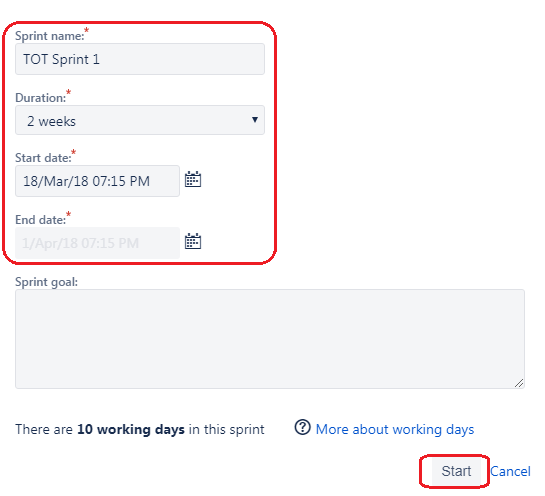
  15. Provide the duration as 2 Weeks.
  16. Agile tools for Software teams - Jira

    Agile tools for Software teams - Jira

    Agile tools for Software teams - Jira

    Agile tools for Software teams - Jira

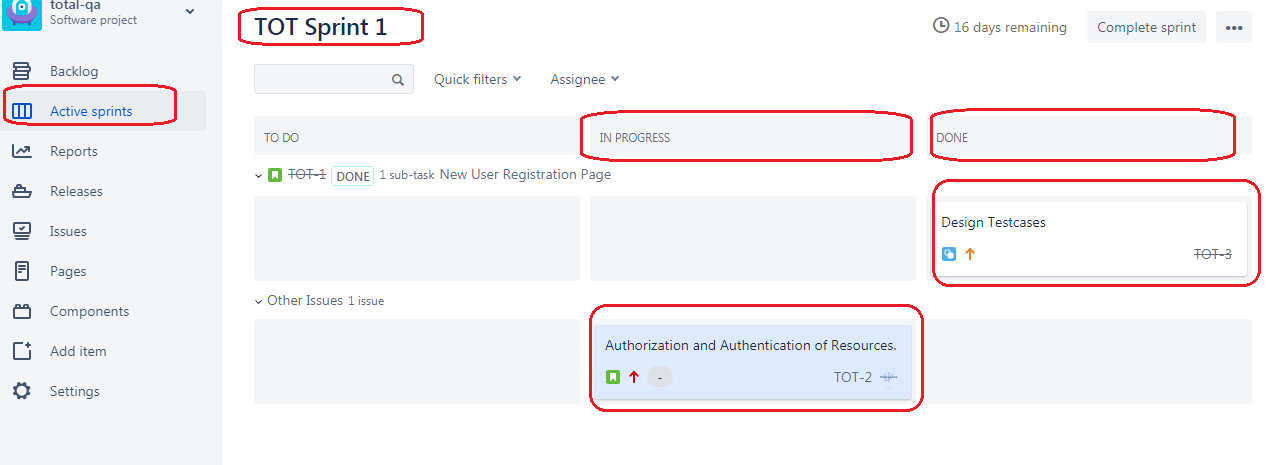
  17. Track the progress of the Sprint by selecting the Predefined charts.

Agile tools for Software teams - Jira

Generate XSLT Report+ Ant build.xml+TestNG Fatal Error! Could not find function: if Issue +No suites, classes, methods or jar file was specified.

We usually depend on Testng for generating the default reports. Apart from that we use XSLT reports as well to generate PIE Charts based on Failed,Passed,Skipped Testcases.
During this process we face lot of issues. Few of the most commonly observed issues are as follows:

[xslt] Unknown file:23:146: Fatal Error! Could not find function: if
[xslt] : Fatal Error! Fatal error during transformation Cause: Fatal error during transformation


In order to resolve this we have to follow the below steps. At every step we will check and see whether issues are resolved or not.
Step 1 :
Make sure the build.xml file contains ‘SaxonLiaison’ processor added.
Example:

Re-run the build.xml and verify the issue is resolved. If still the issue is not resolved try performing Step2.
Step 2 :
Make sure the following jars added to the lib folder and Project build path as well.
saxon-8.7.jar -> Link to download the saxon jar-> Click here
SaxonLiaison.jar ->Link to download the SaxonLiaison jar-> Click here
guice-3.0.jar->Link to download guice-3.0.jar-> Click here


Re-run the build.xml and verify the issue is resolved. If the issue is not resolved goto Step3.
Step 3:

Refer to the build.xml mentioned below .Try to do necessary changes.
Re-run the build.xml and verify the issue is resolved.

Step 4:
Re-verify the testng-results.xsl available in the project directory by downloading from the link Click here .Try to do necessary changes.
Re-run the build.xml and verify all the issues are resolved.
If even after the issues are not resolved, please refer to the directory structure mentioned in the below screenshot.
Resolving “No suites, classes, methods or jar file was specified” in Ant TestNG
Make sure the testng.xml is available in the src folder as mentioned in the image below. Refer to the point1.
XSLT+ANT+TESTNG