Selenium WebDriver Tutorial WebElement Methods

      No Comments on Selenium WebDriver Tutorial WebElement Methods


In this example we will discuss about the WebElement Methods available in Selenium WebDriver. Refer to the Link for WebElement API Methods.


Generally we mainly use methods like sendKeys(),click(),getText(). But they are so many other methods available to verify the input data entered by the user in the textbox. Verify the Css Attributes like color and font-size of the Web Element.

Is WebElement is a Interface or Class??

Answer:: Interface
WebElement is an interface and all the abstract methods in the interface are implemented by the RemoteWebElement Class. Refer to the Link to get more information on Inheritance and Interfaces.

How do we know the Class which are implementing the Interface??

Hold the control button in the keyboard and place the mouse on the method and select Open Implementation as shown below to get the details of the classes which are implementing the interface.

Classes implementing the interface WebElement
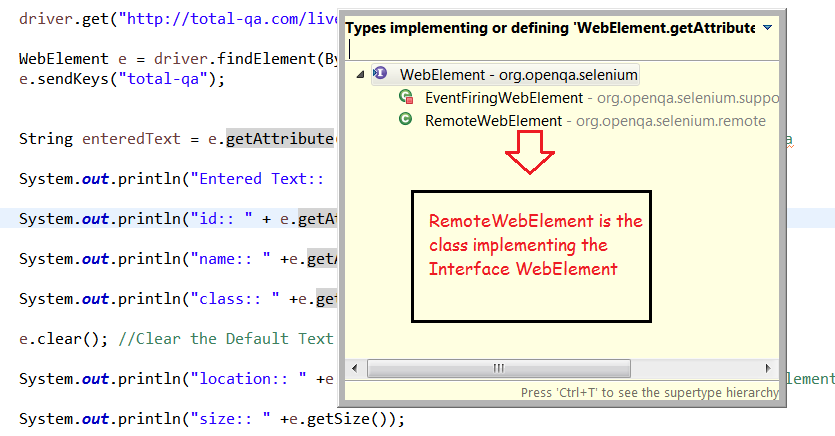
Classes implementing the interface WebElement


RemoteWebElement Class implementing the WebElement Interface

RemoteWebElement Class implementing the WebElement Interface

getCssValue("background-color")
Returns the Color of the WebElement

getCssValue("font-size")
Returns the font-size

getLocation()
Returns the Location of the WebElement. A point, containing the location of the top left-hand corner of the element

getAttribute("value")
Returns the input data entered by the user in the Text box using sendkeys() method.

Example for fetching the background-color and font-size of the Elements in the Web Page:

Output:

Entered Text:: total-qa
id:: username
name:: username
class:: textboxcolor padding
location:: (268, 849)
size:: (231, 30)
color:: rgb(255, 255, 0)
fontsize:: 13.3333px
Tag Name:: input

Conclusion:

In this example we have learnt how to use the WebElement Methods in Selenium WebDriver.
XPath normalize-space example in Selenium WebDriver


In this example we will discuss about the usage of normalize-space in Xpath.

We already aware of the Functions like text(),contains(),starts-with(),last() and position() in Xpath. Refer to this link to know details about these functions. Xpath Functions.

Generally, normalize-space(String s) is a method in Xpath useful to remove any leading or trailing spaces in a String. This is also works like a trim() function in java.lang.String class. We will see different examples

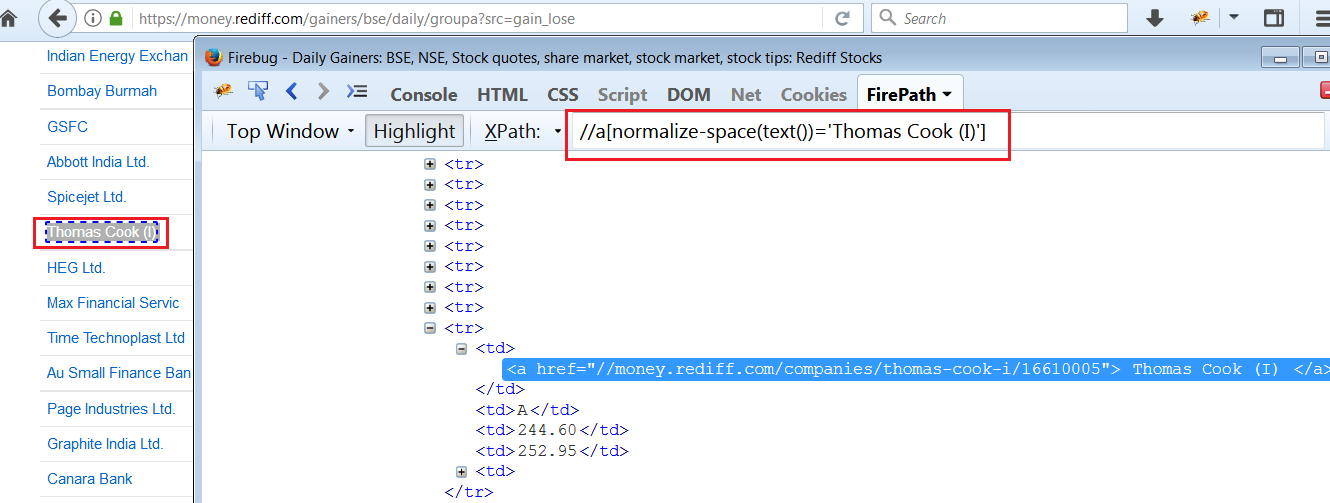
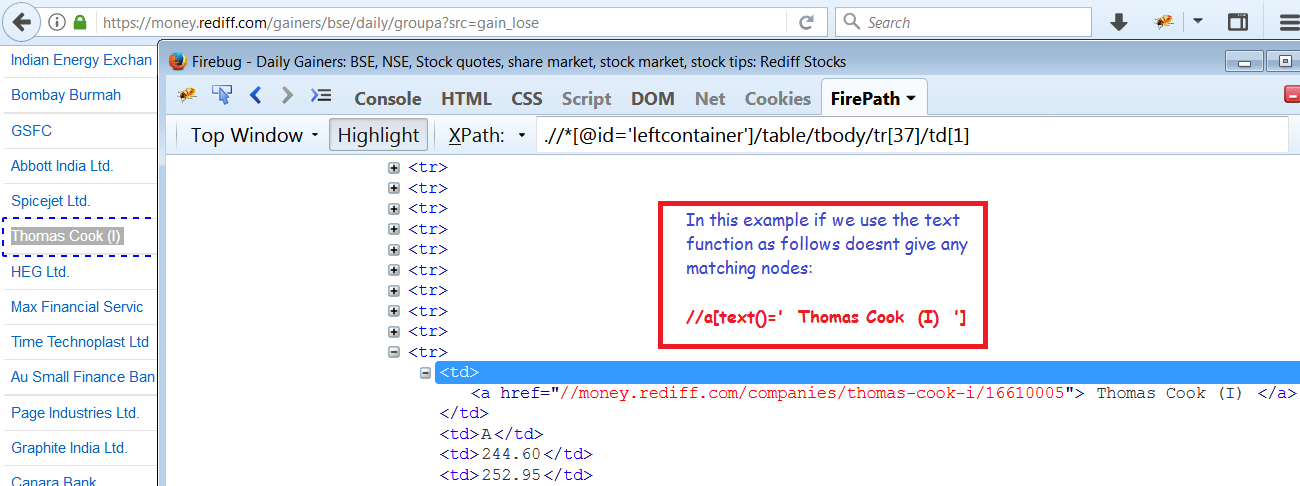
In the above example the table data has spaces for Thomas Cook. If we use Xpath Text Function it doesnt provide any value as an output. Please check the screenshot below:

Usage of Xpath text() Function

Usage of Xpath text() Function

Usage of normalize-space(text()) method in Xpath.Please check the screenshot below:

xpath-normalize-space-example

xpath-normalize-space-example

Selenium WebDriver Example to fetch the price for a particular Stock:

Therefor the extra spaces in the table data is ignored and identified the element and fetches the stock price.

Output:

Stock Price::: 244.60

Conclusion:

In the example we have learnt how to use the normalize-space in Xpath.

[findElements Example]How to find Broken Links in a WebSite using Selenium WebDriver?

[findElements Example]How to find Broken Links in a WebSite using Selenium WebDriver?


In Web Applications it is important to identify the Broken Links. As manual Tester when we click on hyper link if we get HTTP_404 page not found. Then it is obvious that the page is broken. It would be good to find all the HTTP Error Codes as well https://en.wikipedia.org/wiki/List_of_HTTP_status_codes.
There are different ways of identify the broken links manually using the following Add-on:
LinkChecker Addon for Firefox which helps to identify the broken links in web page opened in Firefox.
In order to identify all the links in a webpage we can use findElements() method which returns the List <WebElement>


Differences between FindElements and FindElement in Selenium WebDriver
findElement(By)
1. WebElement e = driver.findElement(By.name(“username”));
findElement(By) returns an WebElement as a return value.
2. findElement(By) throws an exception if it is unable to find an Element.
WebElement e =driver.findElement(By.name(“abc”));
NoSuchElementException is an RunTimeException/Unchecked Exception
3. findElement(By) always selects the first one in the list of matching WebElements.


findElements(By)
1. findElements(By) returns an List of WebElements
Details About List:
Click on this link to know more about Collections: java.util.Collection


List is available under java.util package.
List is mainly useful to store multiple objects which are duplicates as well.
“abc”
“abc”
WebElements which hare having same properties are known as duplicates.
size() – number of the objects available in list
get(int index)- helps in retrieving the particular object
int a[]={1,2,3,4,5};
a[0]// 0 is the index value in Arrays and it 1 in Xpath.

2.findElements(By) returns an empty list if its unable to find an element
List list = driver.findElements(By.name(“abc”));
Empty List means list.size() is zero.
3. findElements(By) selects all the matching webElements and returns a list.


Logic to Identify the Broken Links in a WebPage:

Therefore we can find all the Broken Links in a WebPage using HTTPURLConnection and findElements method in Selenium WebDriver.
Hope this tutorial helps you in checking Broken links using selenium webdriver.


[Solved] java.lang.ClassCastException using Generics in Java

[Solved] java.lang.ClassCastException using Generics in Java


Generally when ever we write the Java Logic its better to know the issues during the compile time rather than at run time. If we do not use Generics we might face java.lang.ClassCastException when trying to add an Integer Object instead of String Object and try to retrieve the value and perform an operation on it will cause this exception. How do we overcome this using Generics we will learn from this tutorial.

Lets implement the Logic without using the Generics:

Executing this Program returns following output in the Console:


Exception in thread “main” java.lang.ClassCastException: java.lang.Integer cannot be cast to java.lang.String
at org.h2k.javaprograms.ClassCastExceptionExample.main(ClassCastExceptionExample.java:15)


Lets implement the Logic using the Generics:
In the above program change the Line No:8 as follows:

List<String> strList = new ArrayList<String>();


Conclusion:
Therefore implementing Generics avoids ClassCastException During run time. Any issues we can caught during Compile Time.

Rerunning failed tests using IRetryAnalyzer,ITestResult in TESTNG

Rerunning failed tests using IRetryAnalyzer,ITestResult in TESTNG


TESTNG is a java framework used by JAVA Developers to perform unit testing of their code.
We can even use TESTNG for Selenium to automate the manual testcases and verify the output by inserting
the Soft Assertions and Hard Assertions. TESTNG generates the reports once the testcase run completed.
It generates the test-output directory with results in index.html and emailable-report.html. It also generates the testng-failed.xml for the tests which are failed in the Suite. Now it is possible to re-run the failed tests.
Mostly the Selenium tests will fail due to multiple reasons, one of them is NoSuchElementException this occurs due to TimeOut Issues where the element takes time to display. In those cases it would be good to re-run and fix the issues.

Steps for Implementing the Retry Logic:

1. IRetryAnalyzer is an interface which has to be implemented the Class RerunTests.java.


2. Write the TestNG Testcase that has to be re-run. Use TESTNG attribute retryAnalyzer and provide the value for the attribute as RerunTests.java.

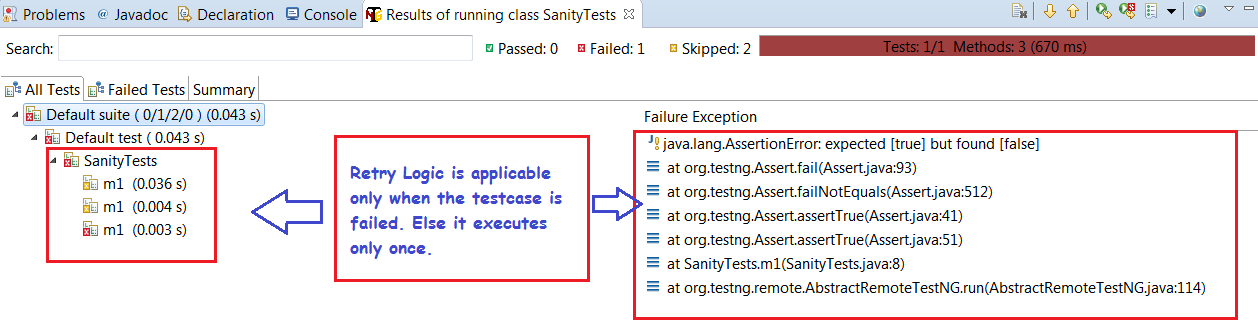
3. Finally the failed testcase executes as per the retryCount mentioned in the RerunTests.java.

Rerun Failed Tests using Retry Logic

Rerun Failed Tests using Retry Logic

Xpath Helper,ChroPath Plugins,Javascript Console for Chrome Browser

Xpath Helper,Chropath Plugins,Javascript Console for Chrome Browser


In Selenium they are totally 8 Locators. Out of all Locators, Xpath is very important which helps to identify the WebElements. Identifying the Xpath in Firefox Browser is easy using Firebug and Firepath plugins. But Firebug and Firepath plugins are not compatible with latest version of Firefox Quantum. How do we over come this is mentioned in detail in this Tutorial Link.
Now, how are going to identify the Xpath on Chrome Browser using the following
Xpath Helper
ChroPath
Javascript Console


Usage of Xpath Helper:
1. Open Chrome Browser and access the below Link to add the Xpath Helper plugin to the Chrome Browser.
Xpath Helper Link:
https://chrome.google.com/webstore/detail/xpath-helper/hgimnogjllphhhkhlmebbmlgjoejdpjl?hl=en
2. Once the plugin is added it is visible on the right hand side of the browser as shown below:

Xpath Helper Plugin

Xpath Helper Plugin


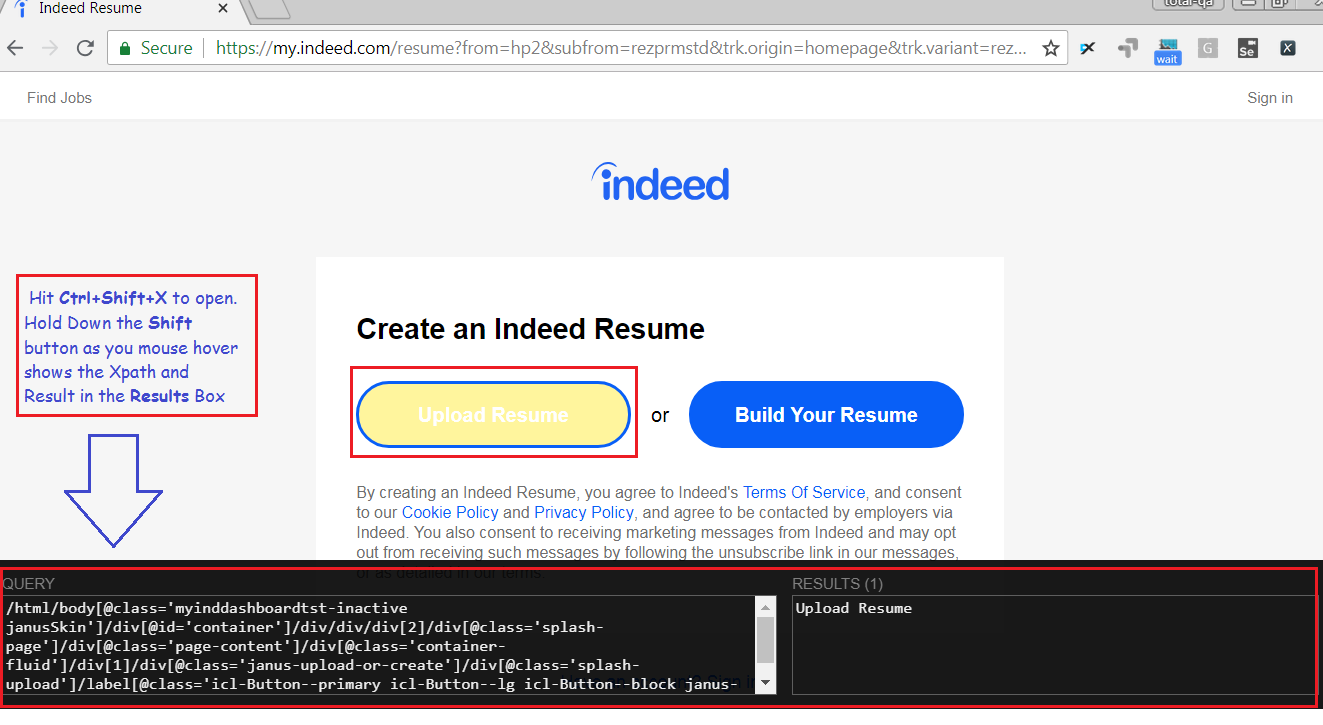
3. Open New browser and Hit Ctrl+Shift+X to open the Xpath Helper. Hold the Shift button and mouse hover on the Element to view the Xpath and Results.
Hit Ctrl-Shift-X to open Xpath Helper.    Hold down Shift as you mouse over elements on the page to view the Xpath and the  Results .

Hit Ctrl-Shift-X to open Xpath Helper.Hold down Shift as you mouse over elements on the page to view the Xpath and the Results .


Usage of ChroPath:
This plugin is developed by Sanjay Kumar.
1. Open Chrome Browser and access the below Link to add the ChroPath plugin to the Chrome Browser.
ChroPath Link:
https://chrome.google.com/webstore/detail/chropath/ljngjbnaijcbncmcnjfhigebomdlkcjo
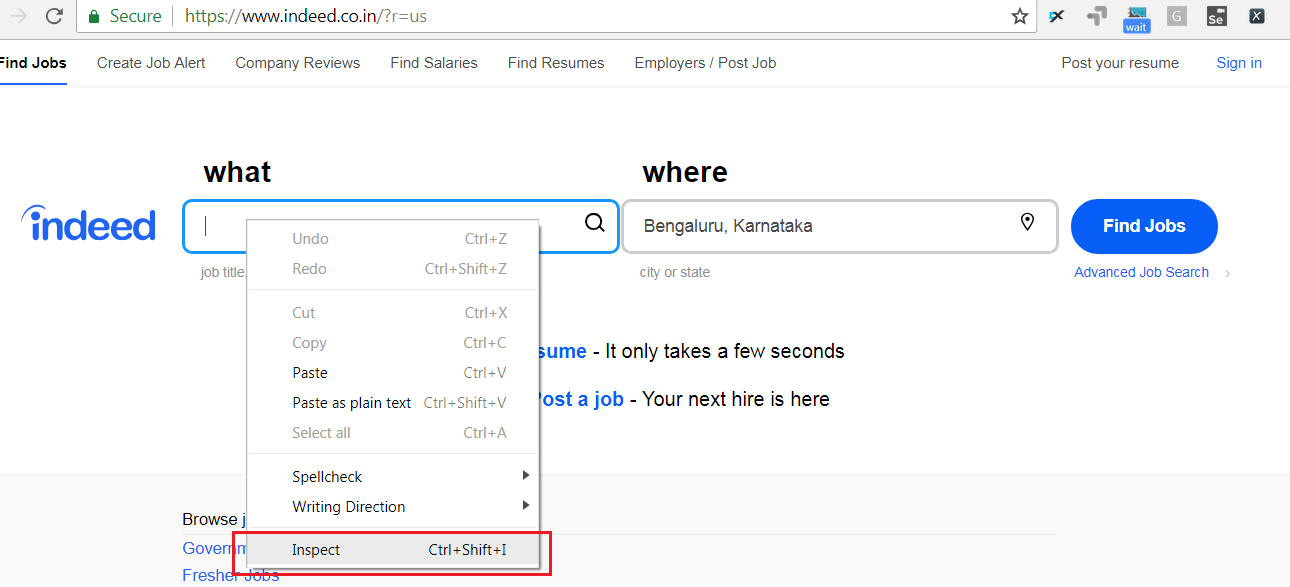
2. To open ChroPath right click on any Element and Select Inspect as shown below:

Inspecting an Element in Chrome Browser

Inspecting an Element in Chrome Browser


3. Open Chropath as shown below.
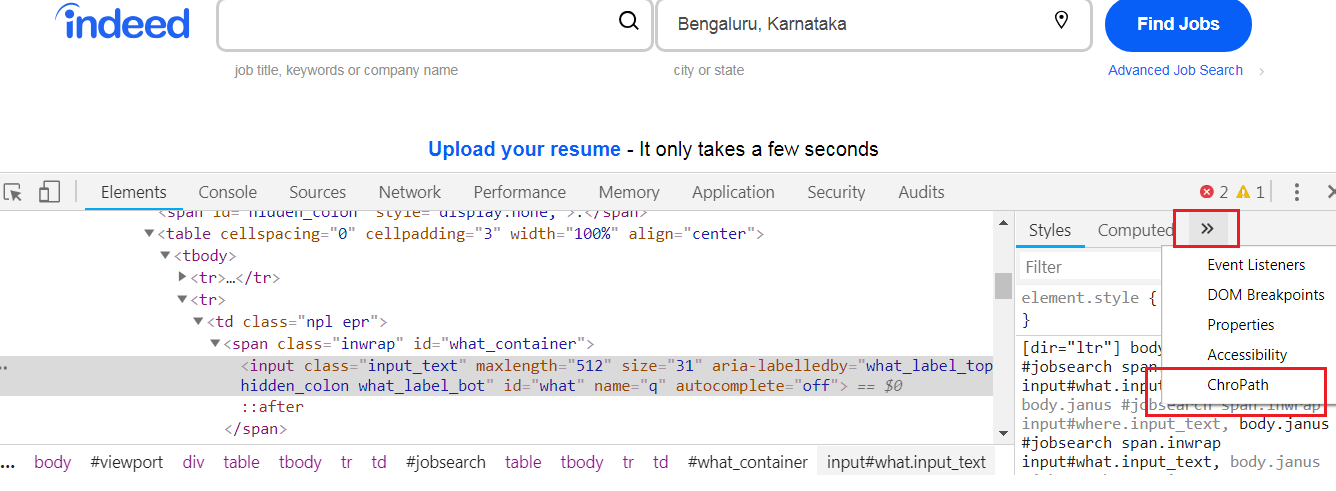
Select ChroPath Option

Select ChroPath Option


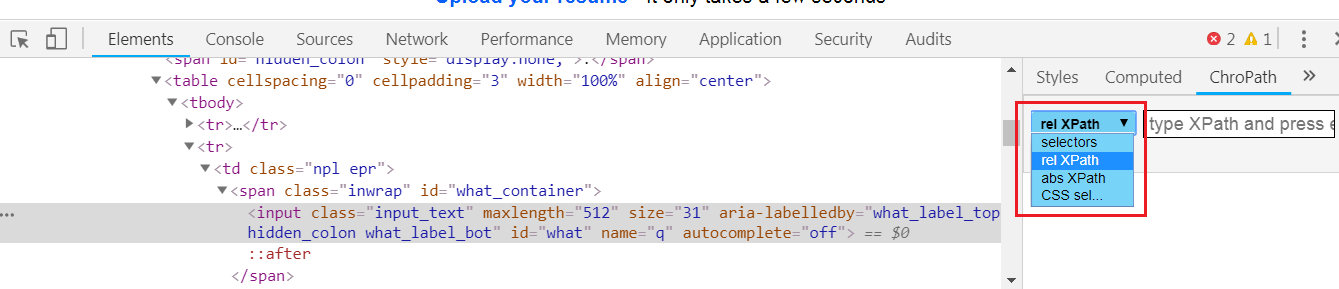
4. Select the Relative Xpath Option in ChroPath.

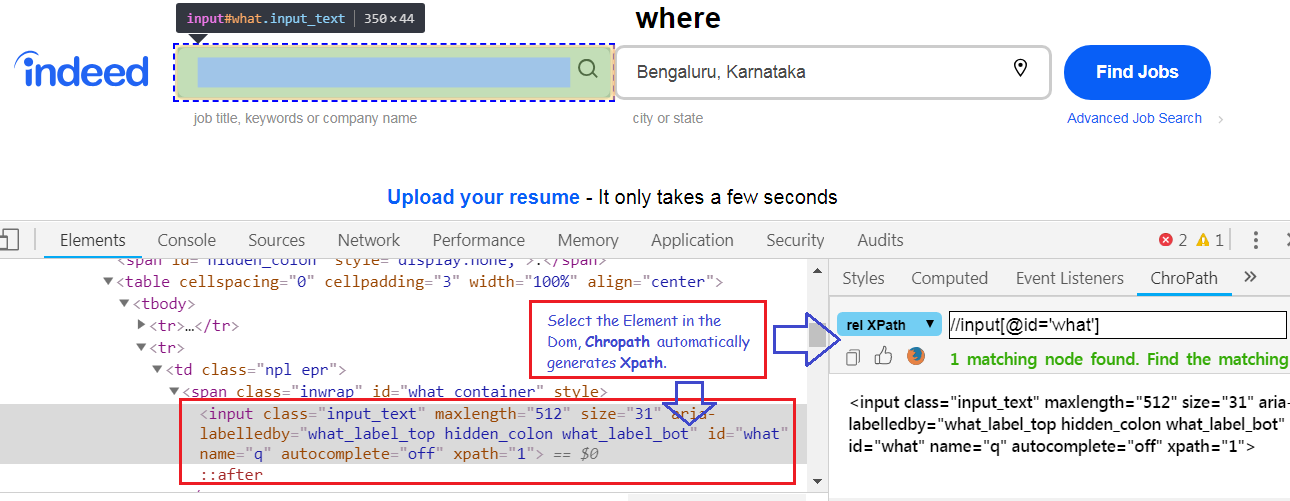
5. To generate XPath/CSS inspect element or click on any DOM node, it will generate the unique relative XPath/absolute XPath/CSS selector for the selected node.
Chropath Relative Xpath,Absolute Xpath,Css

Chropath Relative Xpath,Absolute Xpath,Css


Usage of Javascript Console:
1. Javascript Console which is part of Developer tools in Chrome Browser helps to identify the Xpath and also helps to execute all the Java Script Commands. For reference to the Javascript Commands click on this link https://www.w3schools.com/js/default.asp
2. Right click on any Element and Select Inspect as shown below:

Inspecting an Element in Chrome Browser

Inspecting an Element in Chrome Browser


3. Refer to the Commands for Reference. Type the below commands in the console to view the results.


console.log("message")
$x("//img")
$x("//input")
$x("//input[@id='what']")

Chrome Browser Developer Tools - Javascript Console

Chrome Browser Developer Tools – Javascript Console


Note: Chropath is also available fore Firefox as well. Please refer to the link below:
https://addons.mozilla.org/en-US/firefox/addon/chropath-for-firefox/

The Difference Between :nth-child and :nth-of-type CssSelector

The Difference Between :nth-child and :nth-of-type CssSelector


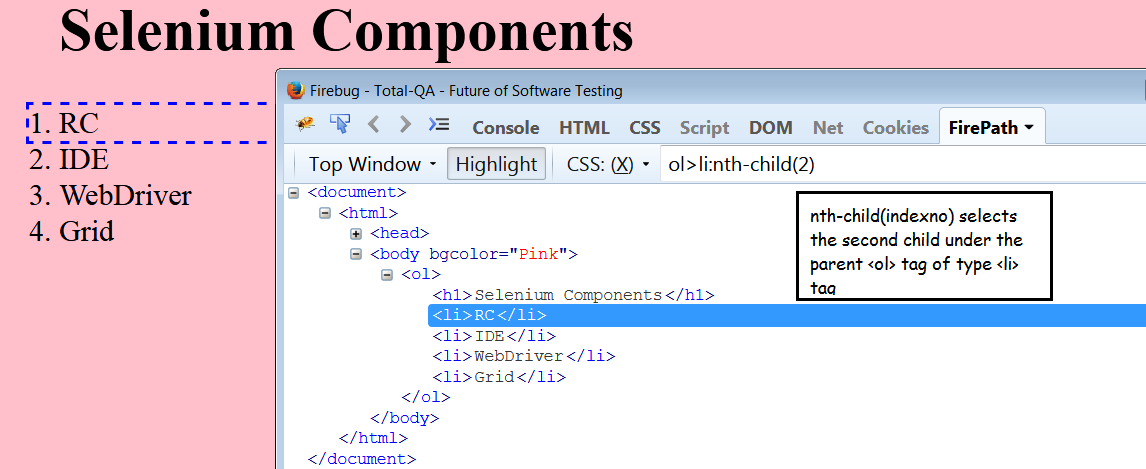
CssSelector is one of the most important Locator in Selenium WebDriver. Also Css is faster when compare to Xpath. In CssSelector to use index we use either nth-child(indexno) or nth-of-type(indexno).So, what is the difference between the two. Let us see an example in this tutorial.
Consider the following HTML Source as below:
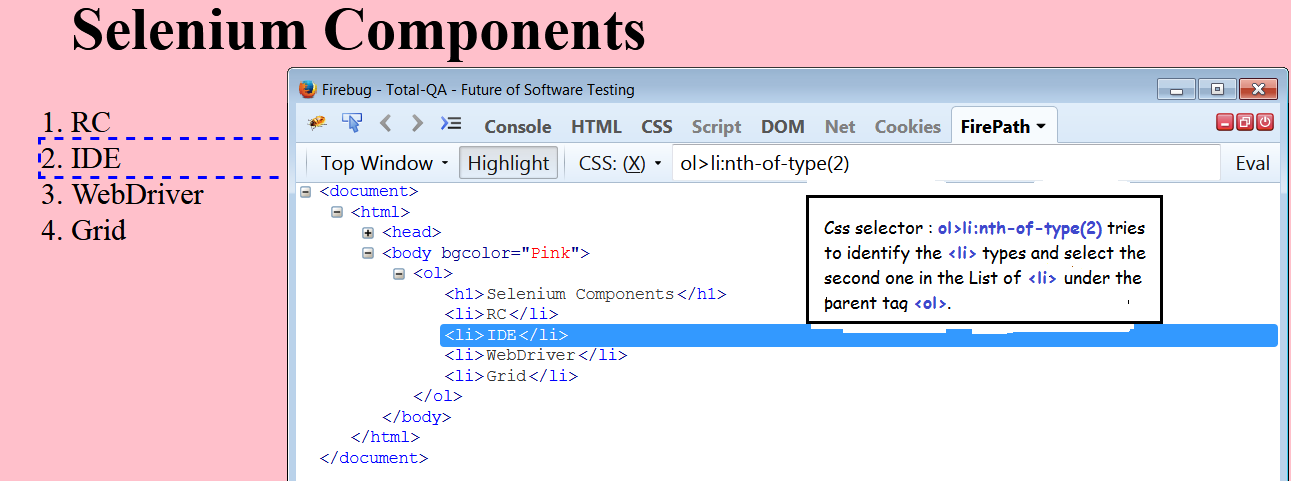
In this example they are 4 li tags under the parent ol.

Identify the Value IDE using the nth-of-type(index) as follows

Usage of nth-of-type(indexno)

Usage of nth-of-type(indexno)


Identify the Value IDE using the nth-child(index) as follows
CssSelector tagName>nth-child(index)

CssSelector tagName>parent>child:nth-of-type(index)

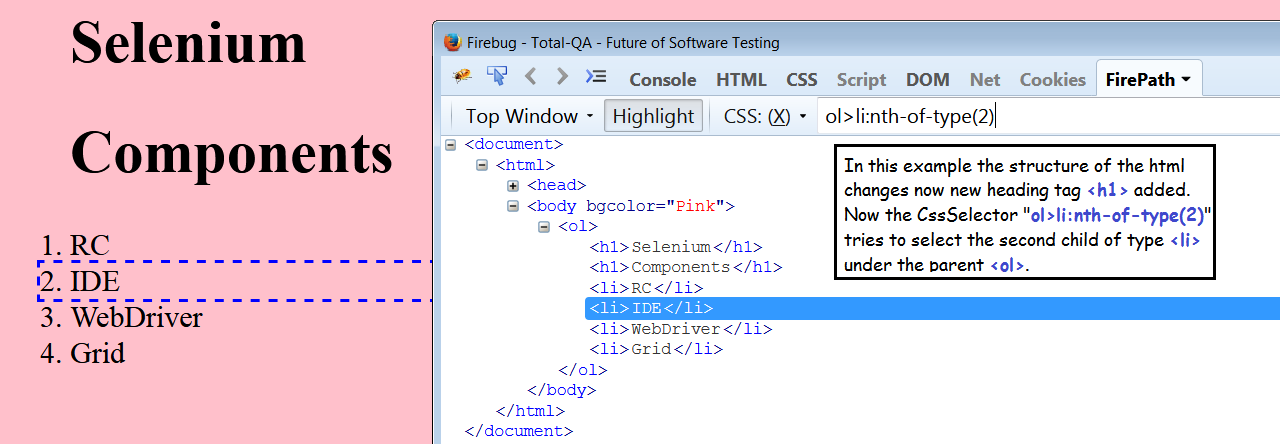
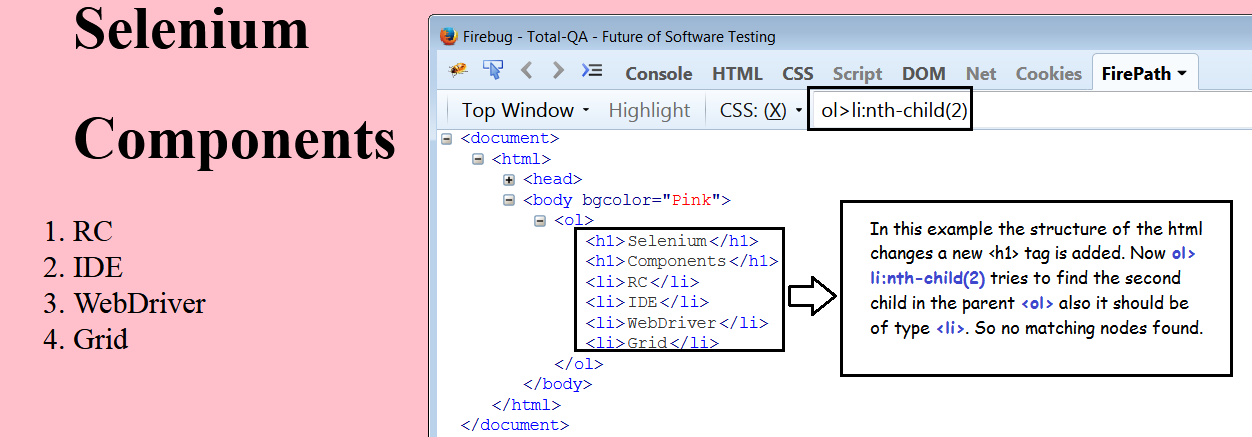
Let us see now if the html Structure is changed a new Heading Tag h1 is Added.


Identify the Value IDE using the nth-of-type(index) as follows

nth-of-type(indexno)

nth-of-type(indexno)


Identify the Value IDE using the nth-child(index) as follows
Usage of nth-child(index)

Usage of nth-child(index)


Conclusion:
In Csselector nth-of-type(index) is more useful then nth-child(index). Even though the html
structure changes nth-of-type(index) will work.

Css Tricks for Reference: https://css-tricks.com/

DevOps Tutorial-1 Pushing Code to Github

      No Comments on DevOps Tutorial-1 Pushing Code to Github

DevOps Tutorial-1 Pushing the Code to Github


In this tutorial we will discuss about the significance of Github in Real Time Projects and also we will see step-by-step process of Pushing the Code from Local Repository from Global Repository.
Github is an Centralized Distributed Versioning System useful to track the Files or Set of Files in a project.
Github is a socialized network like Facebook where developers and testers connect and share there code and help each other.

Step-By-Step process of Pushing code from Local to Global Repository
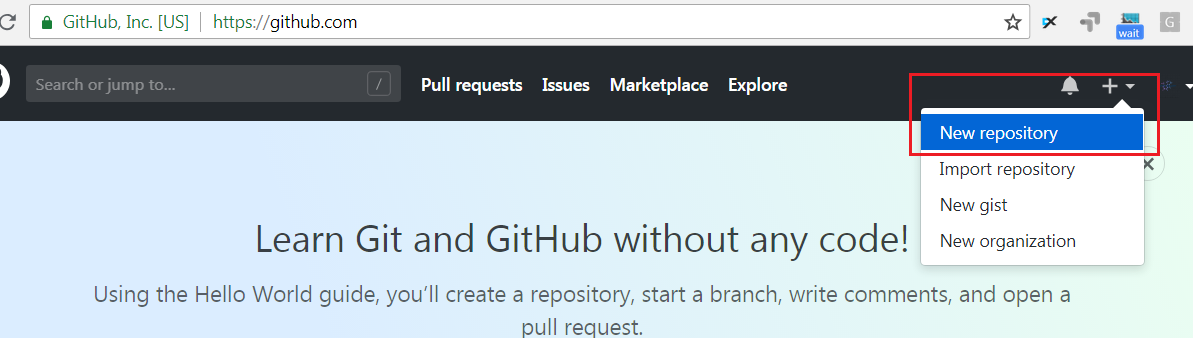
1. Sign-up to Github and create a Global Repository in Github.

Creating a Global Repository in Github

Creating a Global Repository in Github


2. Provide the Global Repository Name as SeleniumJavaBasics.
Public Repository URL -> https://github.com/totalqa9/SeleniumJavaBasics

Global Repository

Global Repository


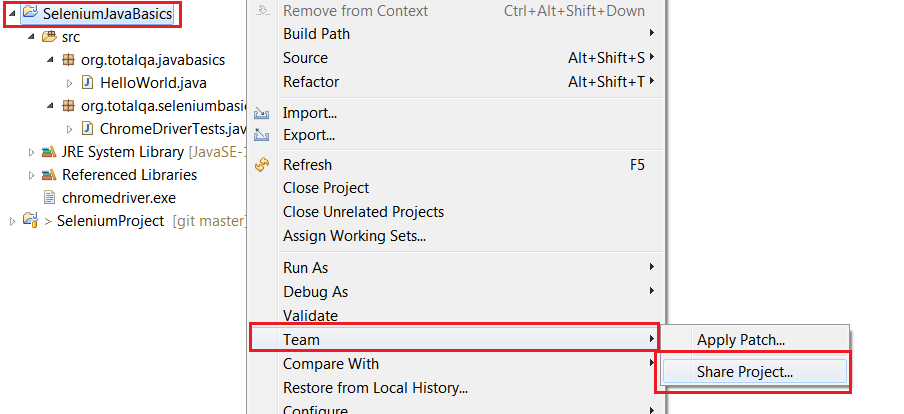
3. Share the Java Project Created in Eclipse to create a Local Repository.
Share Project

Share Project


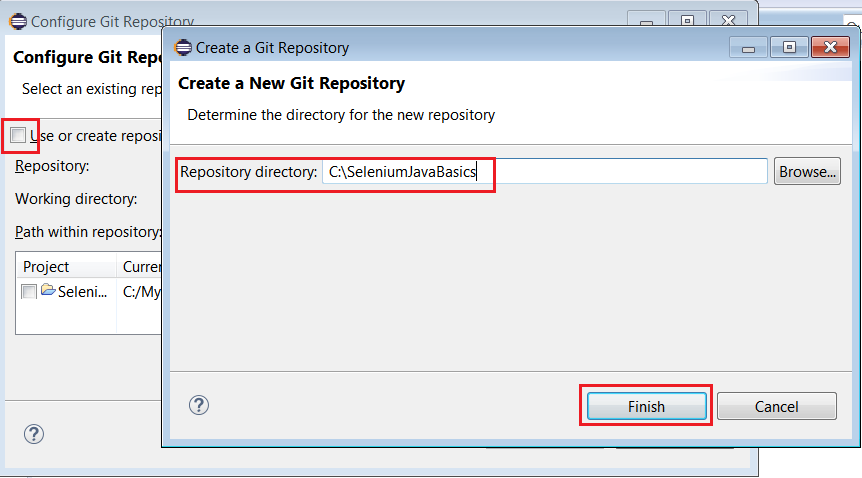
4. Select the Working Directory to create a Local Repository.
Select Local Directory to Store Github Repository

Select Local Directory to Store Github Repository


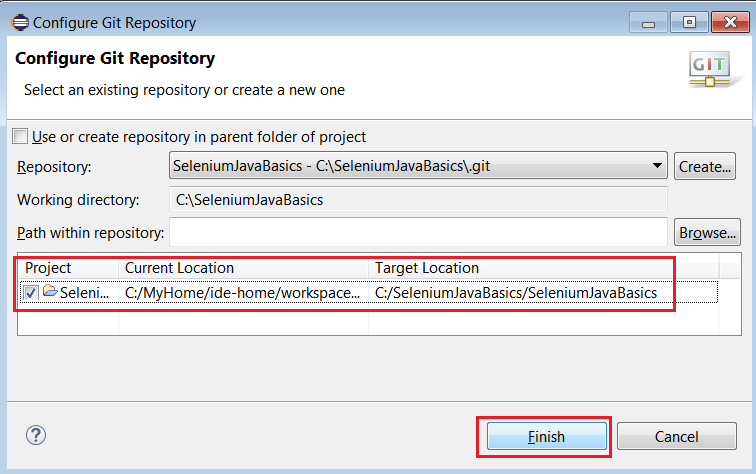
5. The Local Repository got selected.
Local Repository

Local Repository


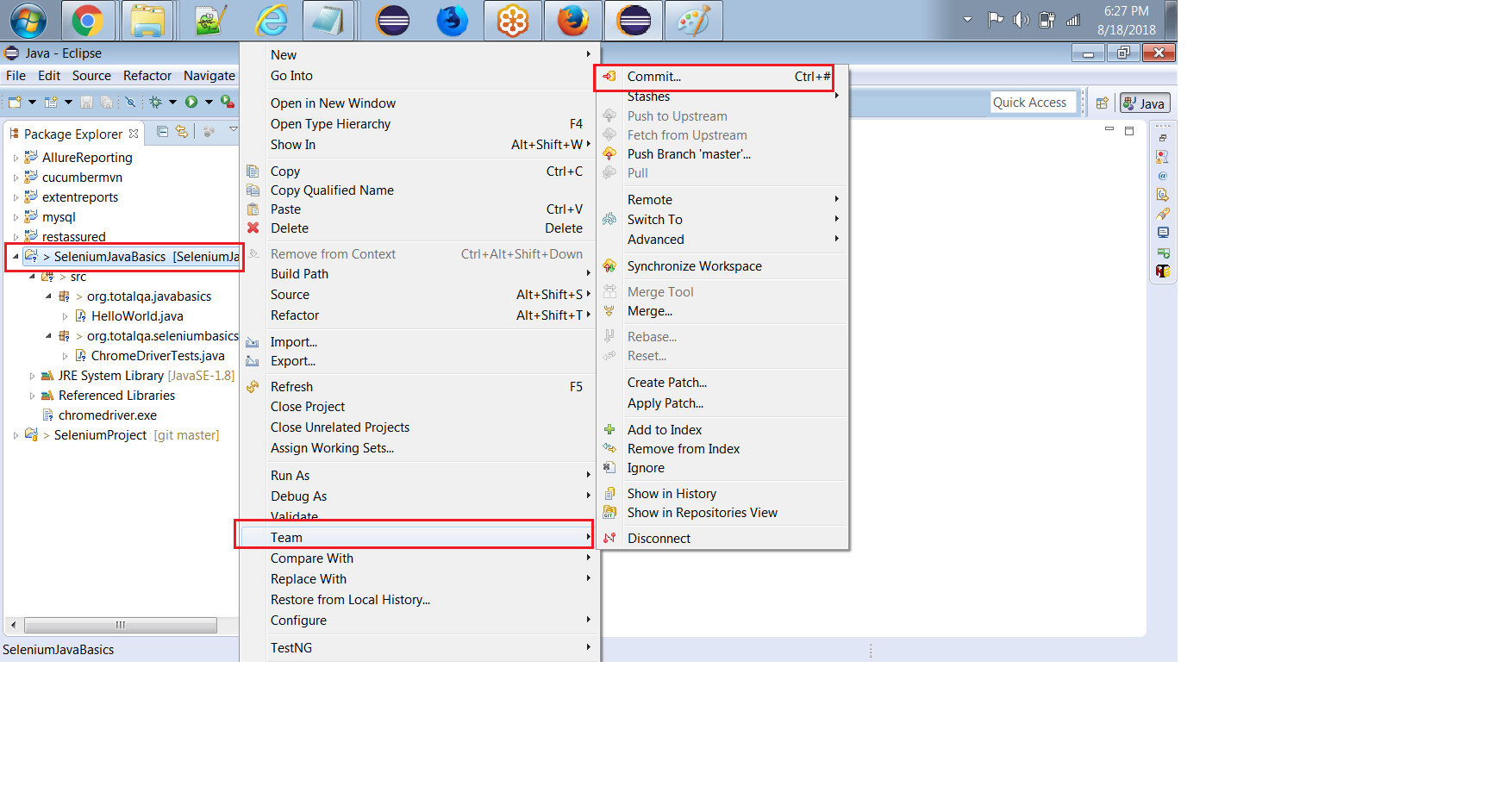
6. Commit and Push the Local Repository to Global Repository.
Commit and Push the Java Project

Commit and Push the Java Project


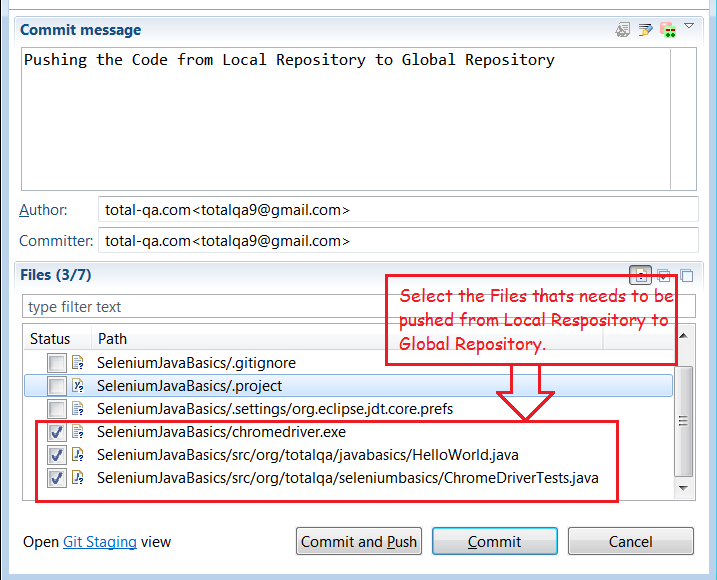
7. Select the Files in the Java Project to Push. Generally all the source files and xml files in the project will be committed. Ignore any reports generated during run-time.
Provide the Commit Message and Select the Files to Push

Provide the Commit Message and Select the Files to Push


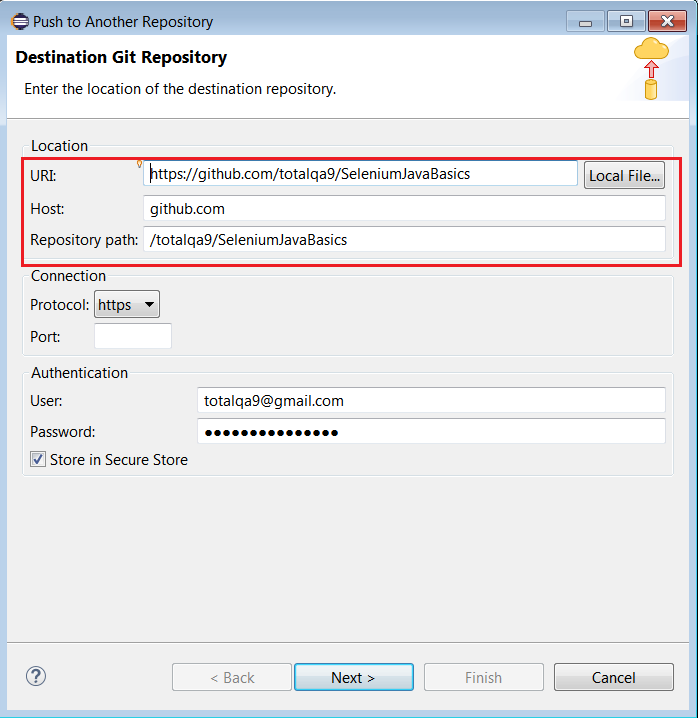
8. Provide the Destination Git Repository Details.
Destination Git Repository Details

Destination Git Repository Details


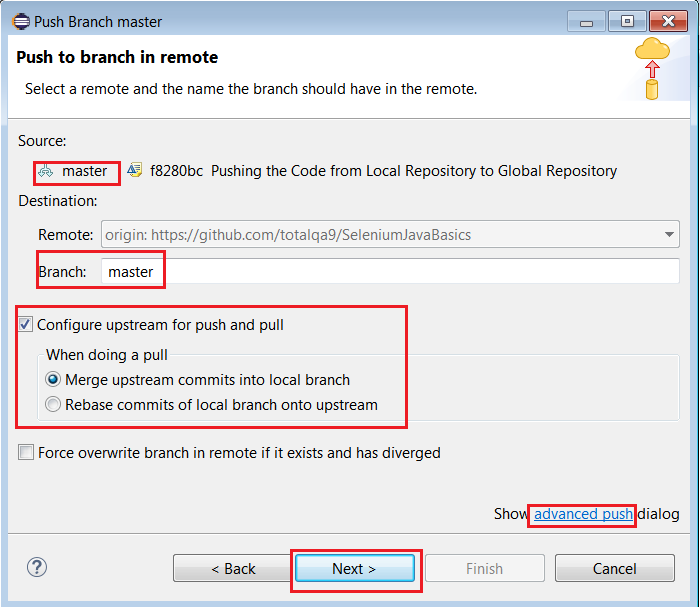
9. Pushing the Branch to Remote.Click on the advanced push link.
Advanced Push

Advanced Push


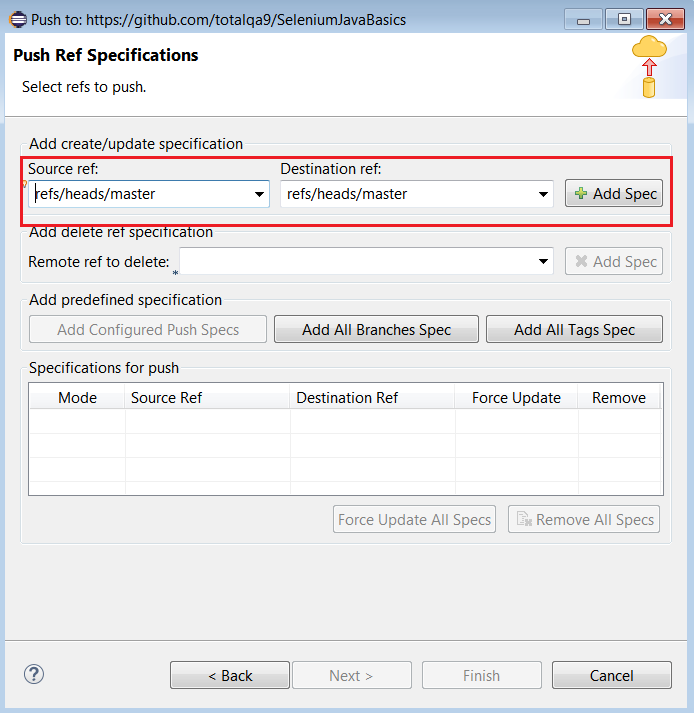
10. Provide the Source Ref and Destination Ref specification.
Push Ref Specification

Push Ref Specification


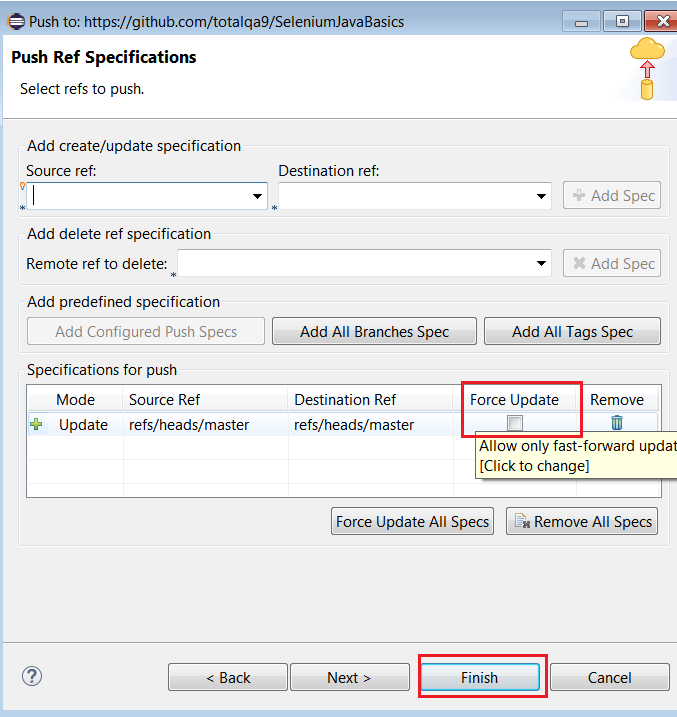
11. Select the Force Update Checkbox and Click on Finish button.
Force Update

Force Update


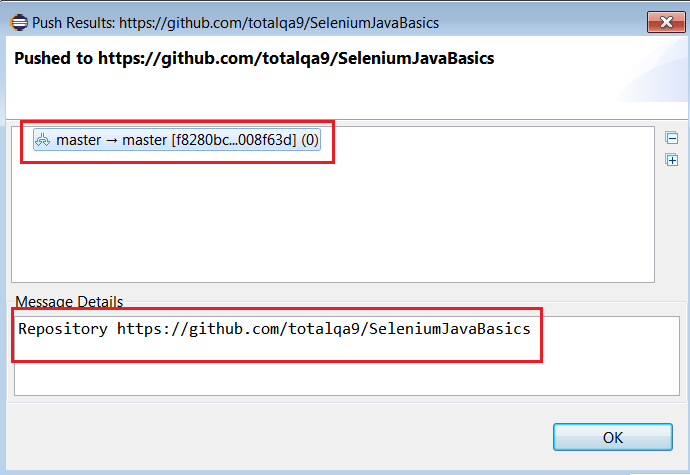
12. Finally the Source Code from the Local Repository pushed to Global Repository. Please find the Push Results below:
Push Results

Push Results


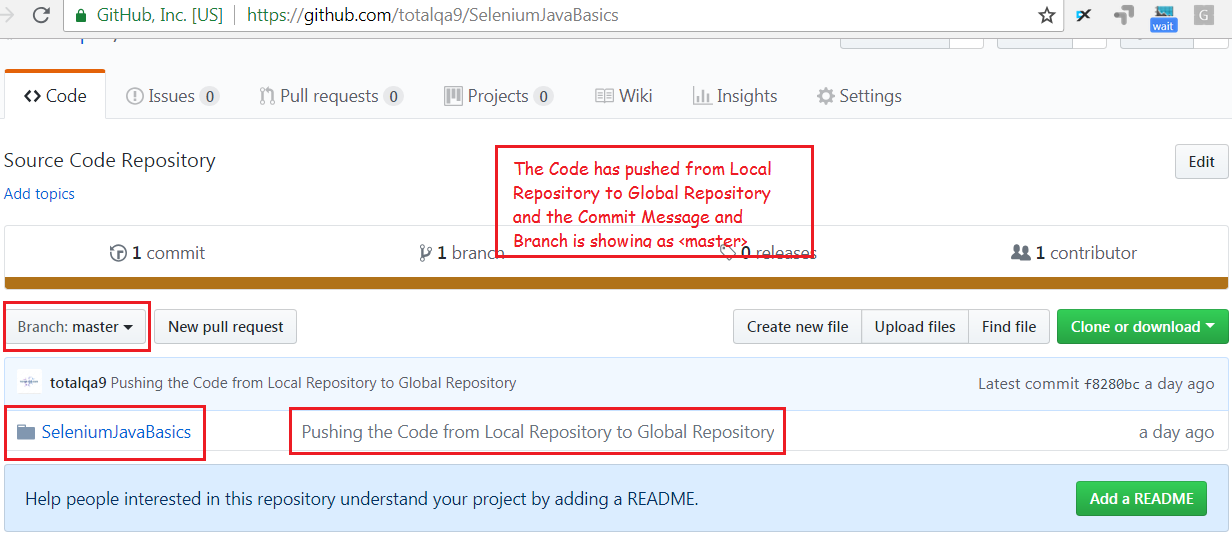
13. As a result the Code pushed to the Global Github Repository.
Global Repository

Global Repository

How can I install a second version of Firefox without affecting the first?

How can I install a second version of Firefox without affecting the first?


In the case of Selenium Locators to learn about Xpath and CssSelector its good to practice the Xpath and Css Selector on Firefox Addons like Firebug and Firepath . These Add-ons are compatible on Older Version of Firefox 55.0/56.0 and they are not compatible with Firefox Latest version Quantum.
To Download the older version of Mozilla Firefox we can access the link https://ftp.mozilla.org/pub/firefox/releases/.
To run the Selenium WebDriver Scripts we use the Selenium Jars , geckodriver.exe and Mozilla Firefox Latest Version which is Quantum.
So, can we have both Older version of Firefox and Latest Version of Firefox Quantum in the laptop.Is it possible???
Yes

Installing the First Version Mozilla Version – Latest
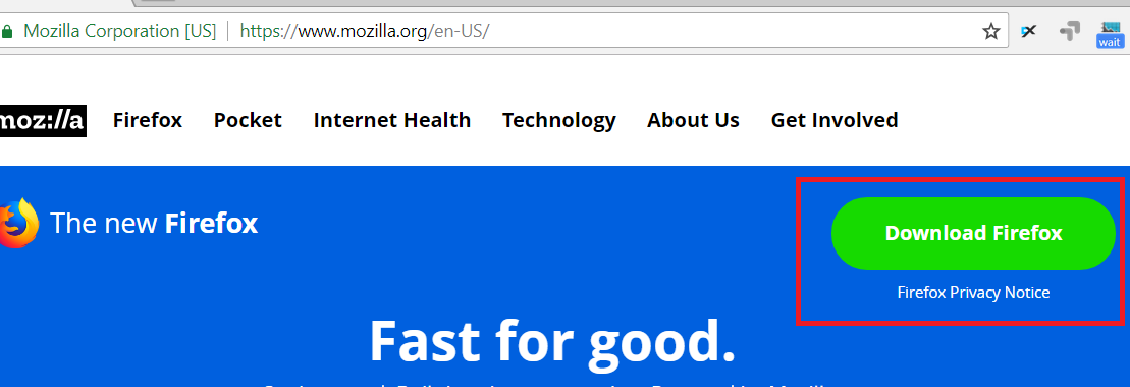
1. Access the mozilla firefox link . Click on Download button to download the executable file.

https://www.mozilla.org/en-US/firefox/new/

https://www.mozilla.org/en-US/firefox/new/


2. Open the executable file and complete all the Steps to download the Firefox in the C:\Program Files directory.
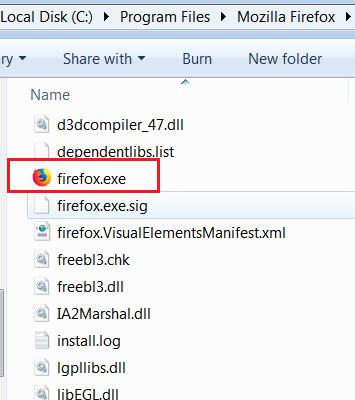
3. Double Click on the executable file to launch Firefox.
firefox.exe

firefox.exe


Installing the Second Version Mozilla Version – Older Version 55.0/56.0
1. Download the older version of Mozilla Firefox 55.0 from this link.
https://ftp.mozilla.org/pub/firefox/releases/55.0/win64/en-US/
2. Double Click on Firefox Setup 55.0.exe to Launch the Installer.
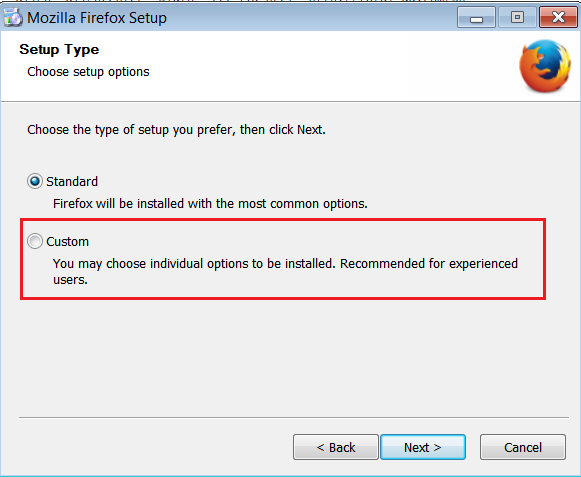
3. Select the Setup Type as Custom instead of Standard.

Setup Type - Custom

Setup Type – Custom


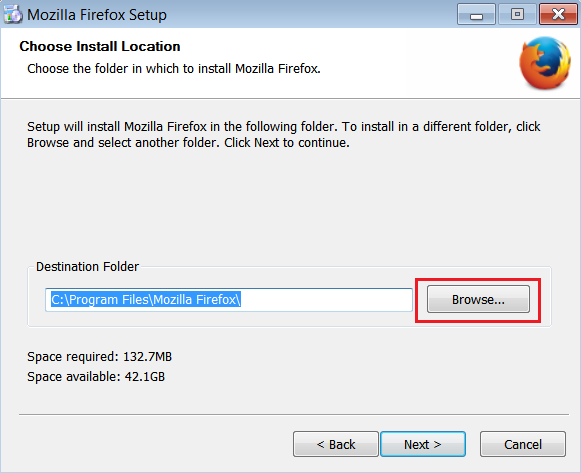
4. Click on Browse button to select the Path to install the older version of Firefox.
Mozilla Firefox Browse button

Mozilla Firefox Browse button


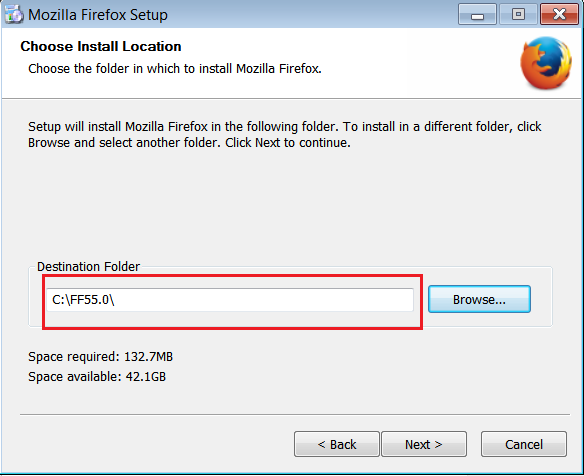
5. Create a Directory under C:\ and select the Path.
Mozilla Firefox Installation Directory

Mozilla Firefox Installation Directory


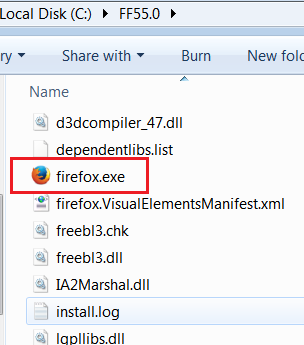
6. Once it is installed double click on firefox.exe to launch the firefox browser.
Firefox 55.0

Firefox 55.0


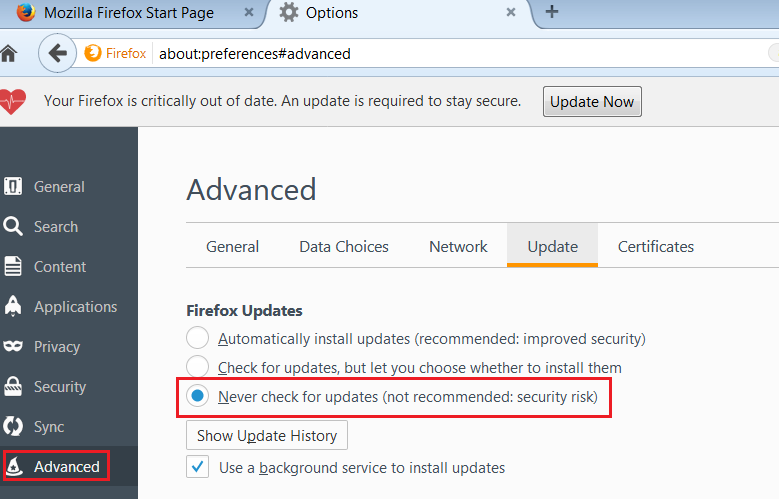
7. Navigate to Tools -> Options -> Preferences -> Advanced -> Update. Select the Option ‘Never Check for Updates’. Refer to the below screenshot.
Never Check For updates

Never Check For updates


8. Follow the link to Install Mozilla Firefox Add-ons[Firebug and Firepath].
Continue reading

How to Attach Java Docs Source & Selenium Docs Source To Eclipse

How to Attach Java Docs Source & Selenium Docs Source To Eclipse


In this tutorial we will learn how to attach the Java Source Code with attachments for the Java Projects
in Eclipse. This helps to understand the Coding Standards and Naming Conventions in Java. Also we can easily use this implement any logic in Selenium or Java Projects.

Attaching the Java Docs Source Code In Eclipse
1. Download the Java as per the steps mentioned in this tutorial.
JAVA Installation
2. Write a Sample Program in Java.

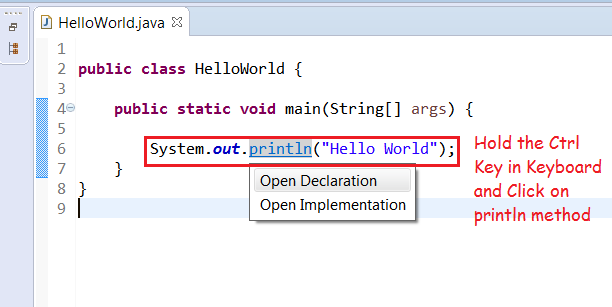
3. Hold the Ctrl Button in keyboard and Click on ‘println’ method.

Attaching Java Documentation & Source Code

Attaching Java Documentation & Source Code


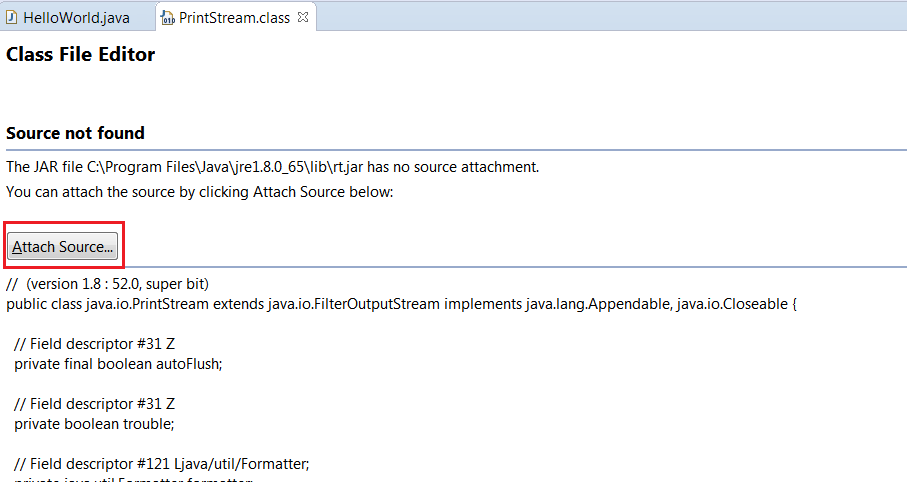
4. Click on Attach Source Button.
Attaching Source

Attaching Source


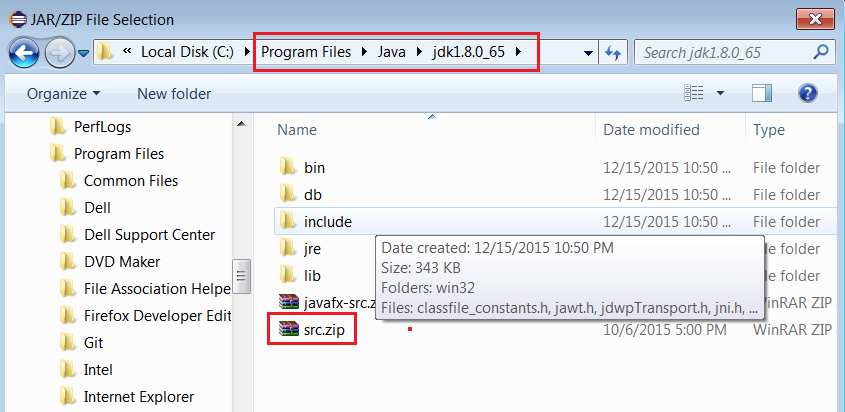
5. Click on External File Button to navigate to the location of the Java JDK [Java Development Kit] Source code.
Add the src.zip and click on OK button.

Adding src.zip to the project.

Adding src.zip to the project.


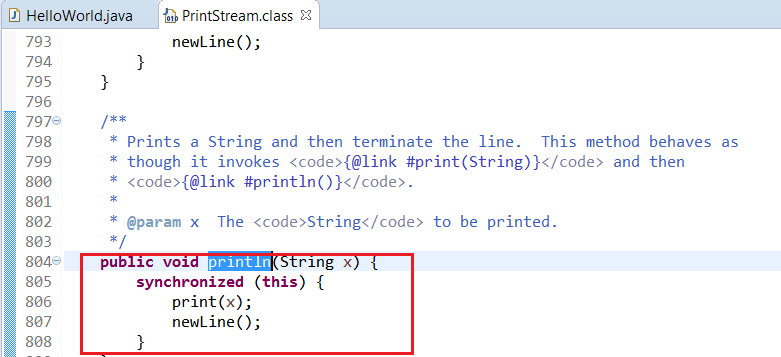
6. Hold the Ctrl Button and Click on ‘println’ method.
Java Source Code

Java Source Code

Attaching the Selenium Docs Source Code In Eclipse
1. Write a Sample Program in Selenium WebDriver.
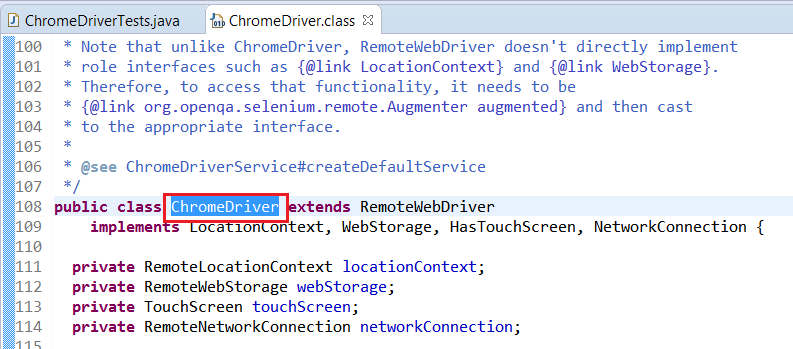
2. Hold the Ctrl Button in keyboard and Click on ChromeDriver Java Class.
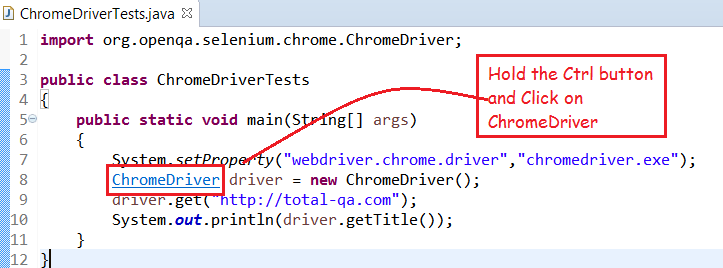


Selenium Chrome Driver

Selenium Chrome Driver


3. Click on Attach Source Button and click on External File Button.
Attaching ChromeDriver.java Source Code

Attaching ChromeDriver.java Source Code


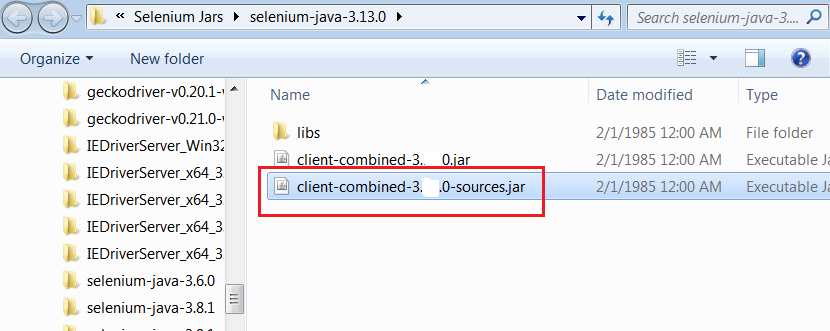
4. Navigate to the Location where the Selenium Libraries are downloaded.
Attaching Client Combined Sources Jar file

Attaching Client Combined Sources Jar file


Refer to the Step-By-Step Configuration of Selenium Jars in Eclipse. Configuration of Selenium Jars in Eclipse
5. Hold the Ctrl Button and Click on ‘ChromeDriver’ Java Class.
org.openqa.selenium.chrome.ChromeDriver.java

org.openqa.selenium.chrome.ChromeDriver.java